
To support accounting and financial reporting requirements, fees are typically organized using accounting codes that define descriptions, categories, or both. Because DESTINI Cloud Estimator currently doesn't support assigning WBS Properties to fees, accounting codes are implemented in reports through a combination of parameters and calculated fields. With a few adjustments, you can add new accounting codes or modify the existing built-in codes associated with each fee.
How to enable Placeholder Fees
Your company might have one-off fees for special projects. When running your accounting report, these fees will appear as Missing Fee Code because the code is not defined in the accounting report. In this scenario, we recommend turning on your report’s placeholder fee codes. By default, Cloud Accounting Reports include four sets of hidden parameters that allow you to specify four new fee codes for your one-off fees.
This section describes how to make the placeholder fee code parameters visible when you run the report.
- Open an estimate in DESTINI Cloud Estimator.
- Navigate to Home > New Report. Report Designer opens.
- Click File > Open.
- Navigate to the folder with the report template file (.repx) you want to modify.
- Click the .repx file to open it.
- On the right side of your screen, click the Field List tab at the bottom of Report Explorer.
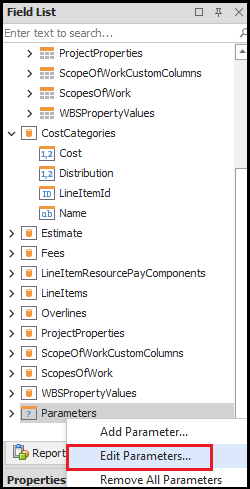
- Scroll to the bottom of the Field List tab, right-click Parameters, and select Edit Parameters.
- In the left pane, locate the Fees1_CodeInfo parameter.
- In the middle of the window, set Visible to Yes.
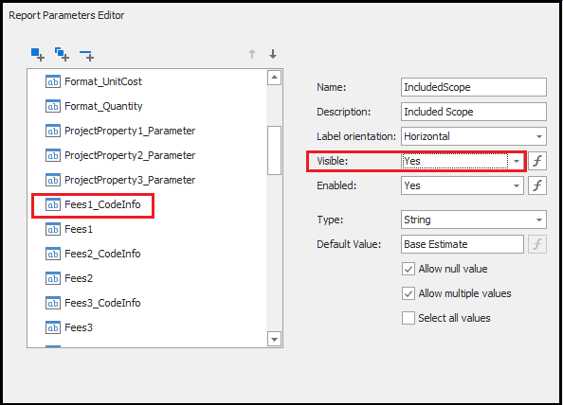
- Repeat the previous step for the next parameter in the list, Fees1.
- Click OK.
- Save and run your report.
The parameters you just configured enable you to specify one fee code when you run the report. If you need additional placeholder fee codes, repeat steps 8-10 for Fees2_CodeInfo/Fees2, Fees3_CodeInfo/Fees3, etcetera.
How to Update Fee Code Info
As part of scoping your accounting report, Beck Tech identified Code Info (Code, Description, and/or Category) for all fees in your estimate templates. In your accounting report, this information is consolidated into a single calculated field. The calculated field applies Code Info in the format Code=Description;Type based on the name of each fee.
Use the following procedure to update the calculated field with new Code Info for your fee.
- Open an estimate in DESTINI Cloud Estimator.
- Navigate to Home > New Report. Report Designer opens.
- Click File > Open.
- Navigate to the folder with the accounting report file (.repx) you want to modify.
- Click the .repx file to open it.
- On the right side of your screen, click the Field List tab at the bottom of Report Explorer.
- Use the search bar to find the FeeCode_Staging calculated field.
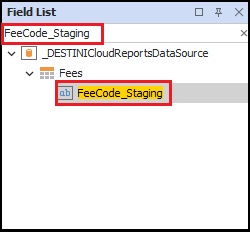
- Right-click the FeeCode_Staging calculated field and select Edit Expression. Expression Editor opens.
- Scan the
[Name] = ‘Your Fee Name’rows until you find the fee you need to re-code.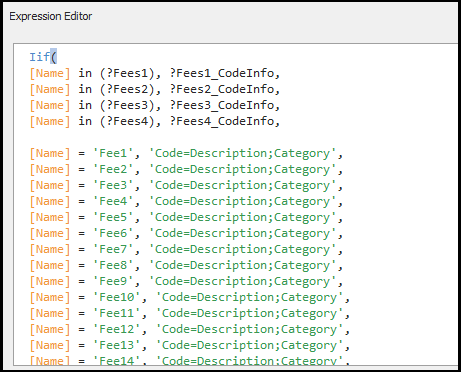
- Update the Code, Description, and/or Category portions of the expression.
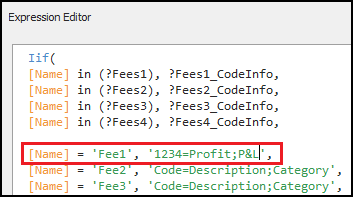
If your fee Name or Description requires an apostrophe, use two. Here's an example:
[Name] = 'Builder''s Risk', '650-040001=Builder''s Risk Insurance;O', - Click OK to save your changes.
- Save and run your report.
How to Code a New Fee
If you add a new fee to your estimate template, it will appear as “Missing Fee Code” when you run your accounting report. In this scenario, we recommend coding the new fee in your accounting report.
Use the following procedure to update a calculated field so your new fee has the correct code.
- Open an estimate in DESTINI Cloud Estimator.
- Navigate to Home > New Report. Report Designer opens.
- Click File > Open.
- Navigate to the folder with the accounting report file (.repx) you want to modify.
- Click the .repx file to open it.
- On the right side of your screen, click the Field List tab at the bottom of Report Explorer.
- Use the search bar to find the FeeCode_Staging calculated field.
- Right-click the FeeCode_Staging calculated field and select Edit Expression. Expression Editor opens.
- Copy the last
[Name] = 'Your Fee Name', 'Code=Description;Category',row and then paste it below the row you copied.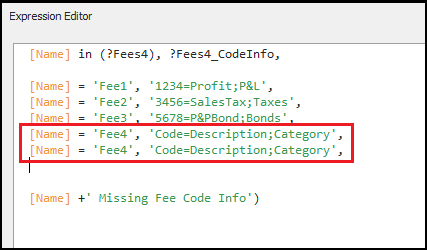
- Change the fee Name, Code, Description, and/or Category.
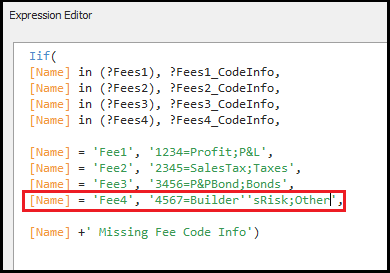
If your fee Name or Description requires an apostrophe, use two. Here's an example:
[Name] = 'Fee4', '4567=Builder''sRisk;Other', - Click OK to save your changes.
- Save and run your report.