
With the embedded version of DESTINI Takeoff (available within DESTINI Cloud Estimator), you can right-click a line item, choose Sketch Item, and then sketch takeoff onto your drawing in the Takeoff View. Sketching takeoff creates a new condition (if needed), maps it to the line item, and automatically updates quantities for the line item as you sketch the condition onto the drawing.
If a line item isn't mapped to a takeoff condition, Estimator automatically displays the Create Condition dialog box when you right-click the line item and choose Sketch Item. The takeoff type is set automatically assigned based on the line item's unit of measure:
|
Line item unit of measure |
Default takeoff type |
|
Area |
Area |
|
Volume |
Area |
|
Length |
Linear |
|
All other units |
Count |
You can't change a condition's type (linear, area, or count) after you create it, so make sure the type is right before you finish creating it.
If a line item is already mapped to a condition, Estimator opens embedded Takeoff so you can draw more of that condition. The condition picks up the Takeoff-enabled WBS properties assigned to the line item.
Sketch a line item
- Open an estimate in DESTINI Cloud Estimator.
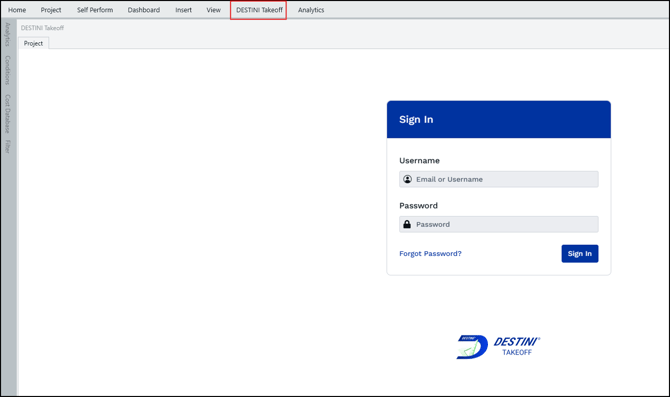
- Click DESTINI Takeoff and then enter your username and password.
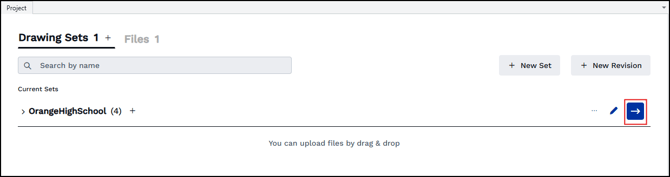
- On the Project tab, click the blue arrow to open a drawing set.
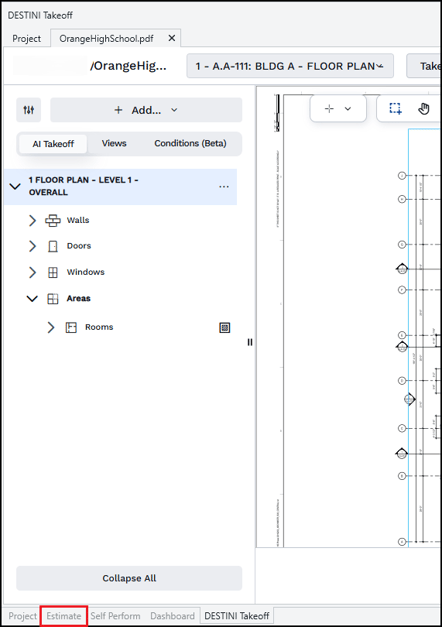
- Click Estimate to open the Estimate View. If you work with two monitors, you might find it easier to sketch takeoff onto your drawing by dragging the Estimate View tab at the bottom of your screen to your second monitor.
- In the Estimate View, right-click a line item you want to quantify and select Sketch Item, or press CTRL + D.
- If a condition already exists for the line item, Estimator displays the drawing and a crosshair. You can sketch takeoff onto the drawing.
If a condition doesn't already exist for the line item, Takeoff displays the Add Condition dialog box. Enter the details for your new condition and click Save.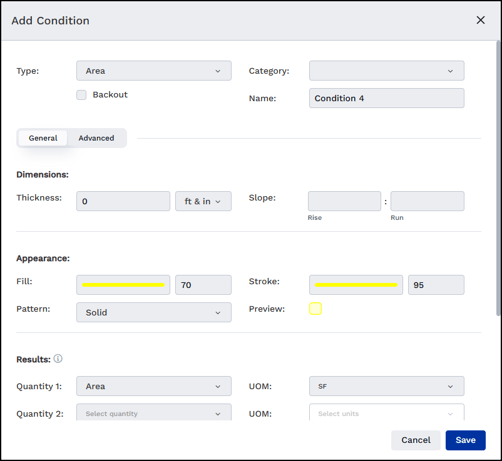
- Draw takeoff onto the drawing. The condition's quantity flows back to the line item in the Estimate View.
DESTINI Takeoff retains a mapping between the line item and the new condition. Additionally, the condition is saved to the Project Library for the current and future versions of Takeoff for this project. It won't affect other estimates or other Takeoff projects.
To cancel or switch line items while sketching:
- To cancel: Left-click a different line item. Sketching stops and the Takeoff window closes.
- To switch: Right-click a different line item and select Sketch Item. A new sketch starts, and the condition you create is mapped to the new line item.
Troubleshooting
Sketch Item isn't available when I right-click a line item.
The following table lists reasons why you might not see or be able to activate Sketch Item.
|
What you see |
Why |
What to do |
|
Message: "Sketch item is unavailable when more than one condition is mapped" |
The line item has more than one condition mapped to it. |
Map the conditions manually instead. |
|
Sketch Item is grayed out, with the tooltip "Line Items owned by an Assembly can not be sketched" |
The line item belongs to an assembly. |
Map conditions manually. |
|
Sketch Item is grayed out |
The estimate isn't connected to a Takeoff project. |
Create a new set in the Takeoff View in the estimate. |
|
Sketch Item doesn't appear |
You don't have a Takeoff license. |
Contact your administrator. |
Related articles
- DESTINI Takeoff: Working with Conditions
- DESTINI Takeoff: Performing Manual Takeoff
- DESTINI Takeoff Version 1.8 Release Notes