
For users who build out a large number of custom Project Properties, the Project View offers a couple of simple options to make navigating those properties a little easier.
This article offers a quick look at the sort and search features available in the Project View.
Sort Project Properties
By default, Project Properties are listed in order of creation, with the newest Project Property placed at the bottom of the list.
But you can also re-order this list alphanumerically by Item name, Value, or Notes data, simply by clicking on the relevant column header.
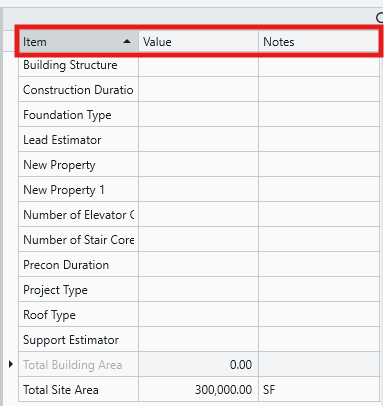
When a column header is clicked, this small arrow will appear, indicating that the list is being sorted by that header.
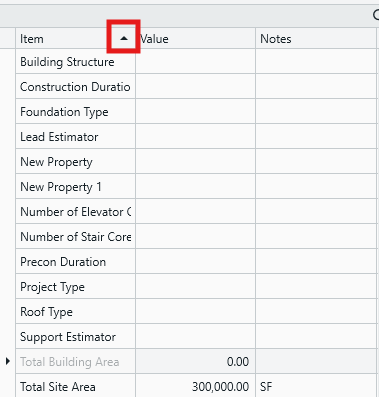
You can click on that same header again to reverse the sort order. Note that the arrow will flip around, confirming the change.
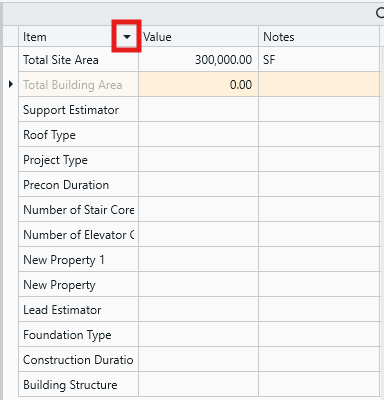
Sorting by the Notes column can be resourceful. Depending on how you use the Notes column, you can sort by Notes to group properties of the same unit of measure, or you can insert numbers, or other custom categorization, into the Notes cells to define a set sort order that you like.

Search Project Properties
The Project Properties list also has its own dedicated search feature, to make navigating large lists of properties easier.
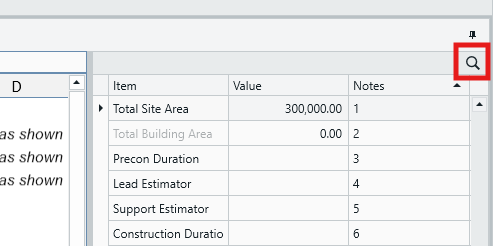
When you click the search symbol, a search field will be revealed, where you can enter search terms to locate specific properties.

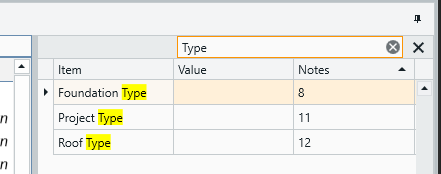
This search function is not limited to the names of the Project Properties - it will pull matched results found in all three columns (Item, Value, and Notes). So you can search a name...
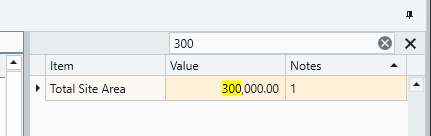
...or a numerical value to hone your results:
Submit Your Suggestions to Help Improve This Article