
Standard reports display the Total Cost value for each line item. If you prefer, you can suppress the value and display text in the Total Cost cells. This article describes how to configure a report to display "Included" for Base Estimate line items while continuing to display the Total Cost for alternate line items.
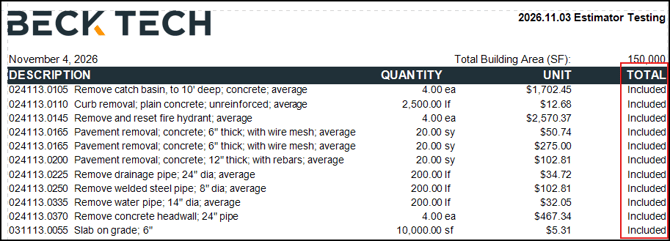
The procedures in this article describe how to create two parameters to control which scopes use text and what text is displayed.
Configure Parameter Changes
- Open an estimate in DESTINI Cloud Estimator.
- Navigate to Home > New Report. Report Designer opens.
- Click File > Open.
- Navigate to the folder with the report template file (.repx) you want to modify.
- Click the .repx file to open it.
- In Report Explorer on the right side of your screen, click the Field List tab.
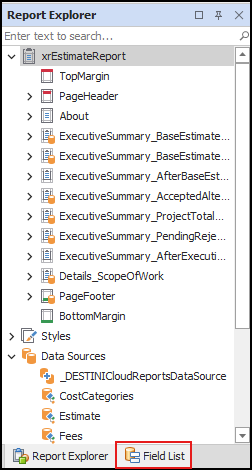
- Scroll down and expand Parameters,
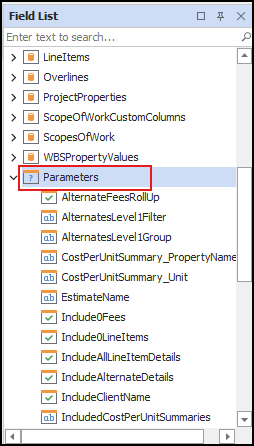
- Right-click Include0LineItems and click Edit Parameters.
- In the top left corner of the window, click the Add Parameter button.
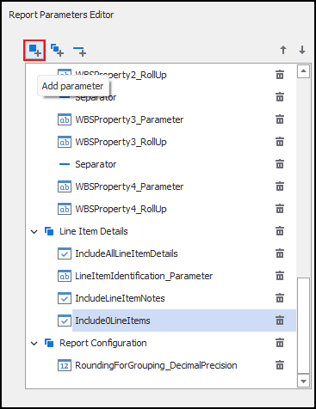
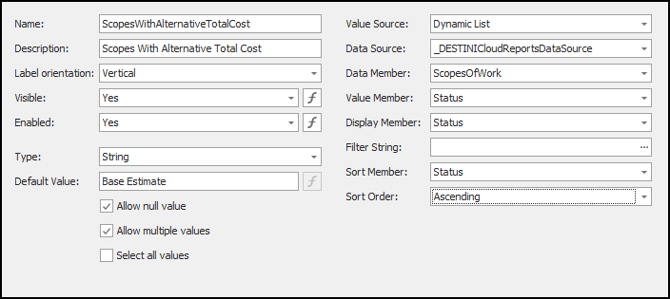
- With the new parameter selected, enter the following information:
-
Name – ScopesWithAlternativeTotalCost
-
Description – Scopes With Alternative Total Cost
-
Label orientation – Vertical
-
Type – String
-
Allow null value – Checked
-
Allow multiple values - Checked
-
Default value – enter Base Estimate
-
Value Source – Dynamic List
-
Data Source - _DESTINICloudReportsDataSource
-
Data Member – ScopesOfWork
-
Value Member – Status
-
Display Member – Status
-
Filter String – Leave blank
-
Sort Member – Status
-
Sort Order – Ascending
-
-
- Click the Add Parameter button again. Estimator saves the changes you just made and creates a new parameter.
- With the new parameter selected, enter the following information and click OK:
a. Name – AlternativeTotalCost
b. Description – Alternative Total Cost
c. Type – String
d. Allow null value – Checked
e. Default Value – enter Included
Set the Default Value based on the text you want to display in the columen, such as Included or Included in Above. For more information about changing your parameter’s default value, see How to Change Your Report Parameter’s Default Value.
Designer Changes
-
In Field List on the right side of your screen, use the tabs to switch back to Report Explorer.
-
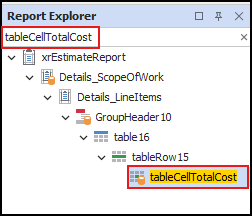
In the Report Explorer, search for tableCellTotalCost.
-
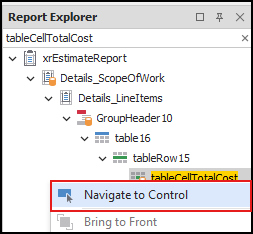
Right-click the result and select Navigate to Control.
-
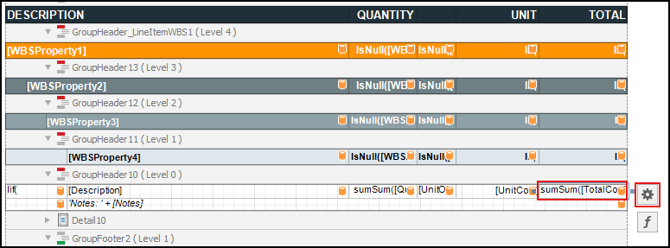
In Designer in the middle of your screen, click the Gear button to the right of the Total Cost cell.
-
In the Table Cell Tasks popup, enter the following information:
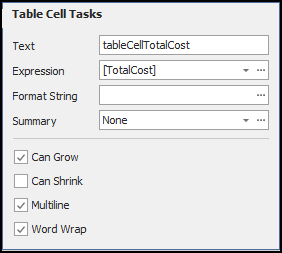
-
Format String – Clear the contents of the field
-
Summary = Choose None from the dropdown
-
-
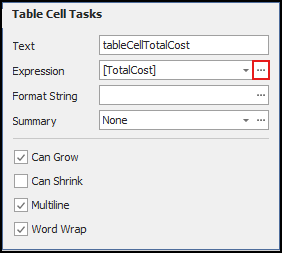
Click the ellipsis button next to Expression.
-
Choose one the following expressions based on your report.
Report
Total Cost Expression
Owners
Iif([ScopesOfWork].[Status] in (?ScopesWithAlternativeTotalCost), ?AlternativeTotalCost, FormatString('{0:c0}',
[][[WBSProperty1] = [^.WBSProperty1] AND
[WBSProperty2] = [^.WBSProperty2] AND
[WBSProperty3] = [^.WBSProperty3] AND
[WBSProperty4] = [^.WBSProperty4] And
[LineItemIdentification] = [^.LineItemIdentification] AND
[Description] = [^.Description] AND
[UnitOfMeasure] = [^.UnitOfMeasure] AND
[UnitCost_RoundedForGrouping] = [^.UnitCost_RoundedForGrouping] AND
[Notes_ForGrouping] = [^.Notes_ForGrouping]
].Sum([TotalCost])))
LMSEO
Iif([ScopesOfWork].[Status] in (?ScopesWithAlternativeTotalCost), ?AlternativeTotalCost, FormatString('{0:c0}',
[][[WBSProperty1] = [^.WBSProperty1] AND
[WBSProperty2] = [^.WBSProperty2] AND
[WBSProperty3] = [^.WBSProperty3] AND
[WBSProperty4] = [^.WBSProperty4] And
[LineItemIdentification] = [^.LineItemIdentification] AND
[Description] = [^.Description] AND
[UnitOfMeasure] = [^.UnitOfMeasure] AND
[LaborCost_RoundedForGrouping] = [^.LaborCost_RoundedForGrouping] AND
[MaterialCost_RoundedForGrouping] = [^.MaterialCost_RoundedForGrouping] AND
[EquipmentCost_RoundedForGrouping] = [^.EquipmentCost_RoundedForGrouping] AND
[SubCost_RoundedForGrouping] = [^.SubCost_RoundedForGrouping] AND
[OtherCost_RoundedForGrouping] = [^.OtherCost_RoundedForGrouping] AND[Notes_ForGrouping] = [^.Notes_ForGrouping]
].Sum([TotalCost])))
-
Copy and paste the expression into Expression Editor.
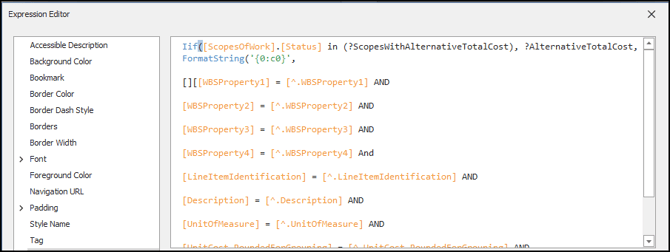
- Save and run your report.
This article assumes the numerical Total Cost will be printed in currency format with 0 decimal places. For more information about how to format strings, see the following articles:
- How to Change Numerical Formatting in DESTINI Cloud Reports
- Functions in Expressions | .NET Reporting Tools | DevExpress Documentation
- Remove WBS Footers from Line Item Details
- How to Change Numerical Formatting in DESTINI Cloud Reports
- Functions in Expressions | .NET Reporting Tools | DevExpress Documentation
- How to Change Your Report Parameter’s Default Value