
By default, the Page Header appears on every page. Based on your company’s branding standards, you might want the Page Header to only appear on the first page. This article describes how to configure this layout by replacing your Page Header with a new Report Header.
Add a ReportHeader Band
- Open an estimate in DESTINI Cloud Estimator.
- Navigate to Home > New Report. Report Designer opens.
- Click File > Open.
- Navigate to the folder with the report template file (.repx) you want to modify.
- Click the .repx file to open it.
- In the Designer section in the middle of your screen, locate and select the PageHeader at the top.

- Right-click the band and select Insert Band > ReportHeader. Estimator creates a new ReportHeader band above the PageHeader.
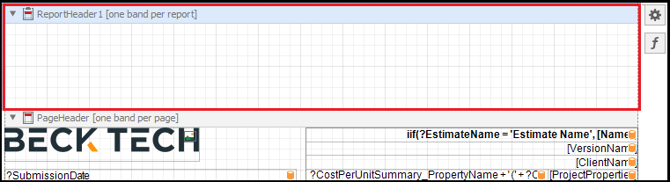
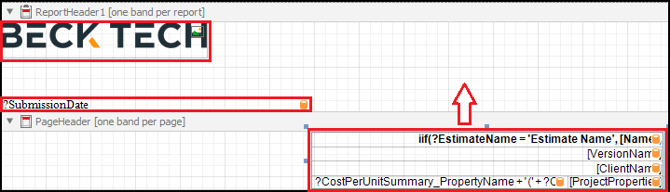
- Drag and drop each control from the PageHeader into the new ReportHeader band. Note: To drag and drop the table in the bottom right of the PageHeader, hover your mouse over the left edge of the cells until your cursor changes to a four-pronged arrow.
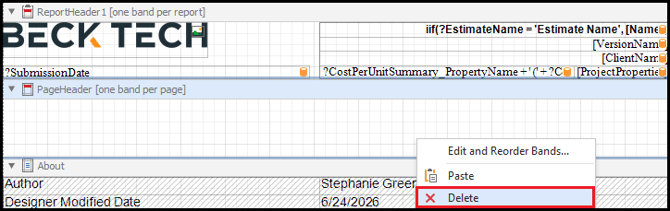
- Once the original PageHeader is empty, right-click the original PageHeader and select Delete.
Format the New Band
- Select the new ReportHeader band and then locate the Properties panel on the bottom right of your screen.
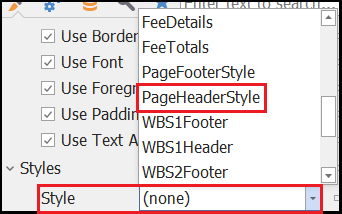
- Expand Styles.
- In the Style drop-down, select PageHeaderStyle.
- (Optional) In Designer in the middle of your screen, reduce the height of your new ReportHeader band by locating its bottom edge and dragging it upward.
- Save and run your report.
- Scroll to page two of the report to verify the Page Header no longer displays.