
This article walks you through the steps to export an Accounting Report from DESTINI Estimator to a CSV file, making the data ready for import into another system. We will also cover common Excel data conversion issues and how to avoid them.
IMPORTANT: An accounting report is a custom report (.repx file) created by our Report Development team that automatically extracts costs from DESTINI Estimator so that you can import into your accounting software with little-to-no manual effort.
This report is customized based on your company's unique DESTINI Estimator Implementation and accounting software configuration. If you don't already have an Accounting Report, please see the following article:
Export a Report to CSV
- Generate an accounting report in Estimator using either the Reports button or the Find and Run Report button.
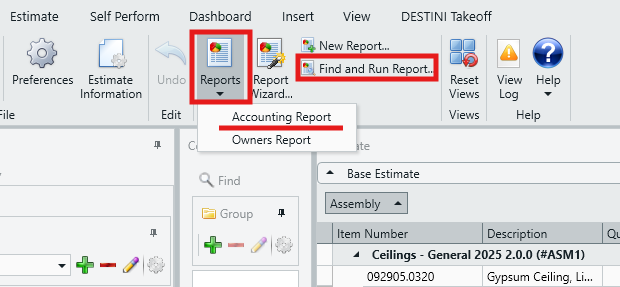
- When the report opens, it will display in the Report Viewer.
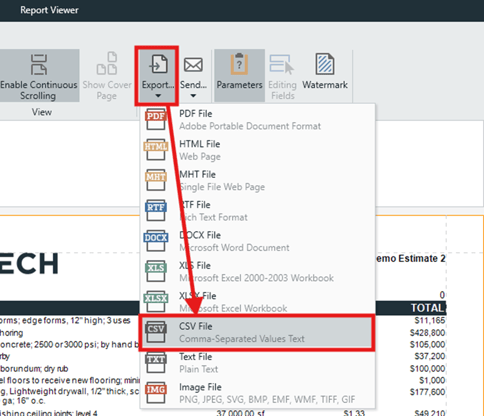
- In the Report Viewer, click the Export button and select CSV File.
- In the File Path field, click the ellipsis (…) to choose the location where you want to save the CSV file.
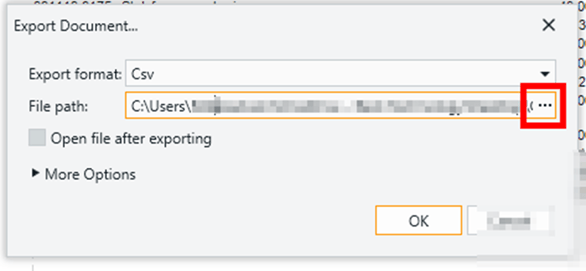
- Click OK. The CSV file is saved to the selected location.
Avoid Data Conversion Issues in Excel
A common challenge with exporting and importing CSV files is how Excel automatically converts certain types of data. Cost Codes, for example, often contain leading zeros (e.g. 031113.0010 Column 24"x24"). When exporting from Estimator, these values are included correctly in the CSV file. However, Excel’s default behavior may remove leading zeros (or interpret long numbers as dates) when the file is opened.
If the CSV file is then saved in Excel, these conversions are committed to the CSV file and can cause issues in downstream systems.
To avoid this and other formatting problems, you can disable the following Automatic Data Conversion features in Excel:
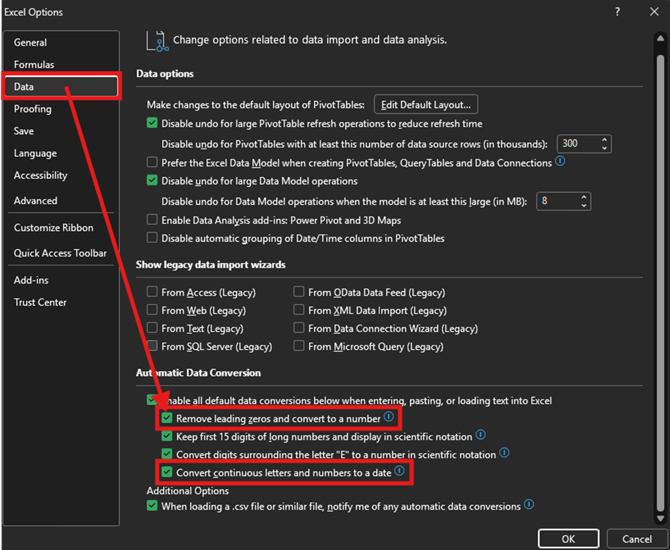
- In Excel, click File > Options.
- Select Data in the left panel.
- Scroll down to the Automatic Data Conversion section.
- Disable the following options:
- Remove leading zeros and convert to a number
- Convert continuous letters and numbers to a date
Alternative: Reformat Data Before Importing
Alternatively to the above, you can reformat the data in your CSV file to prevent Excel conversion issues. Refer to Microsoft’s guide:
Verify Your Exported Data
If you have disabled Automatic Data Conversion and/or reformatted the data but are still experiencing missing leading zeros:
- Open the CSV file in Notepad.
- Verify that the data appears correctly in the file.
If the data is incorrect in Notepad, re-export the report from Estimator and verify the new file.
If the data is exporting from Estimator with missing leading zeros, the issue may be related to the report itself. In this case, please contact Support for assistance.
Submit Your Suggestions to Help Improve This Article