
In the legacy (hosted) version of DESTINI Estimator, the report parameters panel included WBS Property filters at runtime. When a report was filtered using WBS Properties, embedded report scripts recalculated the base estimate fees and overall estimate total based on the filtered line items. Because this fee-calculation logic existed in both Estimator and the reports, we recommended regularly upgrading to the latest report versions to ensure the fee calculations remained consistent with the Estimator application.
DESTINI Cloud: Estimator streamlines this process by using the filtered results directly from the Estimate View. Simply apply the desired filters in the Filter View, and the report automatically includes the filtered line items, associated fees, and recalculated totals displayed in the Estimate View. Because filtering and fee recalculation are now handled by DESTINI Cloud, reports no longer require WBS Property filter parameters. As a result, generating a filtered report is as simple as applying your filters and running the report.
To Filter a Cloud Report
- Open DESTINI Cloud: Estimator and click the Estimate tab.
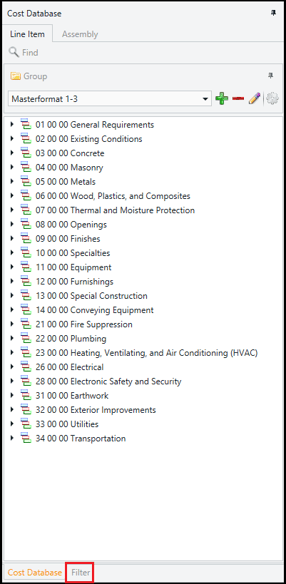
- At the bottom of the Cost Database panel, click the Filter tab.
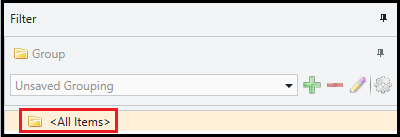
- On the Filter tab, click <All Items>.
- Click the Home tab > Find and Run Report. The report prints all line items.
- Close the Report Preview window.
- In the Filter view, select a node to filter your line items in the Estimate View.
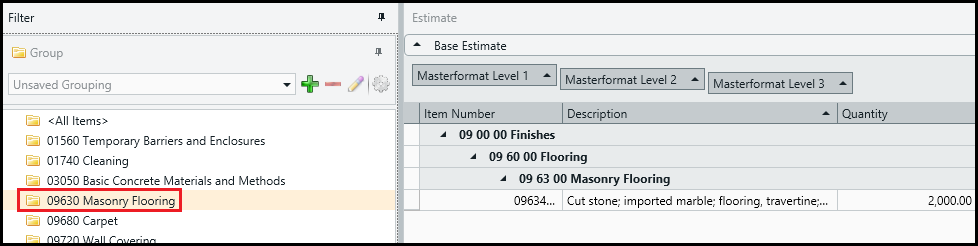
- Click the Home tab > Find and Run Report. The report prints only the filter line items.