
This article explains how to export a Project View workbook to Excel and how to import that workbook back into Estimator while maintaining Project Property links.
This workflow is useful for:
- Sharing a custom or updated workbook with other users
- Making edits in Excel and re-importing the file back into Estimator
Exporting a Project View Workbook
You can export any Project View workbook to Excel for sharing or offline editing.
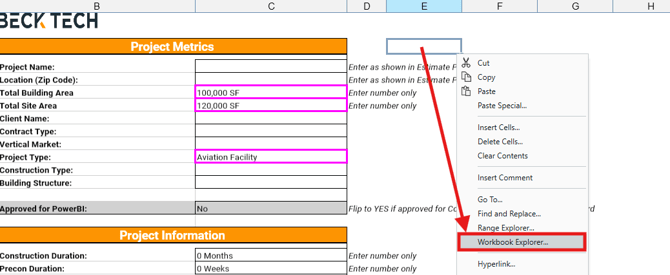
- In Project View, right-click in any cell.
- Select Workbook Explorer.
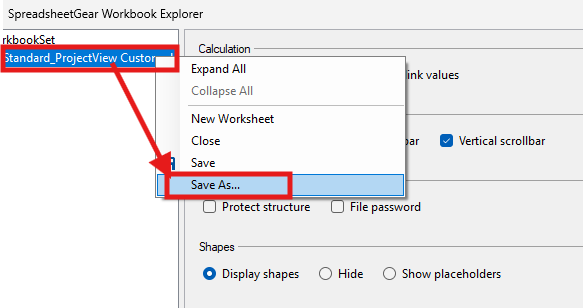
- In the left panel of the Workbook Explorer window, right-click the workbook and select Save As.
- Choose a location on your PC and click Save.
The Project View workbook is saved as an Excel file (.xlsx).
WARNING: The Project Properties list cannot be exported and will not be included in the Excel file.
Importing a Project View Workbook
There are two ways to import a Project View workbook into Estimator. Each method behaves differently with respect to Project Property–linked cells, so it’s important to choose the correct approach.
- Copy–Paste Method: Maintains existing Project Property links
- Open Template Method: Clears all Project Property links
Copy–Paste Method (Maintains Project Property Linked Cells)
Use this method when you want to bring an updated Project View workbook into an existing estimate that already contains linked Project Property cells.
Important Limitations
- If you add new rows or columns the a sheet in Excel, any linked cells that have moved will be referenced incorrectly when brough back into Estimator.
- Any affected Project Property links must be manually re-linked to the correct cells.
Steps:
- Open the updated Workbook file in Excel.
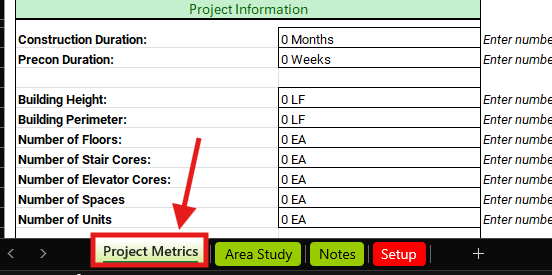
- Select the sheet you want to import.
- Click any cell in the worksheet.
- Press CTRL+A to select all cells.
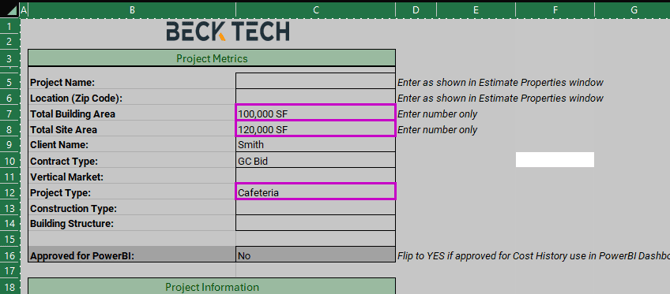
- Press CTRL+C to copy the selected cells.
- In Estimator, click any cell in the Project View.
- Press CTRL+A to select all cells.
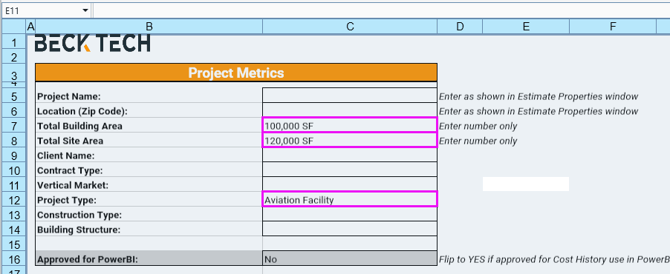
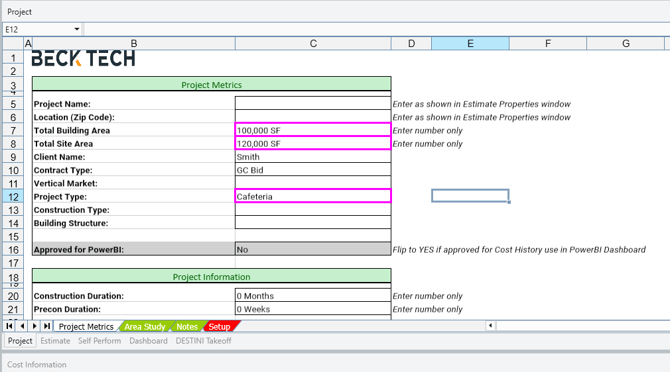
- Press CTRL+V to paste the copied cells.
-
If you made changes to multiple sheets in the workbook, repeat these steps for each sheet.
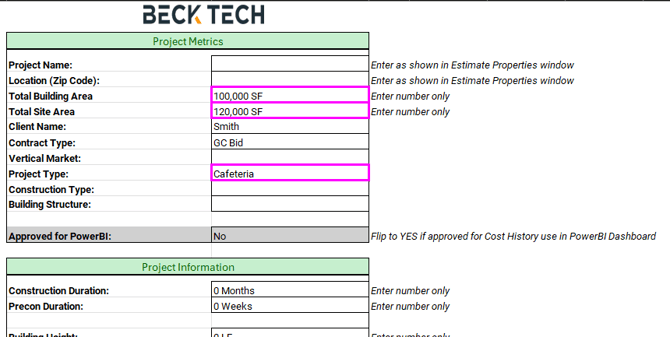
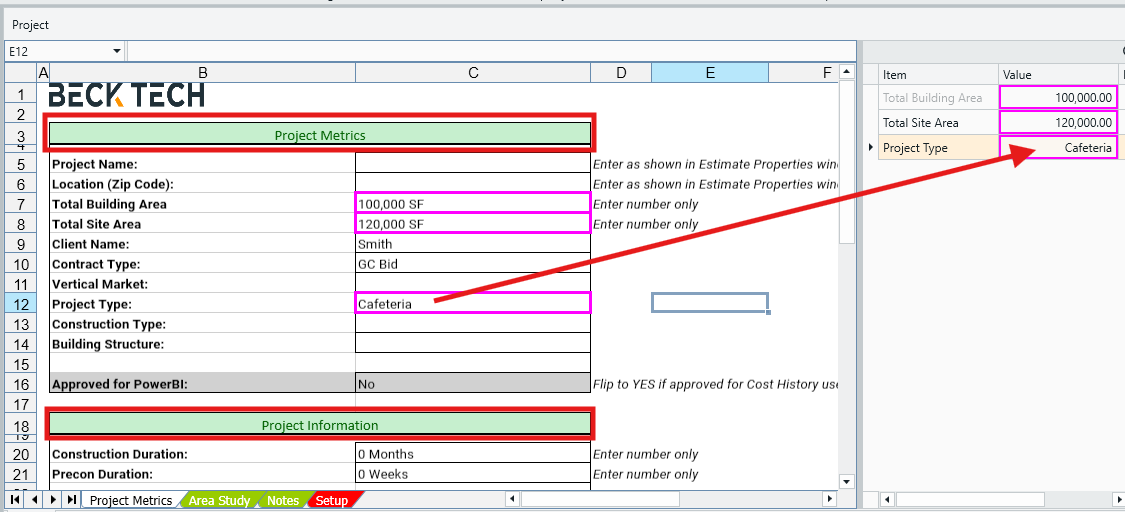
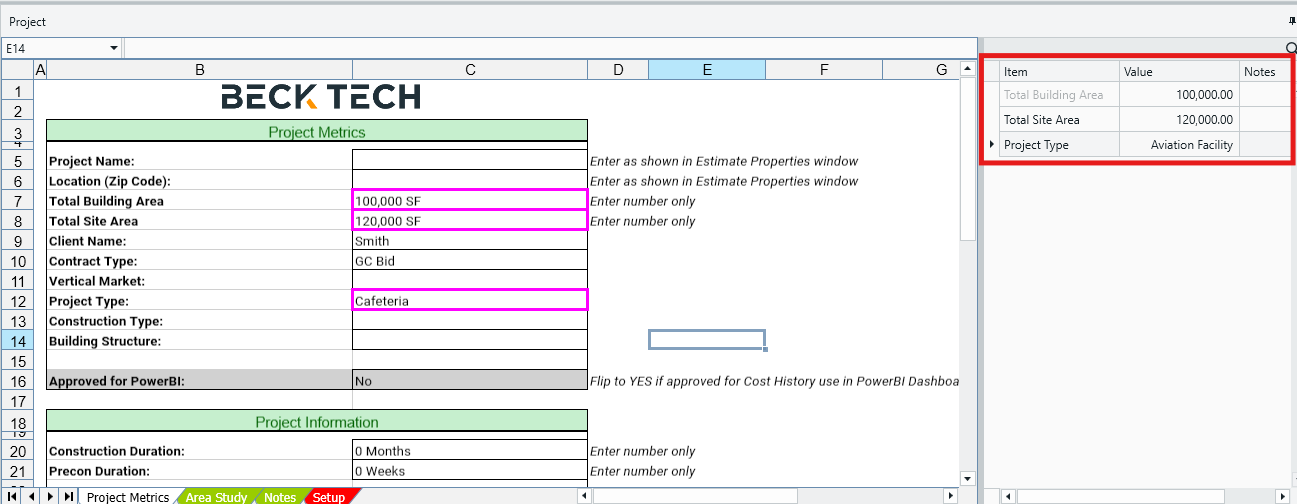
The worksheet data is imported into the Project View, and existing Project Property cell links are maintained. In the below example, you can see style changes have been applied (header cells changes to green), and new data entered into cells is reflected correctly in the Project Properties list.
Open Template Method (Does Not Maintain Project Property Linked Cells)
This method clears all existing Project Property links. Use it only when:
- Starting a brand-new estimate with a blank Project View, or
- Building a new Estimate Template from scratch.
Steps:
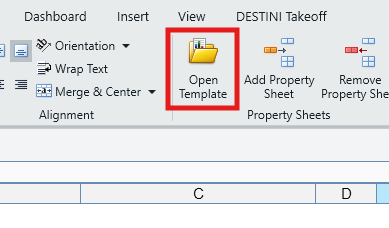
- In the Project View in Estimator, click Open Template in the main ribbon.
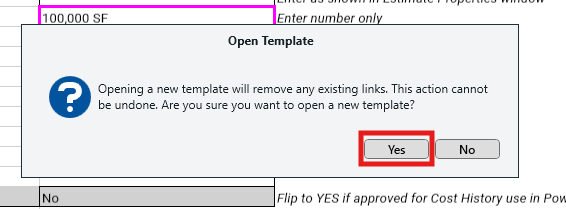
- Click Yes on the warning message.
- Navigate to and select the Excel file you want to import.
- Click Open.
The entire workbook is imported, including all sheets. All Project Property cell links are cleared and must be manually re-linked.
Submit Your Suggestions to Help Improve This Article