
Cost Library supports three primary ways to edit your data:
- Direct UI Edit (Side Drawer): Ideal for individual item maintenance, adjusting formulas, tweaking productivity values, and configuring properties.
- Bulk Edit or Delete: The Line Items page includes a bulk edit and bulk delete feature. This feature is ideal for making the same change to anywhere from a few line items to a maximum of 1,000.
- Bulk Spreadsheet Edit (Export & Re-Import): Ideal for comprehensive rate reviews, large catalog updates, and organization-wide reclassifications.
For large batches of changes (such as annual labor rate increases, supplier price adjustments, or restructuring WBS classifications), we recommend exporting and importing data using Microsoft Excel. For more information, see DESTINI Cost Library Export and Import.
The rest of the article describes how to edit data in Cost Library using methods one and two above.
Editing Data via the Edit Drawer
Every data entity in Cost Library—including Line Items, Assemblies, Choices, Variables & Formulas, WBS Properties, Rate Tables, and Self-Perform Resources—can be edited using an interactive side panel called a drawer.
- Open Cost Library in a web browser.
- In the left navigation, select a page.
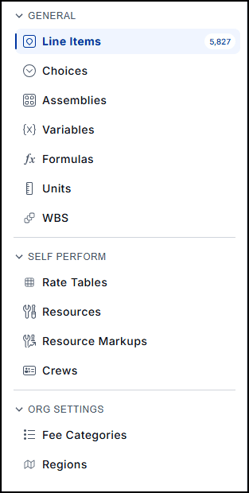
- Click a row in the data grid to edit. A drawer opens on the right side of the screen.
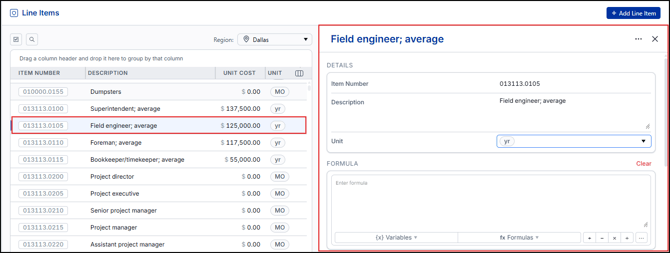
- (Optional) If you need more workspace while viewing nested tables or long formulas, hover over the left edge of the drawer and drag horizontally to resize.
- Make Your Changes:
- General Properties: Edit descriptions, codes, names, or units directly in their corresponding input fields. Note that unique name validation is enforced for items like Choices and Fee Categories.
- Costs & Rate Tables: Update base costs across cost categories (Labor, Material, Equipment, Subcontract, Other). For items with linked rate tables or markups, values can be edited per rate table.
- Crew Assignments & Productivity: When editing line items with an assigned crew, productivity fields (Units/MH, MH/Unit, and Units/HR) are editable and automatically recalculate linked cost breakdowns.
- WBS Values & Sorting: When editing List-type WBS properties, you can add new values quickly by pressing Enter or click Sort to order values alphabetically.
- Cost Library fields automatically save your changes as you navigate through the drawer or click anywhere else in Cost Library.
- When finished, close the drawer using the X icon in the upper corner or click the record row to deselect.
Bulk Edit or Delete
The Line Items page in Cost Library includes a bulk edit and bulk delete feature. Bulk editing and deleting are useful for the following tasks:
- Bulk assign or modify WBS Properties
- Bulk modify costs
- Bulk add/modify crews assigned to line items
- Delete a group of line items
- Bulk add formulas to line items
- Open Cost Library in a web browser.
- In the left navigation, select Line Items.
- Click the multi-select icon at the top of the grid view.
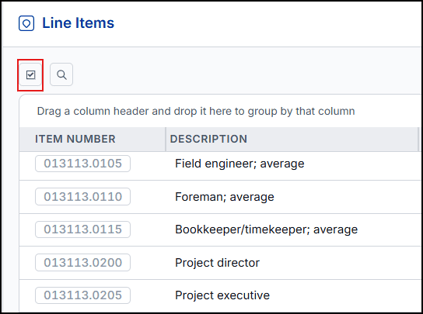
- Click the checkbox beside a line item to select it.
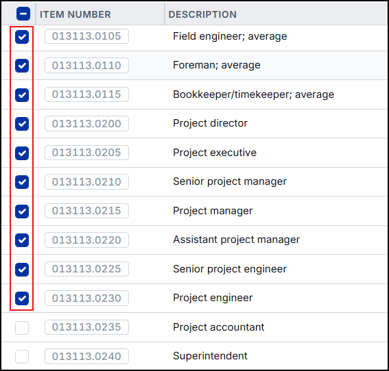
Or, select the checkbox beside the ITEM NUMBER column header to select the first 1,000 line items in the grid.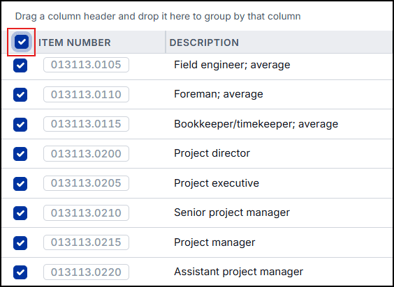
- At the bottom of the grid, click Bulk Edit to edit the selected items or click Bulk Delete to delete them.
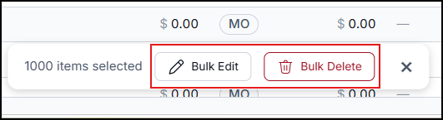
- If you clicked Bulk Edit, the Bulk Edit drawer opens.
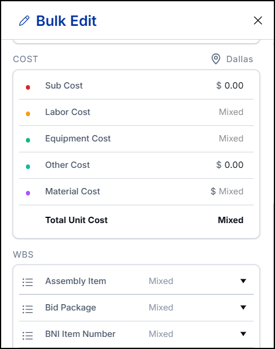
Editable fields with mixed values display the word Mixed. A bulk edit on mixed fields could have unintended consequences. - Make your change and click Apply to update all selected line items.
Undo & Quick Actions
- Undo/Redo: Cost Library supports undo/redo (
Ctrl+Z/Ctrl+Y) for list reordering, category renaming, and field edits. - Editing Pace: Because edits auto-commit when moving between fields, allow changes to register before issuing sequential undos to ensure each field reverts as intended.
Publishing Edits Downstream to Estimators
Edits made in Cost Library remain in a working draft state until an administrator publishes a snapshot. This safeguards active project teams from mid-estimate rate shifts:
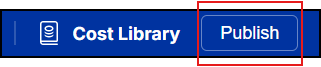
- Once your updates are reviewed and finalized, click Publish in the top navigation bar.
- Provide a descriptive snapshot version label and notes summarizing the changes.
- Estimators working in DESTINI Cloud Estimator can consume the updated data by clicking Check for Updates in Settings > Cost Library.