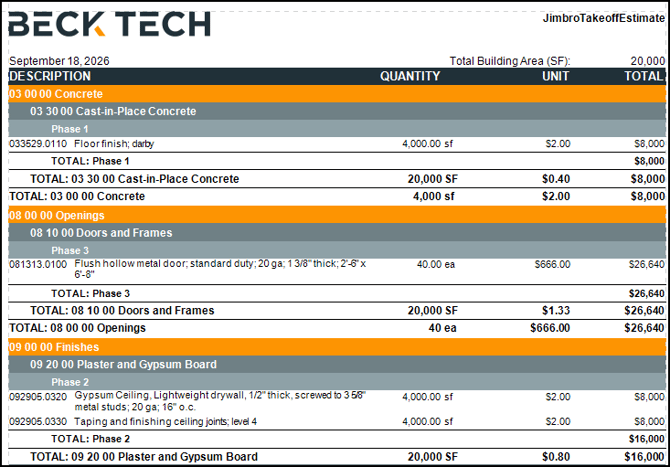
When generating reports with multiple WBS properties, you can choose a level two property for the summary on the main page while keeping the first level breakdown in the details. For example, if you run a report with Masterformat 1 > Masterformat 2 > System, you can use Masterformat 2 for the summary while keeping Masterformat 1 for the breakdown in the details.
- Open an estimate in DESTINI Cloud Estimator.
- Navigate to Home > New Report. Report Designer opens.
- Click File > Open.
- Navigate to the folder with the report template file (.repx) you want to modify.
- Click the .repx file to open it.
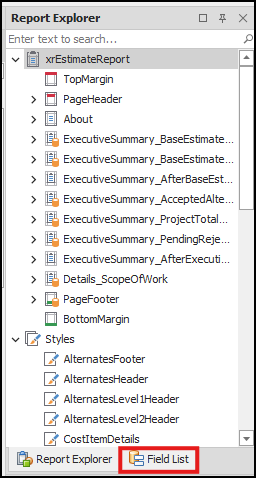
- In the Report Explorer panel on the right side of the screen, click the Field List tab.
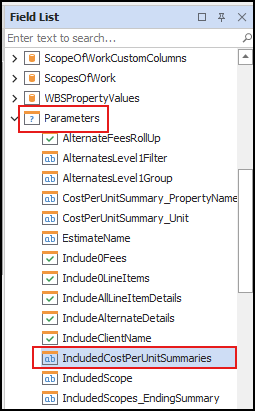
- Locate and expand the Parameters node at the bottom of the list.
- Select IncludedCostPerUnitSummaries.
- In the Properties panel in the bottom right corner of your screen, paste the following at the end of the Value field, including the leading comma:
,Level 2 Group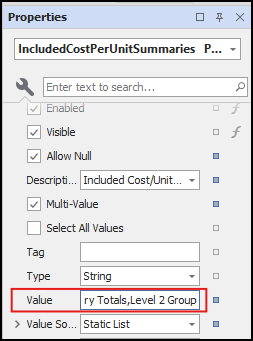
Designer Changes
-
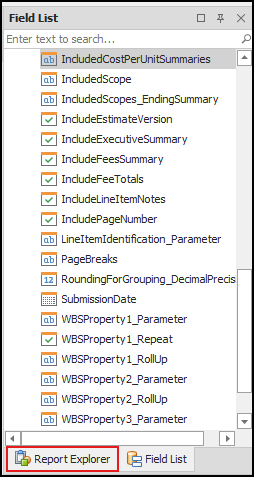
In the Field List panel, use the tabs to switch to Report Explorer.
-
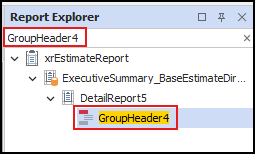
Search for and select GroupHeader4.
- In Designer in the middle of your screen, locate the band you selected in the previous step.

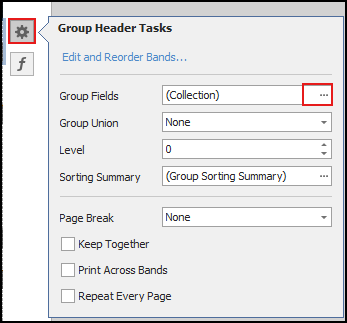
- Click the Gear icon to the right.
- In the Group Fields property, click the ellipsis (...) to open the Group Field Collection Editor window.
- In the Field Name dropdown list, select WBSProperty2.
- Click OK.
- In the band, click the [WBSProperty1] cell and then click the Function button.
![Click the [WBSProperty1] cell and then the Function button](https://howto.beck-technology.com/hs-fs/hubfs/image-png-Sep-18-2026-02-11-21-0132-PM.png?width=444&height=108&name=image-png-Sep-18-2026-02-11-21-0132-PM.png)
-
Copy and paste the following expression into the field and click OK:
[WBSProperty2]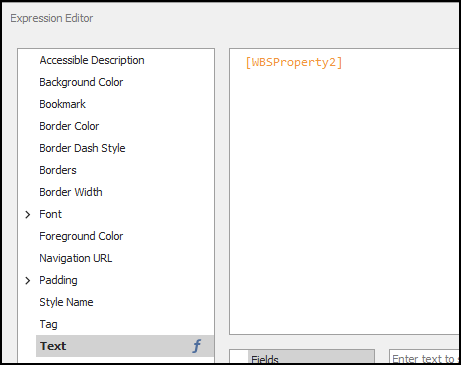
- In Designer, click the next cell to the right (in the Quantity column) and then click the Function button.
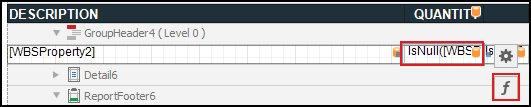
- Replace the expression with the following and click OK:
IsNull([WBSProperty2_OverlineQuantity], [ProjectProperties].[CostPerUnitSummary_PropertyValue])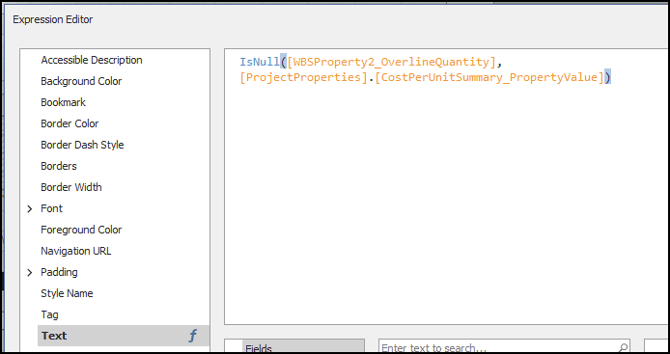
- In the left pane, click Visible.
- Copy and paste the following expression in the field and then click OK:
'Level 2 Group' IN (?IncludedCostPerUnitSummaries) AND not IsNullOrEmpty(?WBSProperty2_Parameter)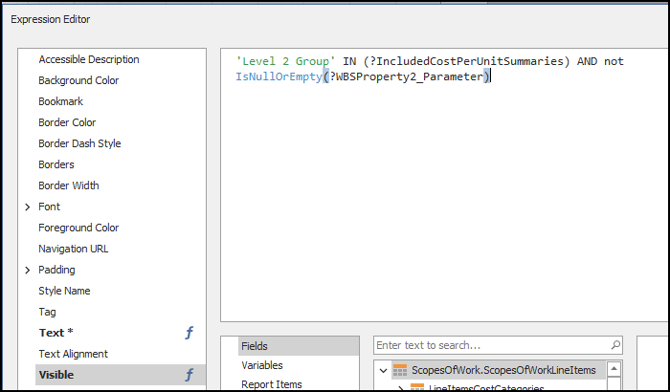
- In Designer, click the next cell to the right and then click the Function button.

- Replace the expression with the following and click OK:
IsNull([WBSProperty2_OverlineUOM], ?CostPerUnitSummary_Unit) - In the left pane, click Visible.
- Copy and paste the following expression in the field and then click OK:
'Level 2 Group' IN (?IncludedCostPerUnitSummaries) AND not IsNullOrEmpty(?WBSProperty2_Parameter) -
In Designer, click the next cell to the right (in the Unit column) and then click the Function button.

-
Replace the expression with following and click OK:
Iif(IsNullOrEmpty(?WBSProperty2_Parameter), '',NOT 'Level 2 Group' IN (?IncludedCostPerUnitSummaries), '',sumSum([TotalCost] / IsNull([WBSProperty2_OverlineQuantity], [ProjectProperties].[CostPerUnitSummary_PropertyValue]))) -
Save and run your report.
- In the Report Viewer Parameter pane, locate the WBS Groupings section.
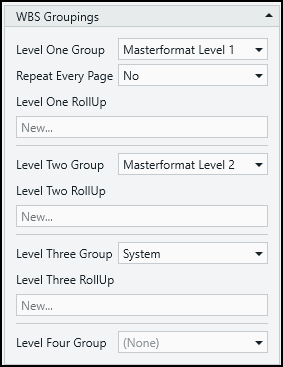
- Use the Level One Group and Level Two Group dropdown lists to choose WBS properties to display in the report.
- Click Submit. The summary displays information for your Level Two Group.
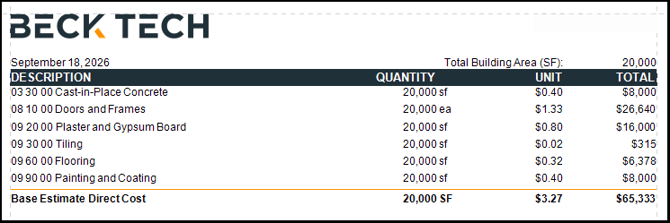
The breakdown details display information for your Level One Group.