
The Executive Summary section of DESTINI Cloud: Estimator reports include a Direct Cost total and fees table for the Base Estimate. With a few minor changes, you can also display Direct Cost total after the line item details, giving you a clear summary at the end of the report.
This article describes how to update a hidden parameter and adjust page breaks to display a Direct Cost total after the line item details.
- Open an estimate in DESTINI Cloud: Estimator.
- Navigate to Home > New Report. Report Designer opens.
- Click File > Open.
- Navigate to the folder with the report template file (.repx) you want to modify.
- Click the .repx file to open it.
- On the right side of your screen, click the Field List tab at the bottom of Report Explorer.
- Scroll to the bottom of the Field List tab and expand Parameters.
- Click IncludedScopes_EndingSummary. The Properties panel displays at the bottom right side of your screen.
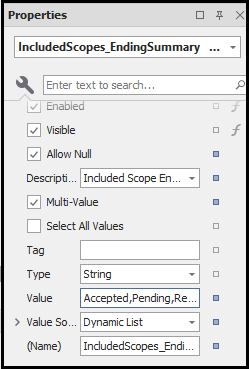
- (Optional) In the Properties panel, check the Visible option to display the parameter at runtime.
- Click the Value field and enter the following property after the others. Include the leading comma:
,Base Estimate
The Value field now includes the following properties:Accepted,Pending,Rejected,Base Estimate - In the Fields List panel, under Parameters, click PageBreaks.
- In the Properties panel, click the Value field and enter the following property after the others. Include the leading comma:
,Between Level 1 Values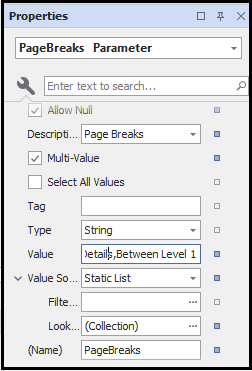
The Value field now includes the following properties:After Executive Summary,Between Details,Between Level 1 Values - Save and run the report.
- In the report, locate the Direct Cost total after the line item details.