
Text, Number, and Price‑type WBS Properties can be configured with a predefined list of values. These values are exposed in the Estimate View as a dropdown list, making data entry faster and more consistent.
This article explains how to:
- Access the WBS Property Values editor.
- Add, edit, and remove values.
- Change the order of values.
- Define a default value for a WBS Property.
Accessing WBS Property Values
To manage the values for a WBS Property:
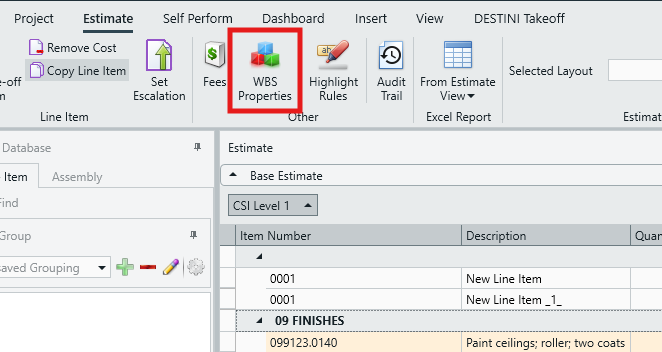
- In the Estimate View, click the WBS Properties button in the main ribbon.
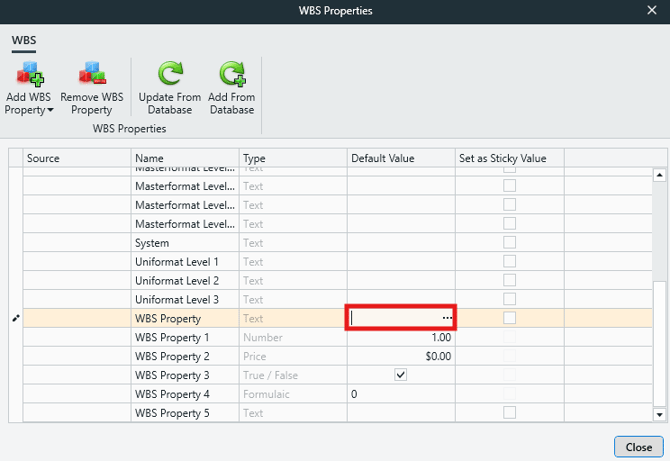
- Locate the WBS Property you want to modify.
- Click into the Default Value cell for that property.
- Click the three dots in the cell to open the Edit WBS Property Values editor.
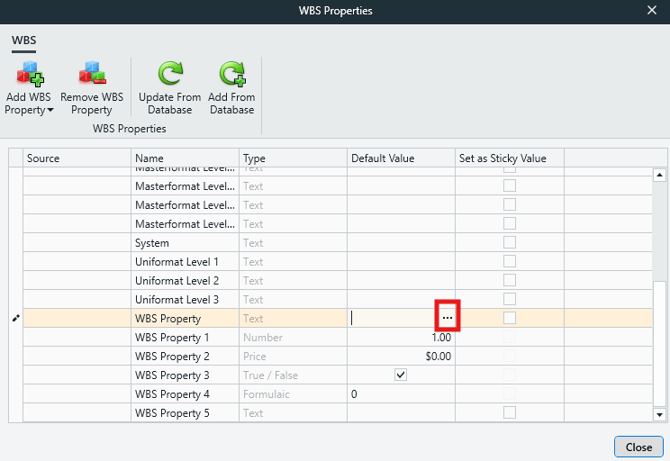
NOTE: Only Text, Number, and Price‑type WBS Properties can be assigned a list of predefined values. The three dots will not appear for WBS Properties of other types.
Adding a New Value
To add a value to a WBS Property:
- In the WBS Property Value column, click into the Add Value cell.
- You may need to scroll to the bottom of the list to find it.
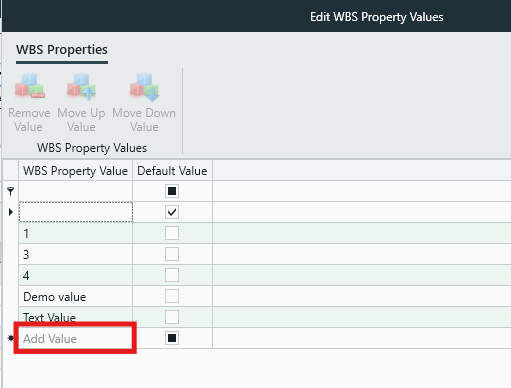
- You may need to scroll to the bottom of the list to find it.
- Enter the desired value.
- Click or tab out of the cell to save the value.
Value Type Rules
- Number and Price WBS Properties accept numerical values only.
- Text WBS Properties can accept text and numerical values.
NOTE: Values must be unique. If you enter a value that already exists, a warning message will appear.
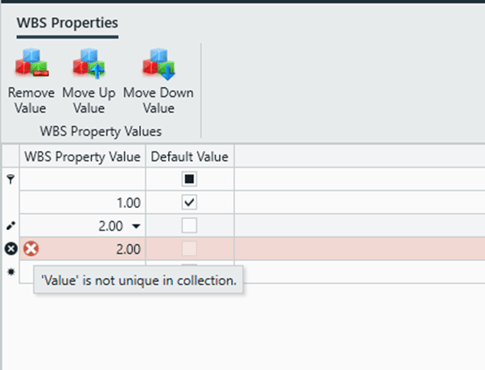
Editing an Existing Value
To modify an existing value:
- Locate the value you want to change.
- Click into the WBS Property Value cell.
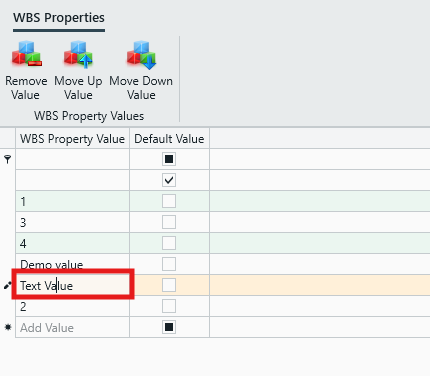
- Enter the new value.
- Click or tab out of the cell to apply the change.
Deleting a Value
To remove a value from the list:
- Click to highlight the value you want to delete.
- Click the Remove Value button.
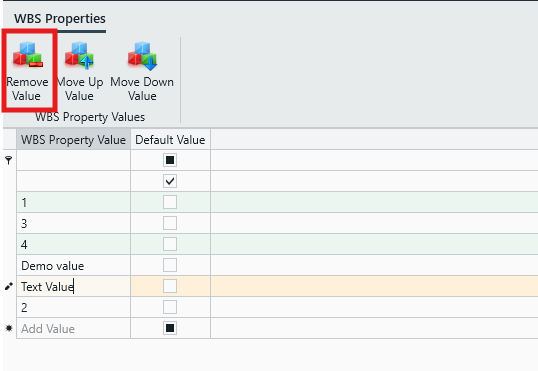
- The selected value is deleted from the list.
Changing the Value List Order
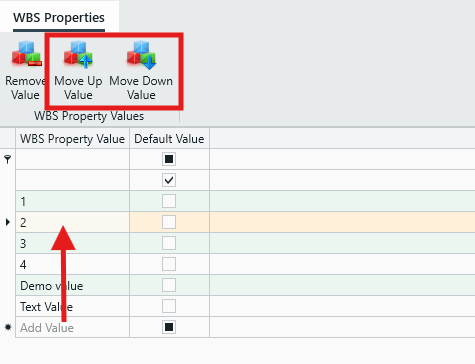
You can control the order in which values appear in the list:
- Click to highlight the value you want to move.
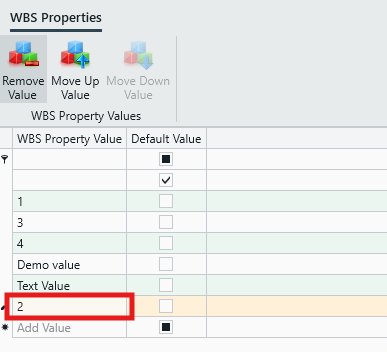
- Click Move Up Value or Move Down Value to reposition it.
Defining a Default Value
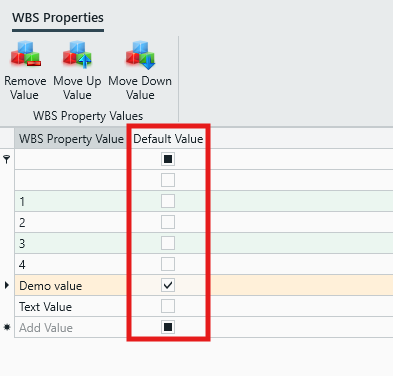
The Default Value column allows you to specify which value is automatically selected when the WBS Property is exposed in the Estimate View.
To set a default value:
- Locate the value you want to use as the default.
- Click the checkbox in the Default Value column.
Default Value Rules
- Only one value can be selected as the default.
- The default value is the first value in the list, unless another value is explicitly selected.
- Only Text‑type WBS Properties can have a blank default value.
Formulaic WBS Properties
Since formulaic WBS Properties are driven by a formula, they do not host a list of predefined values as described above, and thus the Default Value column functions differently for them.
- In the WBS Properties window, click into the Default Value cell for a formulaic WBS Property.
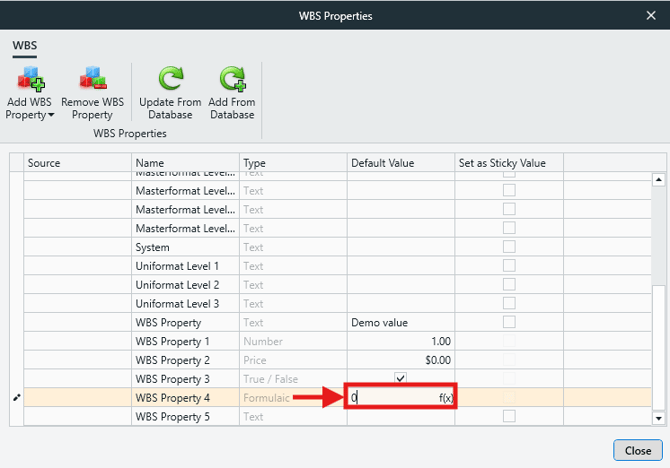
- Click the 'f(x)' button in the cell. This will open the Set Formula window.
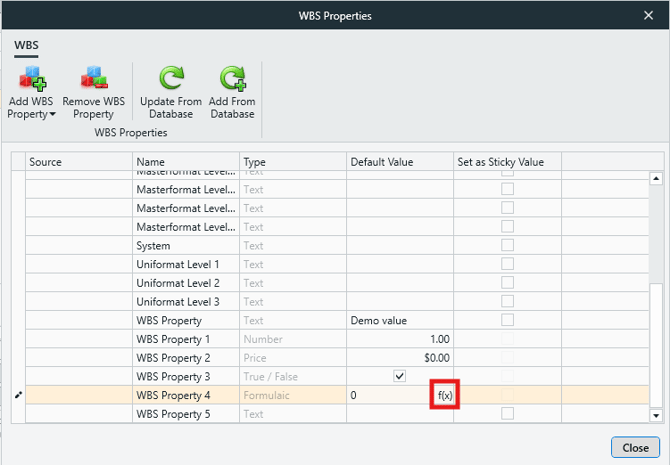
- The formula composed here will serve as the default for this WBS Property.
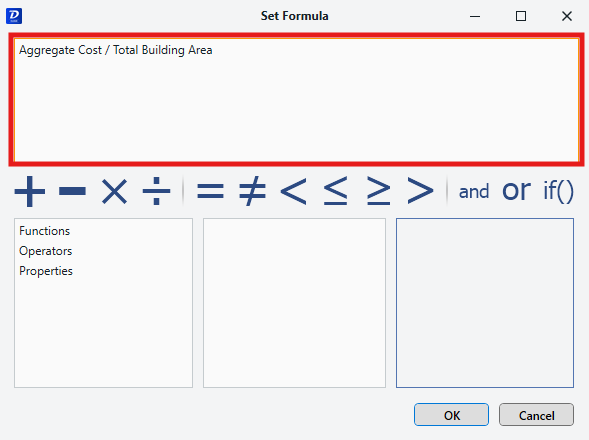
- Click OK to save the default formula value.
True/False WBS Properties
True/False‑type WBS Properties do not use a list of values. Instead, they function as a simple on/off toggle represented by a checkbox.
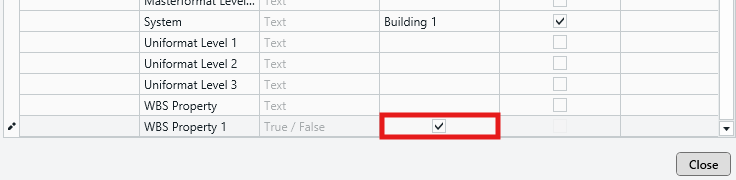
Selecting or clearing the checkbox in the WBS Properties editor defines the default state of that WBS Property for newly added line items.
Submit Your Suggestions to Help Improve This Article