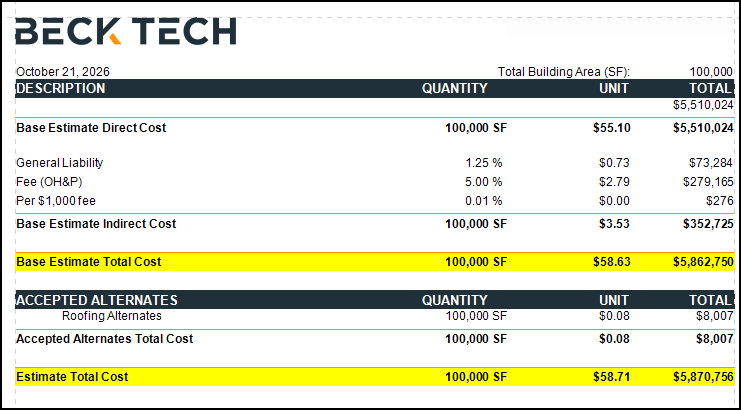
Styles help maintain consistent branding throughout your reports. Because multiple controls in Cloud Reports can share a style, changing a style can affect several areas of a report. For example, the Estimate Total and Fee Total footers in the Executive Summary use the same style by default. This article explains how to create and apply a separate style to the Estimate Total footers.
For more information about working with styles, see Change Fonts and Colors in Your Report With the Styles Editor.
Style Changes
- Open an estimate in DESTINI Cloud Estimator.
- Navigate to Home > New Report. Report Designer opens.
- Click File > Open.
- Navigate to the folder with the report template file (.repx) you want to modify.
- Click the .repx file to open it.
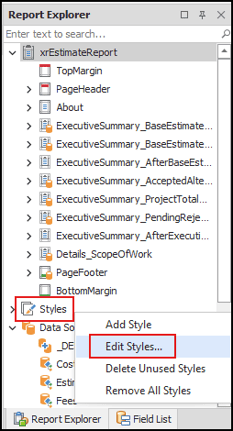
- In Report Explorer on the right side of your screen, right-click Styles and select Edit Styles.
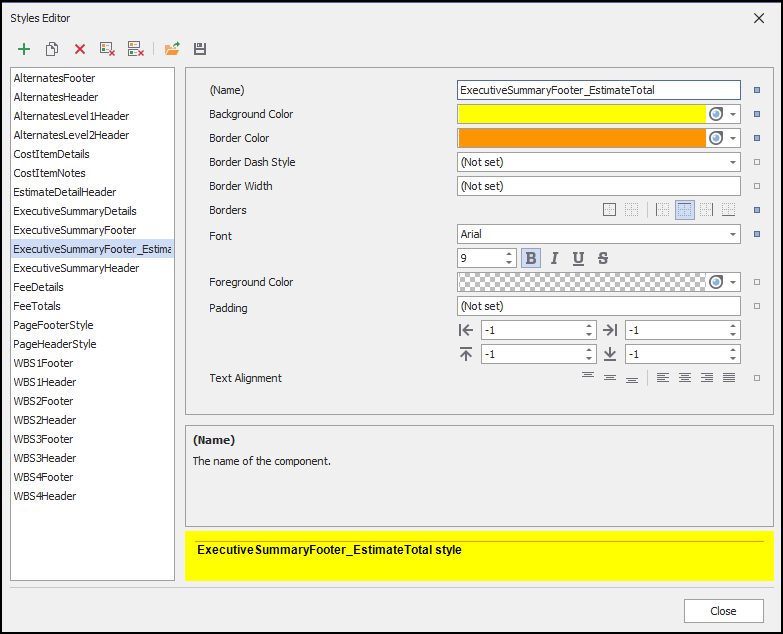
- In the Styles Editor, select ExecutiveSummaryFooter.
- Click the Clone a style button in the top left corner of the window.

- With the new style selected, populate the following and click the Close button:
- (Name): ExecutiveSummaryFooter_EstimateTotal
- Background Color: Choose a color, for example yellow
Designer Changes
- In Report Explorer on the right side of your screen, search for and select ReportFooter1.

The ReportFooter1 properties are displayed in the Properties panel on the bottom right side of your screen.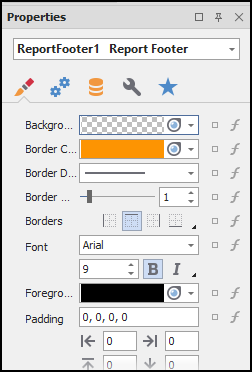
- Scroll down and expand Styles.
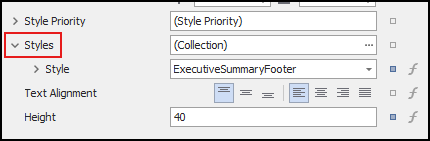
- Click the Style dropdown and select ExecutiveSummaryFooter_EstimateTotal.
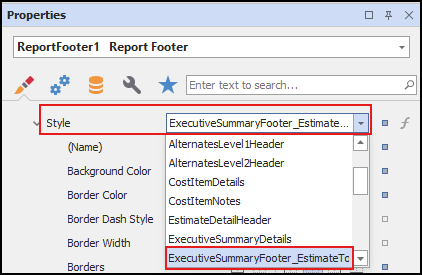
- Repeat Steps 1-3 with ReportFooter4.
- Save and run your report.
- The estimate totals display the new style.