
By default, the Page Header appears on every page. With a simple change, you can optionally turn off the Page Header for all pages. This article describes how to create a new parameter to conditionally turn on or off your Page Header.
Add New Parameter
- Open an estimate in DESTINI Cloud Estimator.
- Navigate to Home > New Report. Report Designer opens.
- Click File > Open.
- Navigate to the folder with the report template file (.repx) you want to modify.
- Click the .repx file to open it.
- On the right side of your screen, click the Field List tab at the bottom of Report Explorer.
- Scroll to the bottom of the Field List tab.
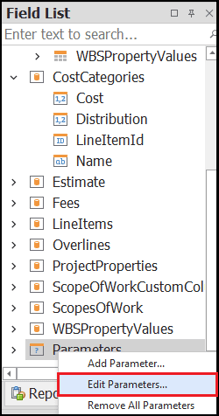
- Right-click Parameters and select Edit Parameters.
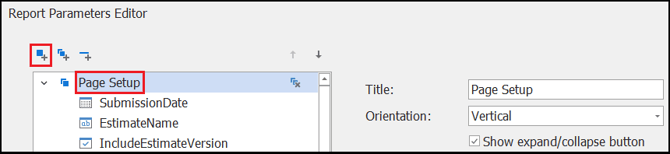
- On the left side of the Parameters window, locate and select the Page Setup group.
- Click the Add Parameter button on the top left side of the window.
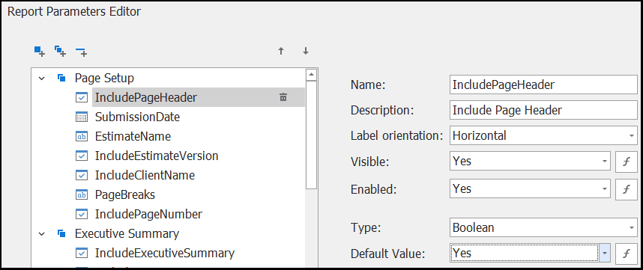
- With the new parameter selected, enter the following information and then click OK. For any setting not specified here, leave the default configuration:
-
- Name – IncludePageHeader
- Description – Include Page Header
- Type – Boolean
- Default Value - Yes
Designer Changes
- In the Designer section in the middle of your screen, locate and select the PageHeader band.
- Click the Function button on the right. Expression Editor opens.

- Select the Visible section on the left. Paste the following expression and then click OK:
?IncludePageHeader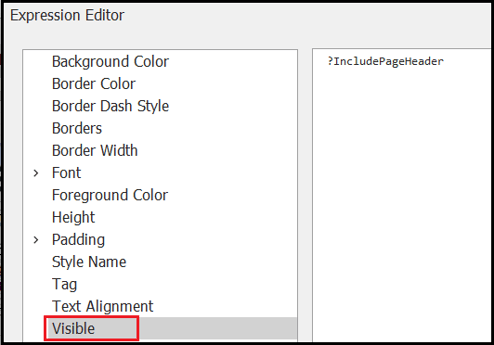
- Save and run your report
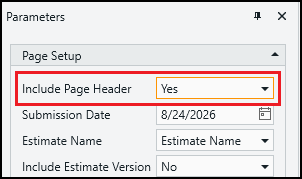
- In Report Viewer on the left side of your screen, expand Page Setup.
- For Include Page Header, choose an option.
- Click Submit to rerun the report.