
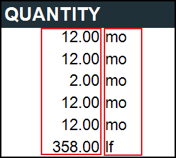
By default, text values in DESTINI Cloud reports are left-aligned, while numerical values are right-aligned. Column headers follow the alignment of their corresponding values, so the Quantity header and value are right-aligned, while the adjacent Unit of Measure value is left-aligned, as shown in the following screenshot:
To create a more cohesive layout, you can combine the Quantity and Unit of Measure cells, so the Unit of Measure aligns with the right edge of the Quantity column header. 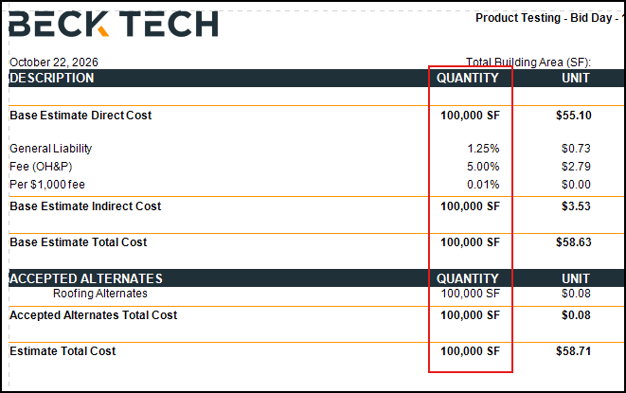
Designer Changes
- Open an estimate in DESTINI Cloud Estimator.
- Navigate to Home > New Report. Report Designer opens.
- Click File > Open.
- Navigate to the folder with the report template file (.repx) you want to modify.
- Click the .repx file to open it.
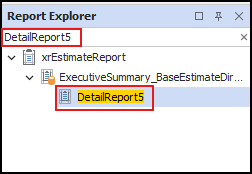
- In Report Explorer on the right side of your screen, search for and select DetailReport5.
- In Designer in the middle of your screen, locate the selected detail report from the previous step.
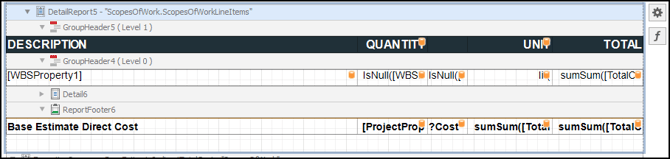
- Locate the empty cell to the right of the Quantity column header.
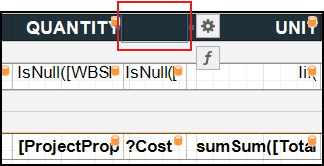
Right-click this empty cell and select Delete > Cell.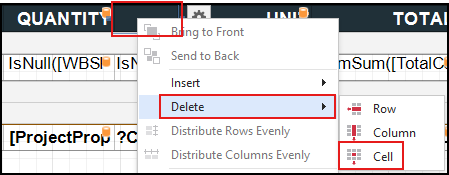
- Move down one row in the report. Right-click the Unit of Measure cell (the cell just beneath the cell you deleted) and select Delete > Cell.
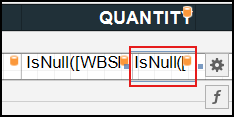
- After completing the previous step, the Quantity cell is now automatically selected. Click the Gear button to the right of the selected Quantity cell.
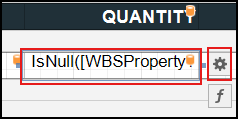
- Clear the contents in the Format String field.
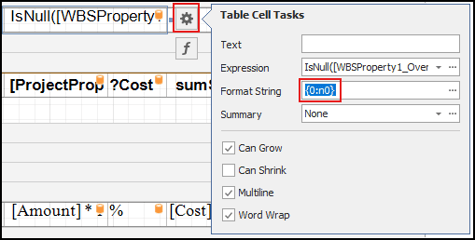
This article assumes the default format strings you just deleted are the same format strings applied to each Quantity cell. For more information about Format Strings, see the following articles: -
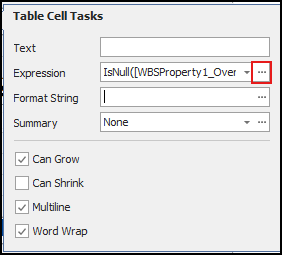
In the Expression field, click the ellipses (...). Expression Editor opens.
-
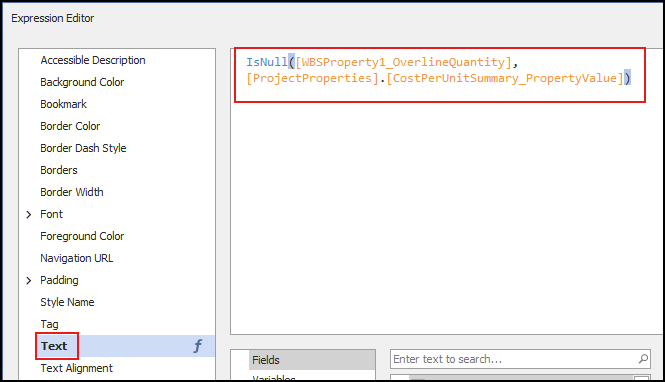
Verify Text is selected in the left pane and then delete everything in the box.
-
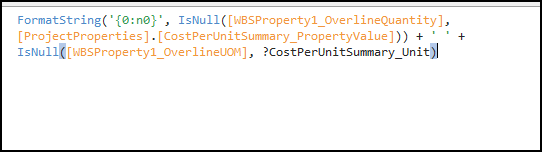
Copy and paste the expression in the first row (Base Estimate | WBS Property 1 Group) of the Quantity Expressions table at the end of this procedure and click OK.
-
Right-click and delete each of the cells shown in the following screen shots.
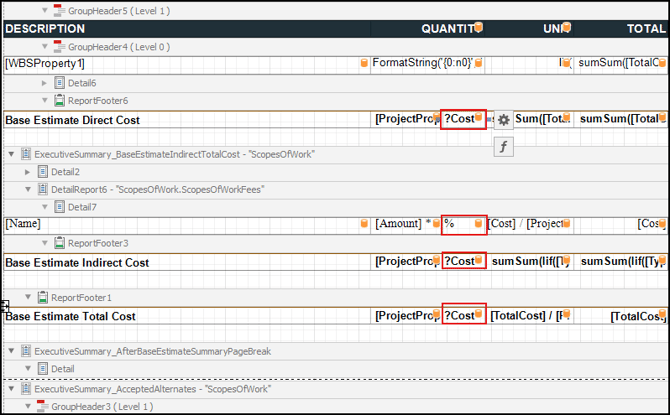
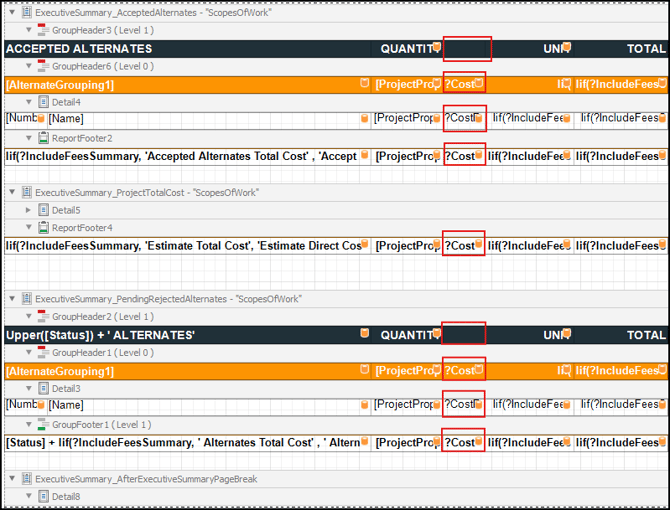
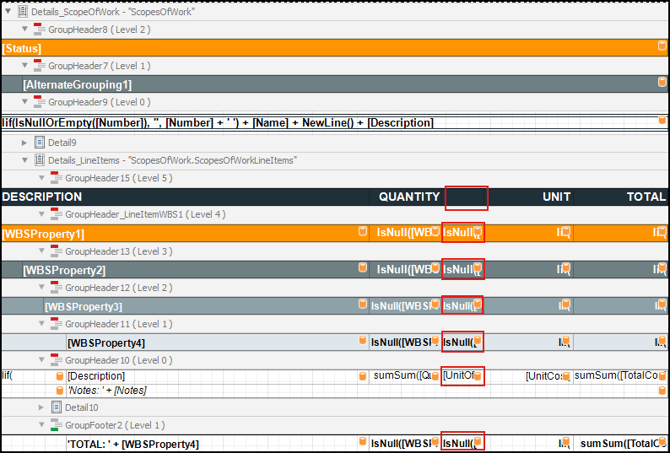
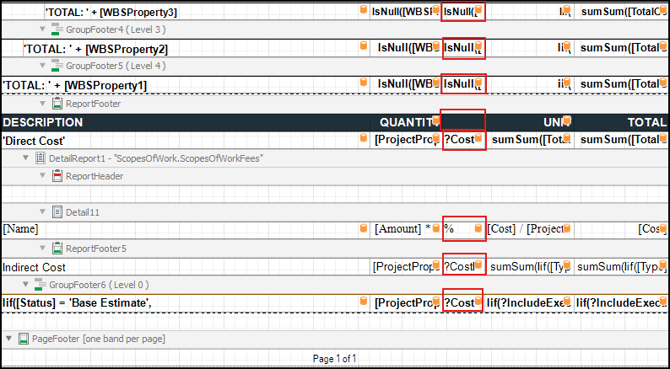
- Click the Base Estimate Direct Cost cell in the Quantity column.
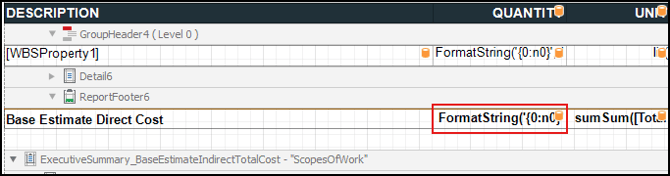 Repeat steps 10-14 in this procedure for the Quantity cell all the way down the report.
Note: We recommend you copy and paste the Quantity Expressions table into a new document so you don't have to scroll up and down in this article to copy expressions. - After you've deleted the Format String and pasted the new expression for each Quantity cell, save and run the report.
Quantity Expressions
Executive Summary
|
Section |
Subsection |
Text Expression |
|
Base Estimate |
WBS Property 1 Group |
FormatString('{0:n0}', IsNull([WBSProperty1_OverlineQuantity], [ProjectProperties].[CostPerUnitSummary_PropertyValue])) + ' ' + IsNull([WBSProperty1_OverlineUOM], ?CostPerUnitSummary_Unit) |
|
Base Estimate |
Direct Cost |
FormatString('{0:n0}', [ProjectProperties].[CostPerUnitSummary_PropertyValue]) + ' ' + ?CostPerUnitSummary_Unit |
|
Base Estimate |
Fees List |
FormatString('{0:n2}', [Amount] * 100) + '%' |
|
Base Estimate |
Indirect Cost |
FormatString('{0:n0}', [ProjectProperties].[CostPerUnitSummary_PropertyValue]) + ' ' + ?CostPerUnitSummary_Unit |
|
Base Estimate |
Total Cost |
FormatString('{0:n0}', [ProjectProperties].[CostPerUnitSummary_PropertyValue]) + ' ' + ?CostPerUnitSummary_Unit |
|
Alternates Summary |
Column Header |
Skip, leave as-is |
|
Remaining rows |
|
FormatString('{0:n0}', [ProjectProperties].[CostPerUnitSummary_PropertyValue]) + ' ' + ?CostPerUnitSummary_Unit |
Line Item Details
|
Section |
Text Expression |
|
Column Header |
Skip, leave as-is |
|
WBS Property 1 Header |
FormatString('{0:n0}', IsNull([WBSProperty1_OverlineQuantity], [ProjectProperties].[CostPerUnitSummary_PropertyValue])) + ' ' + IsNull([WBSProperty1_OverlineUOM], ?CostPerUnitSummary_Unit) |
|
WBS Property 2 Header |
FormatString('{0:n0}', IsNull([WBSProperty2_OverlineQuantity], [ProjectProperties].[CostPerUnitSummary_PropertyValue])) + ' ' + IsNull([WBSProperty2_OverlineUOM], ?CostPerUnitSummary_Unit) |
|
WBS Property 3 Header |
FormatString('{0:n0}', IsNull([WBSProperty3_OverlineQuantity], [ProjectProperties].[CostPerUnitSummary_PropertyValue])) + ' ' + IsNull([WBSProperty3_OverlineUOM], ?CostPerUnitSummary_Unit) |
|
WBS Property 4 Header |
FormatString('{0:n0}', IsNull([WBSProperty4_OverlineQuantity], [ProjectProperties].[CostPerUnitSummary_PropertyValue])) + ' ' + IsNull([WBSProperty4_OverlineUOM], ?CostPerUnitSummary_Unit) |
|
Line Item Details |
FormatString('{0:n2}', sumSum([Quantity])) + ' ' + [UnitOfMeasure] |
|
WBS Property 4 Footer |
FormatString('{0:n0}', IsNull([WBSProperty4_OverlineQuantity], [ProjectProperties].[CostPerUnitSummary_PropertyValue])) + ' ' + IsNull([WBSProperty4_OverlineUOM], ?CostPerUnitSummary_Unit) |
|
WBS Property 3 Footer |
FormatString('{0:n0}', IsNull([WBSProperty3_OverlineQuantity], [ProjectProperties].[CostPerUnitSummary_PropertyValue])) + ' ' + IsNull([WBSProperty3_OverlineUOM], ?CostPerUnitSummary_Unit) |
|
WBS Property 2 Footer |
FormatString('{0:n0}', IsNull([WBSProperty2_OverlineQuantity], [ProjectProperties].[CostPerUnitSummary_PropertyValue])) + ' ' + IsNull([WBSProperty2_OverlineUOM], ?CostPerUnitSummary_Unit) |
|
WBS Property 1 Footer |
FormatString('{0:n0}', IsNull([WBSProperty1_OverlineQuantity], [ProjectProperties].[CostPerUnitSummary_PropertyValue])) + ' ' + IsNull([WBSProperty1_OverlineUOM], ?CostPerUnitSummary_Unit) |
Alternate Fees
|
Section |
Text Expression |
|
Direct Cost Column Header |
Skip, leave as-is |
|
Direct Cost |
FormatString('{0:n0}', [ProjectProperties].[CostPerUnitSummary_PropertyValue]) + ' ' + ?CostPerUnitSummary_Unit |
|
Fees List |
FormatString('{0:n2}', [Amount] * 100) + '%' |
|
Remaining Rows |
FormatString('{0:n0}', [ProjectProperties].[CostPerUnitSummary_PropertyValue]) + ' ' + ?CostPerUnitSummary_Unit |
Adjust Formatting (LMSEO/Self Perform Reports)
For the LMSEO and Self Perform Reports, deleting the Unit of Measure column removes the vertical border between the Quantity and Labor Cost columns in the line item details report. Use the following steps to reapply the vertical border.
- In Report Explorer on the right side of your screen, search for and select Details_LineItems
- In Designer, locate the selected detail report from the previous step.
- Select the Quantity column header.
- In the Properties panel on the bottom right side of your screen, find the Borders property and enable the right border.
- Move to the next row, select the next Quantity cell and repeat Step 4 all the way down the line items detail report.
- Save and run the report