
This article explains how to preconfigure a report with custom default parameter values. Setting default values helps reduce repetitive setup work and ensures reports generate consistently each time they are run.
Steps
-
Open Report Designer.
- In Estimator, open an Estimate (any estimate, it doesn't matter which).
- Navigate to the Home View.
- In the main Ribbon, click on New Report...
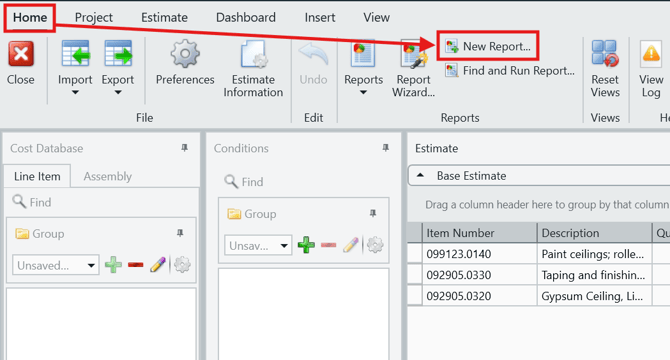
- Report Designer will be launched.
- In Report Designer, open your report template file.
- Click the Open button.
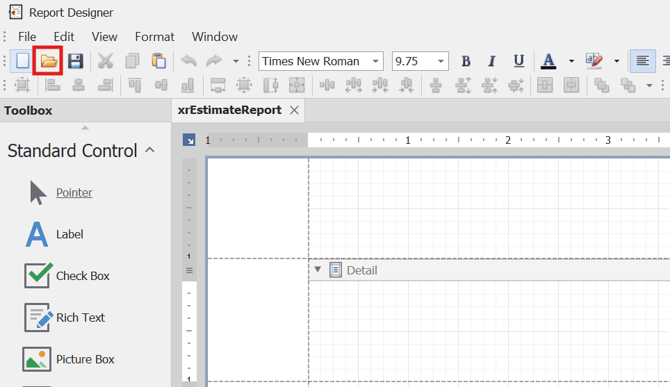
- Navigate to the location of the report template file (.repx) that you want to edit and open it.
- Click the Open button.
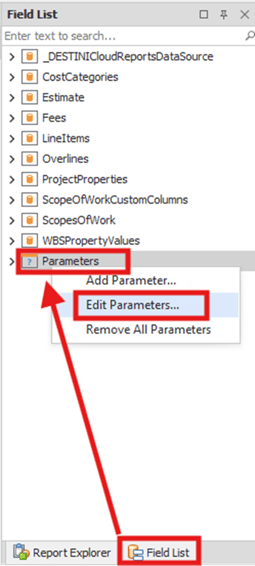
- On the right side of the screen, navigate to the Field List panel.
-
Right‑click Parameters, then select Edit Parameters.
-
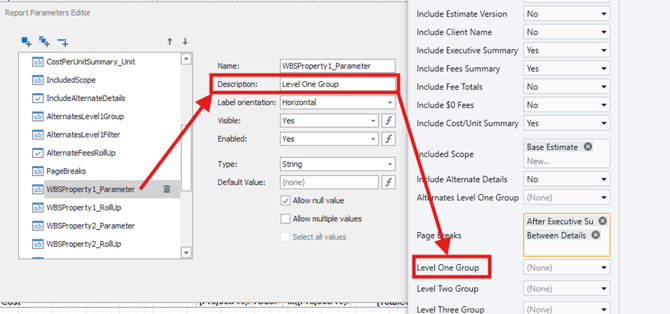
In the Report Parameters Editor window, select the parameter you want to modify from the left panel.
- The Description field in the center of the window is the user‑facing label that appears when the report is run.
- The Name field on the left represents the internal parameter name used by the report.
-
Update the Default Value field based on one of the following scenarios:
-
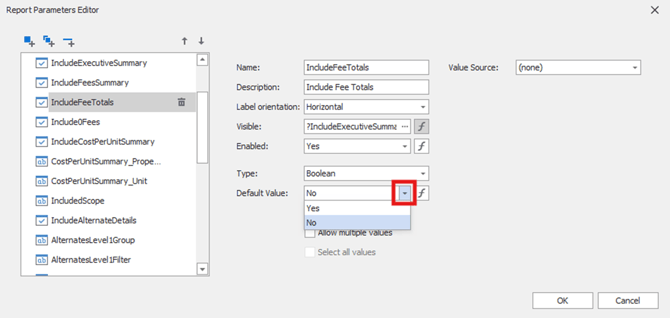
Boolean (Yes/No) Parameter: Click the drop‑down list and select the desired default value.
-
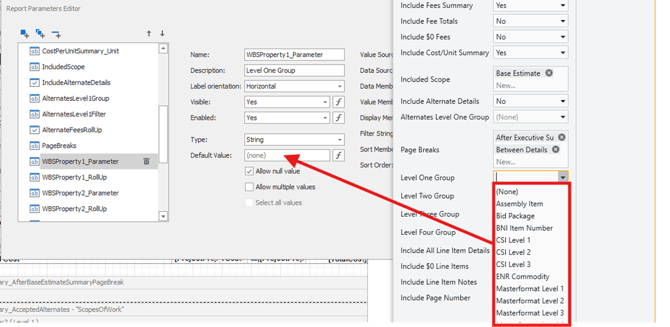
String (Text) Parameter: Type the desired default value exactly as it appears in the parameter list when running the report. IMPORTANT: The Default Value field is case‑sensitive and each value entered must exactly match the spelling and spacing for the report to generate correctly.
-
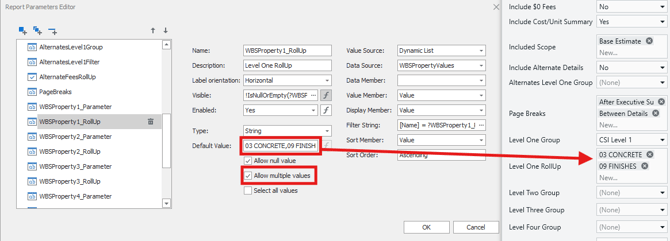
Multiple‑Value Parameter: Type in each value separated by a comma, with no spaces before or after the commas. (Example: 03 CONCRETE,09 FINISHES). Ensure the Allow multiple values option is checked. IMPORTANT: The Default Value field is case‑sensitive and each value entered must exactly match the spelling and spacing for the report to generate correctly.
-
-
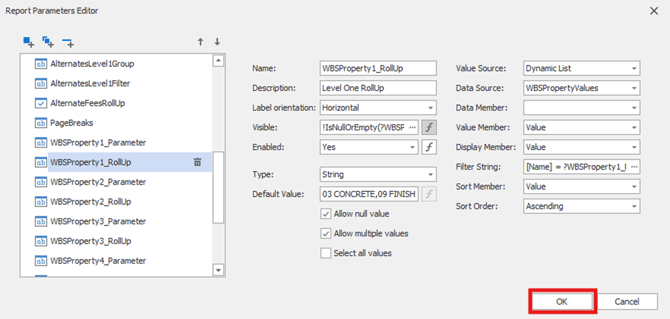
Click OK to apply the changes.
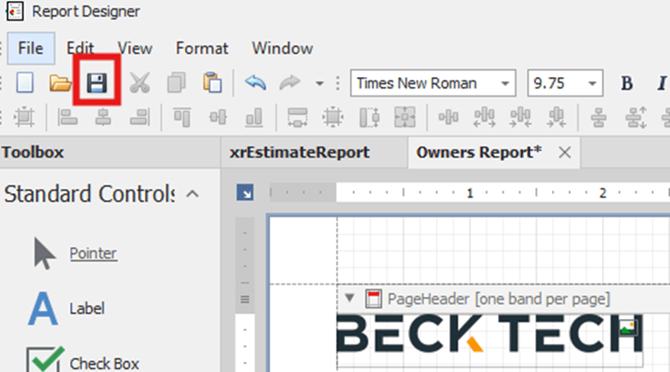
- Save the report file to preserve the updated default parameter values.
Your changes are now applied and you can now run your report with the selected default Parameter values.
Submit Your Suggestions to Help Improve This Article