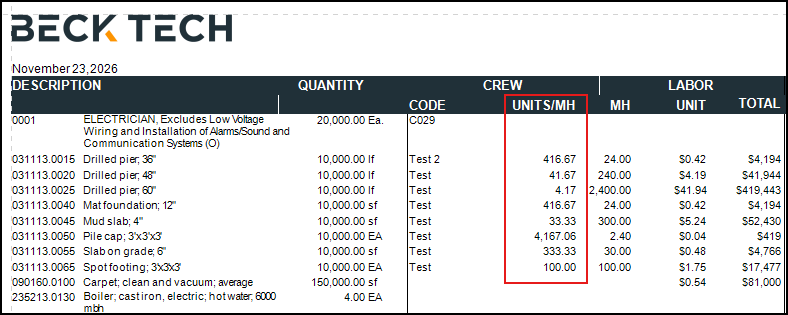
This article describes how to change the Productivity calculation method in DESTINI Cloud Estimator Self Perform Reports. You can switch the calculation method at runtime for a single run or update the parameter's default value in Report Designer, so every run uses your preferred calculation method.
Change the Productivity Rate at Runtime
- Open an estimate in DESTINI Cloud Estimator.
- Click Home > Reports, and then click Cloud Self Perform report. Report Viewer opens.
- In the Parameters panel on the left side of your screen, expand the Self Perform Settings group.
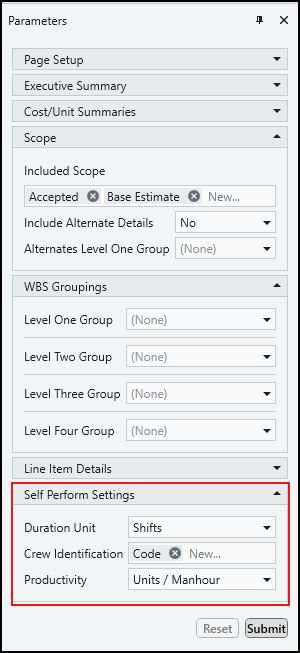
- Click the Productivity dropdown, and then click a productivity calculation such as Units/Manhour or Hours/Shift.
- Click Submit.
Update the Default Value of the Parameter
- Navigate to Home > New Report. Report Designer opens.
- Click File > Open.
- Navigate to the folder with the report template file (.repx) you want to modify.
- Click the .repx file to open it.
- In the Report Explorer panel on the right side of the screen, click the Field List tab.
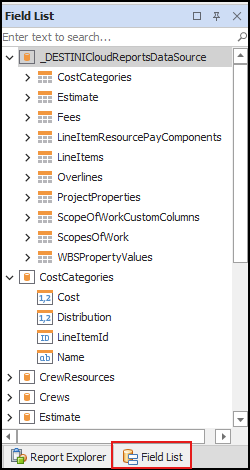
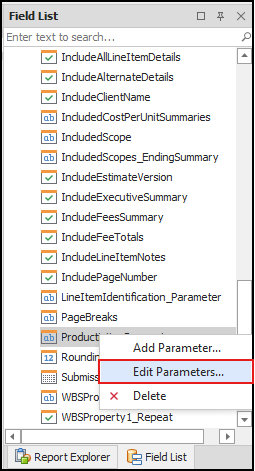
- At the bottom of the Field List, expand Parameters, right-click Productivity_Parameter and select Edit Parameters.
- In the Parameters window, update Default Value with one of the options inside the Value column on the right.
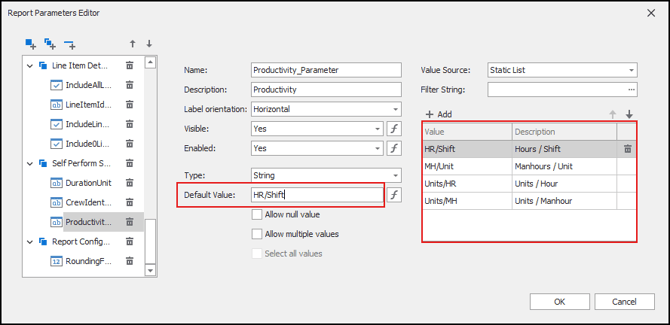
This parameter uses a Static List of Value/Description pairs. The Value drives all internal report functions, including the Default Value, while the Description is the user-friendly text shown at runtime. To calculate Manhours / Unit, type “MH/Unit” into the Default Value field. - Click OK
- Save and run your report.
- The report displays values based on the new calculation method you specified for Default Value.