
Most numeric and currency values in DESTINI Cloud: Estimator reports display either zero or two decimal places. To better align with your company's branding standards, you can adjust decimal precision, as described in this article.
- Open an estimate in DESTINI Cloud: Estimator.
- Navigate to Home > New Report. Report Designer opens.
- Click File > Open.
- Navigate to the folder with the report template file (.repx) you want to modify.
- Click the .repx file to open it.
- Click a cell you want to format. The following example uses the Quantity cell for [WBSProperty1]. When you click the cell, a gear icon displays to the right, as shown in the following screenshot.
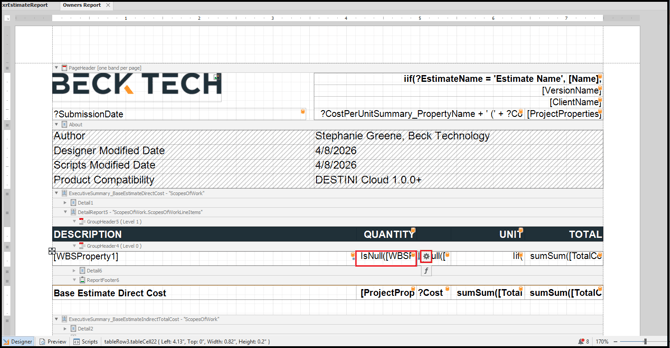
- Click the gear icon. The Table Cell Tasks dialog box displays.
- In the Format String field, click the ellipsis (...). The Format String Editor dialog box displays.
- Choose a category such as Number or Currency in the Category pane.
- In the Standard Types pane, choose a format. The dialog box displays an example of the category format beneath the pane.
- Click OK.
- Save and run your report.
Optionally, you can type or paste decimal place formats for number and currency fields directly into the Format String field, as shown in the following screenshot.
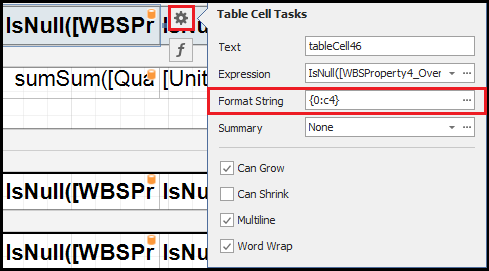
The Format String field supports a variety of decimal formats. The following table illustrates some common options.
|
Standard Type |
Full Format String |
Description |
|
n0 |
{0:n0} |
Number with 0 decimal places |
|
n2 |
{0:n2} |
Number with 2 decimal places |
|
n4 |
{0:n4} |
Number with 4 decimal places |
|
c0 |
{0:c0} |
Currency with 0 decimal places |
|
c2 |
{0:c2} |
Currency with 2 decimal places |
|
c4 |
{0:c4} |
Currency with 4 decimal places |