
This article is designed for users who want to customize report labels in DESTINI Cloud. The examples below show multiple ways to update label text directly in the Report Designer, ranging from quick edits to more advanced expression-based changes.
Getting Started
-
Open the Report Designer from DESTINI Cloud.
-
Open the report you want to modify.
-
Select the label (text field) you want to change.
When a label is selected, it will be highlighted with a thin blue outline. You will also see action icons appear to the right of the field.

Quick and Easy Label Changes – Option 1 (Direct Text Edit)
This option is best for simple, static label changes.
-
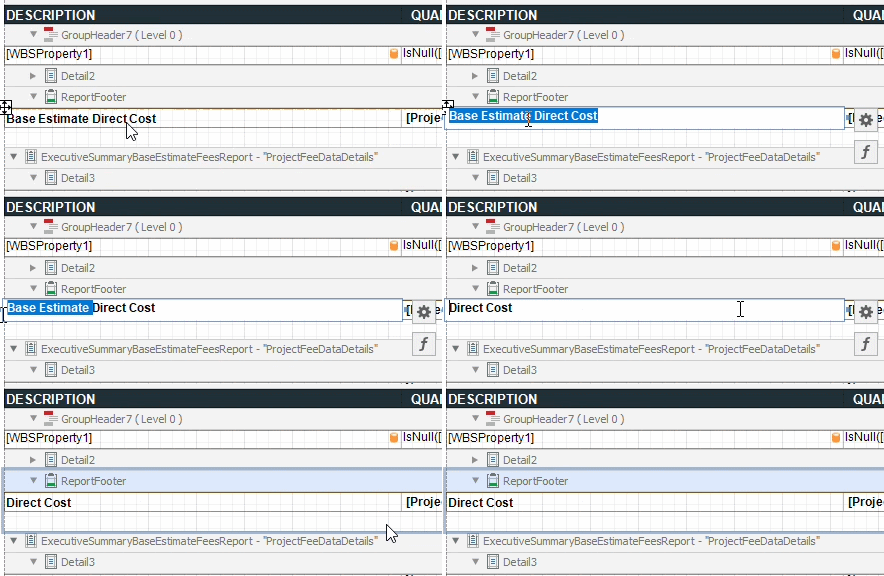
Double-click inside the label field to highlight the existing text.
-
Type the text you want to display.
-
Save and run your report.
Quick and Easy Label Changes – Option 2 (Using Label Properties)
This option is useful when you want to edit label text through the Properties panel.
-
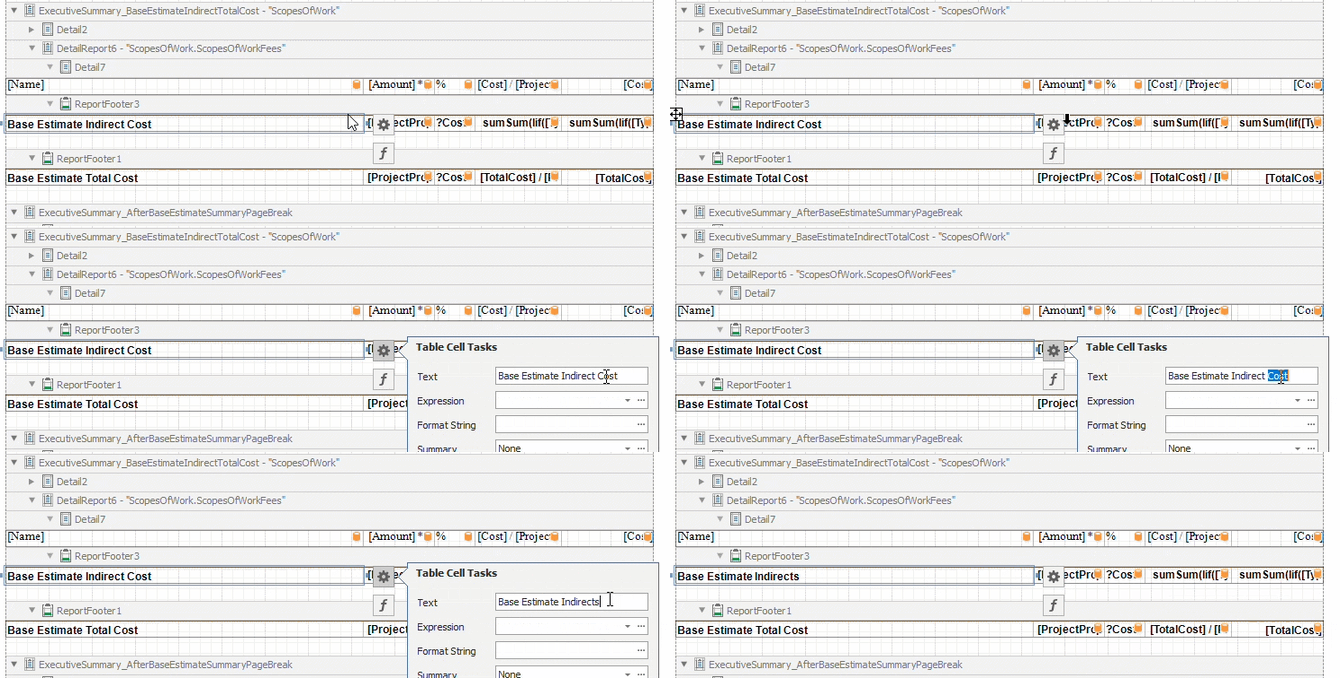
With the label selected, click the ⚙️ gear icon that appears to the right of the field.
-
In the Text property, enter the text you want to display.
Tip: If both the Text and Expression properties are populated, the report will display the value from the Expression property when run.
-
Save and run your report.
Change a Label’s Prefix or Suffix (Using an Expression)
Use this method when your label combines static text with dynamic data, such as WBS grouping values.
-
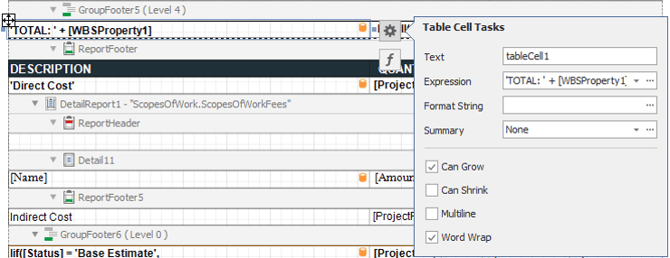
Select the label and click the gear icon.
-
Clear any values in the Text and Format String properties.
Tip: When using expressions, leaving content in the Text or Format String properties may lead to unexpected results.
-
Click the ellipsis (…) button to open the Expression Editor.
-
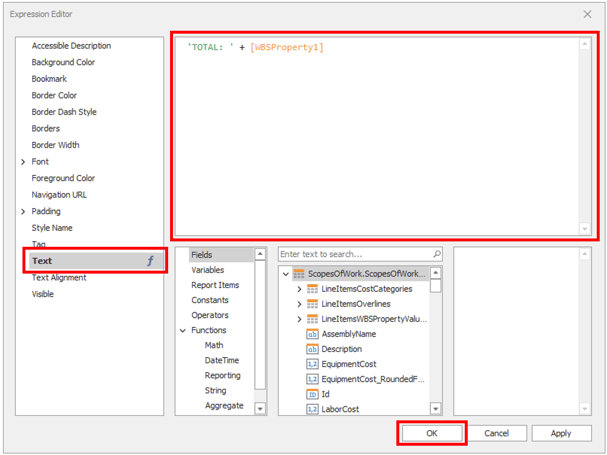
With Text selected on the left, use the main editor area to update your label output.
Expression Examples
| Expression | Sample Output |
|---|---|
[WBS1Group] |
A Substructure |
'Total ' + [WBS1Group] |
Total A Substructure |
[WBS1Group] + ' Total' |
A Substructure Total |
Syntax guidelines:
- Static text is enclosed in single quotes
- A Column reference is surrounded by [ ] brackets and populated when running the report
- Use the + symbol to combine text elements
Replace Column Header with Parameter
Use this approach to replace a column header with a parameter-driven value, such as a WBS grouping parameter.
Steps
-
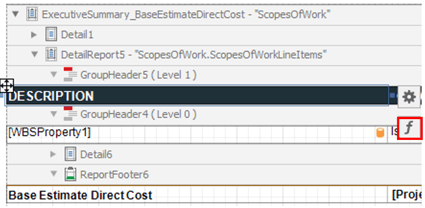
Locate the column headers for the WBS1 Executive Summary. Select the Description cell.
-
With the Description cell selected, click the Function button to the right of the control.
-
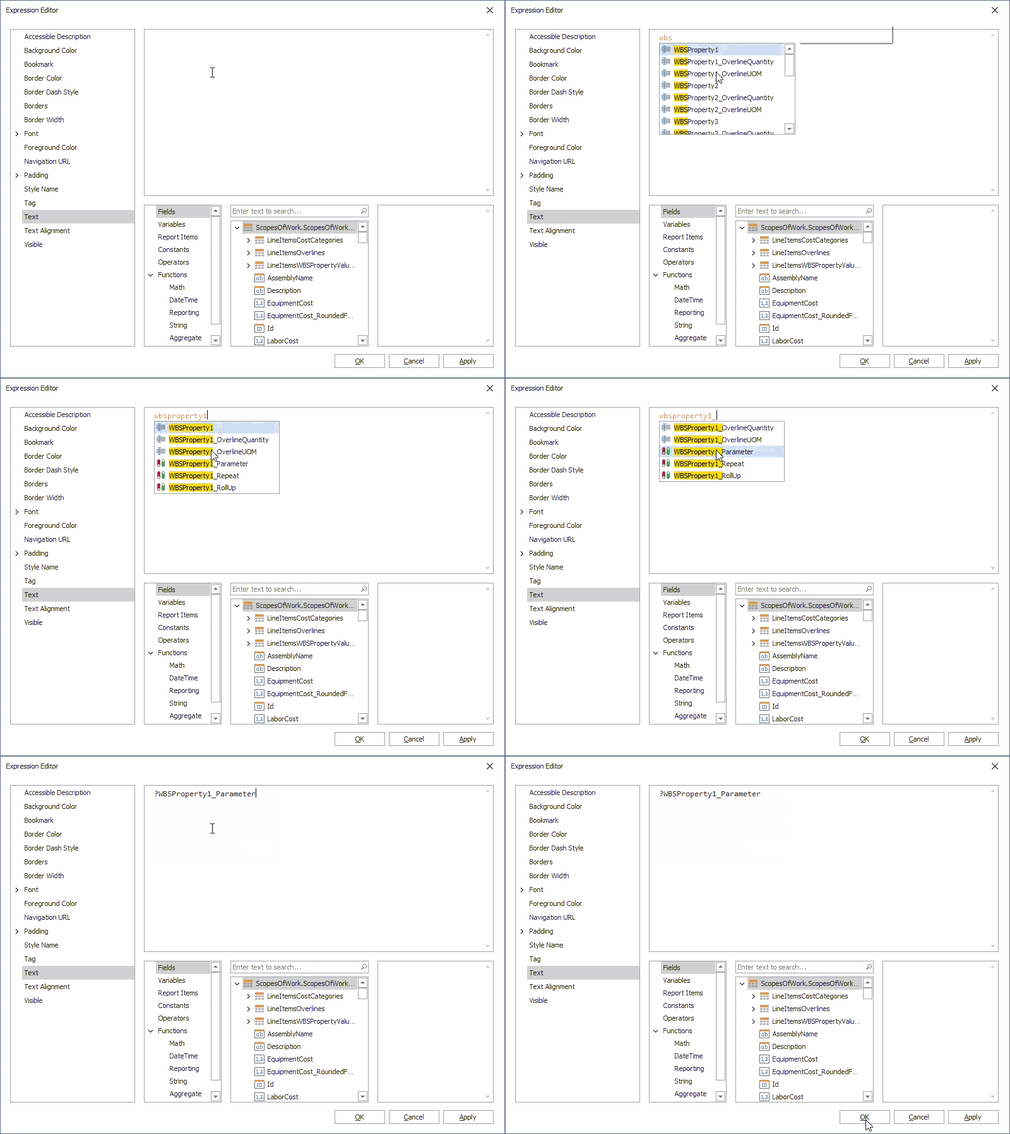
Inside the Expression Editor window, set the Text Expression to the following:
-
?WBSProperty1_Parameter
-
You can begin typing, then select WBSProperty1_Parameter to complete the expression.
-
-
Click OK.
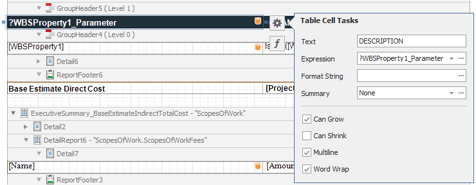
Note: If both the Text property and Expression property are filled in, the report will print the contents of the Expression property when it is run.
-
Save and run the report in DESTINI Cloud: Estimator.