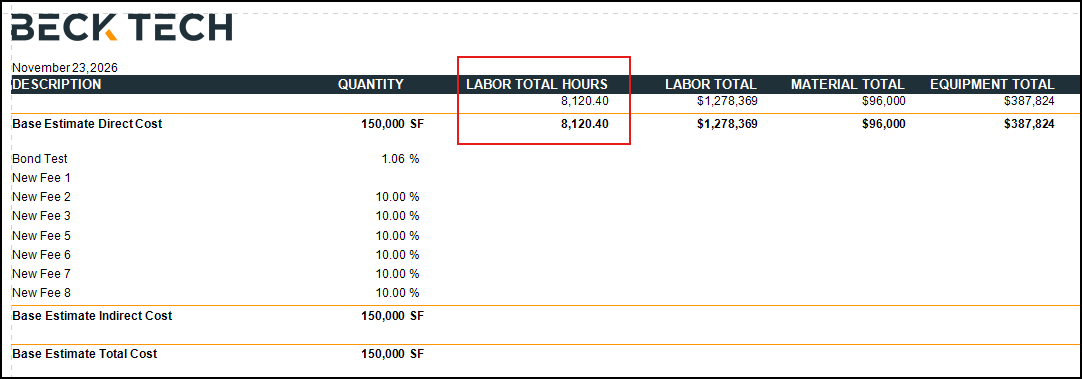
This article describes how to change the Duration calculation in the DESTINI Cloud Estimator Self Perform Report. By default, the report prints Crew Shifts for Duration. The following steps describe how to print Manhours instead, either at runtime for a single run or by updating the parameter's default value in Report Designer.
Change Duration at Runtime
- Open an estimate in DESTINI Cloud Estimator.
- Click Home > Reports, and then click Cloud Self Perform Report. Report Viewer opens.
- In the Parameters panel on the left side of your screen, expand the Self Perform Settings group.
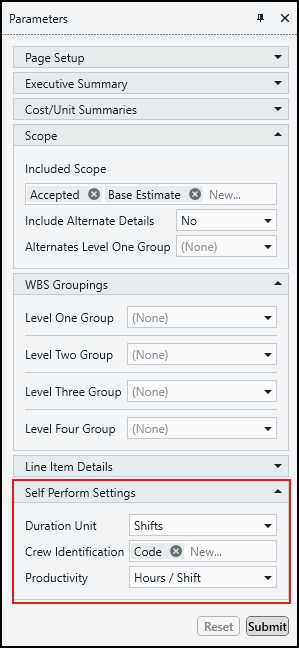
- Click the Duration Unit dropdown and select Manhours.
- Click Submit.
Update the Default Value of the Parameter
- Navigate to Home > New Report. Report Designer opens.
- Click File > Open.
- Navigate to the folder with the report template file (.repx) you want to modify.
- Click the .repx file to open it.
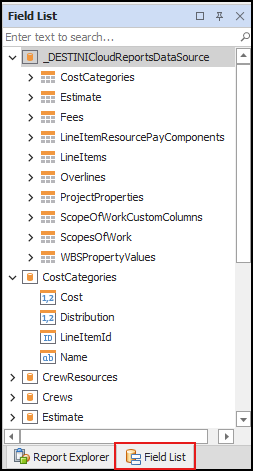
- In the Report Explorer panel on the right side of the screen, click the Field List tab.
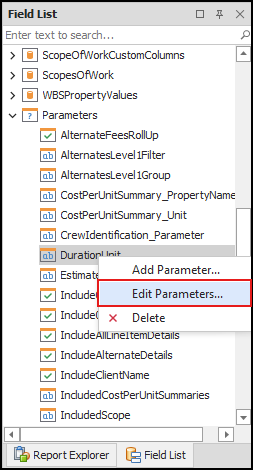
- At the bottom of the Field List, expand Parameters, right-click DurationUnit and select Edit Parameters.
- In the Parameters window, update Default Value with one of the options in the Value column on the right.
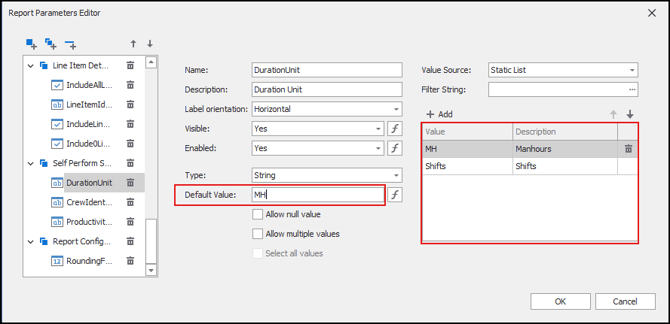
This parameter uses a Static List of Value/Description pairs. The Value drives all internal report functions, including the Default Value, while the Description is the user-friendly text shown at runtime. To print Manhours, type “MH” in the Default Value field. - Click OK
- Save and run your report.
- The report displays values based on the new Duration you specified for Default Value.