
Making edits to line items directly in the Estimate View works well for single changes. However, when you need to update two or more line items at the same time, bulk editing is handled through the Cost Information View (CIV).
This article explains how to select multiple line items, apply bulk changes using the CIV, and duplicate line items efficiently.
Selecting Multiple Line Items
You can select multiple line items in different ways depending on whether the items are grouped together or separated by other line items in the Estimate View.
If Your Line Items Are Grouped Together
- In the Estimate View, click the row header of the first line item you want to edit.
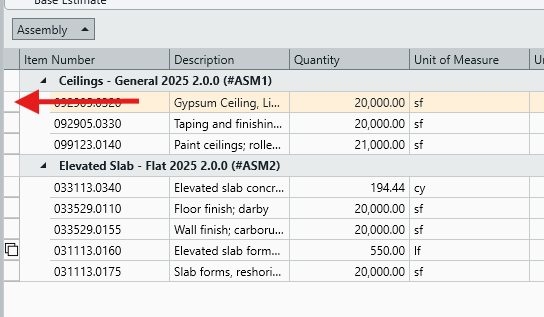
- Hold the SHIFT key on your keyboard.
- Click the row header of the last line item you want to edit.
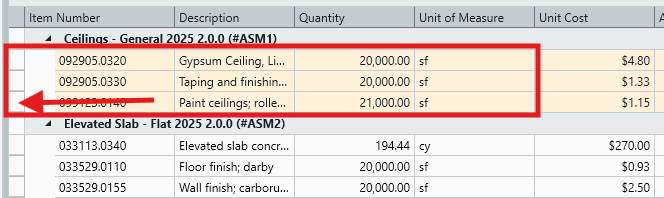
- All line items between the first and last selection will be selected automatically.
If Your Line Items Are Separated
- In the Estimate View, click the row header of the first line item.
- Hold the CTRL key on your keyboard.
- Click the row header for each additional line item you want to include.
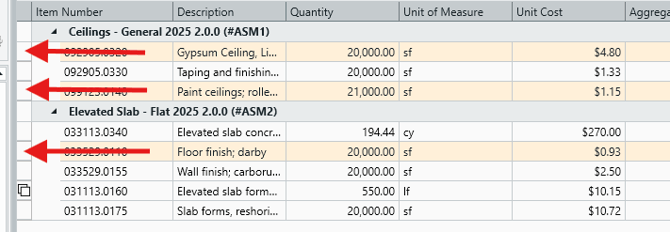
- Only the line items you explicitly select will be included in the bulk change.
Selecting All Line Items
If you need to apply a change to every line item in the estimate:
- Click to select any single line item in the Estimate View.
- Press CTRL + A on your keyboard to select all line items.
Applying Changes in the CIV
Once multiple line items are selected, the Cost Information View (CIV) becomes the control point for applying changes to all selected items at once.
- Any data entered into CIV fields is applied to all selected line items.
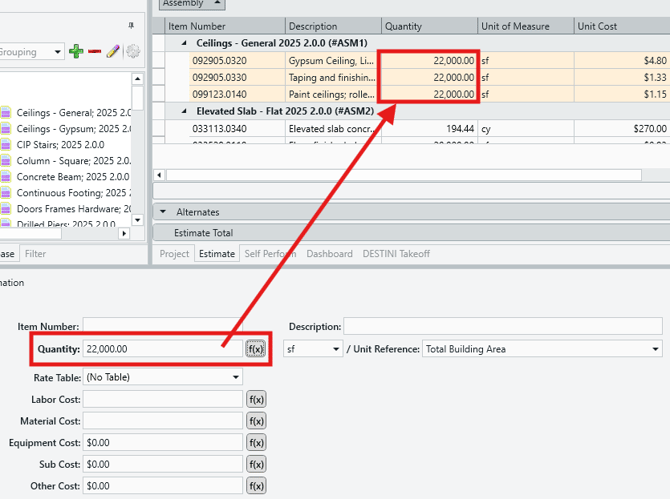
- Turn on the WBS button to enable editing of WBS Property values.
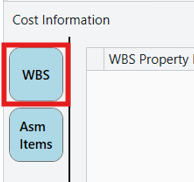
- After entering a WBS value, tab out of the field to immediately apply the change to the selected line items.
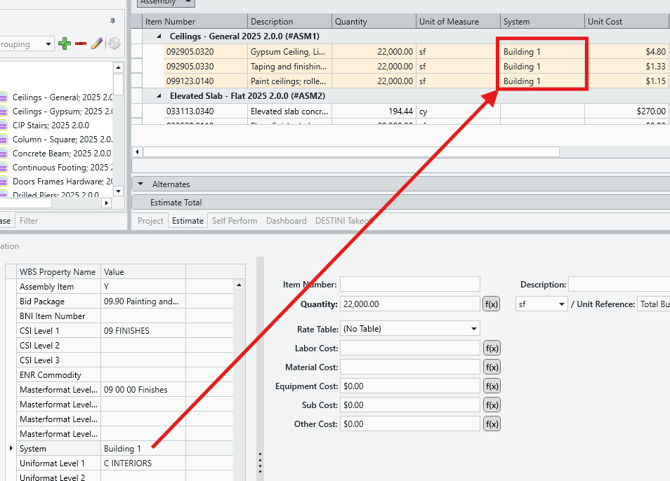
Changes made in the CIV are reflected instantly, removing the need to manually click to apply changes each time, and allowing you to quickly verify the results of the change.
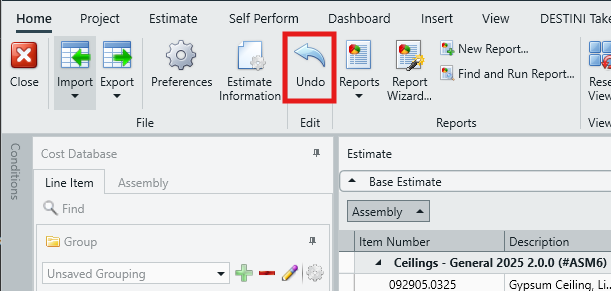
NOTE: You can quickly undo any unwanted changes made by pressing CTRL + Z on your keyboard, or by navigating to the Home tab and pressing Undo in the main ribbon.
Duplicating Line Items
The Duplicate to Estimate button in the CIV allows you to quickly create copies of one or more line items and then modify those copies in bulk.
To Duplicate Line Items:
- Select the line items you want to copy using either the SHIFT-click or CTRL-click method detailed above.
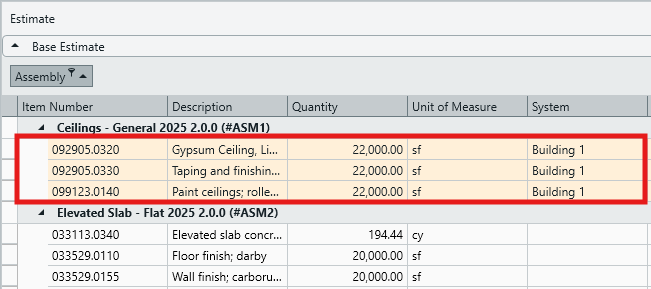
- Click the Duplicate to Estimate button in the CIV.
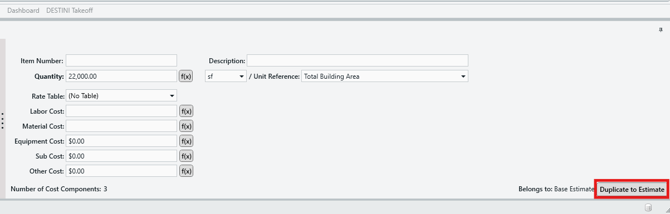
- Copies of the selected line items are created.
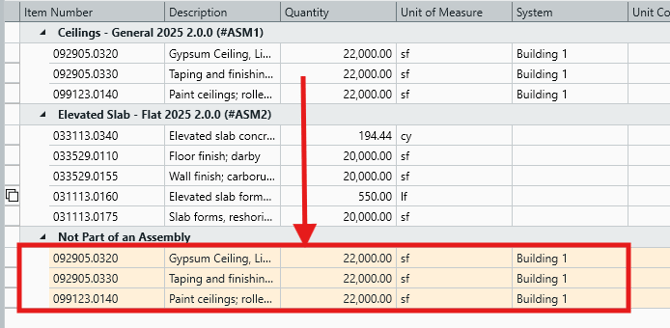
- The newly duplicated line items are automatically selected, allowing you to immediately apply bulk changes using the CIV.
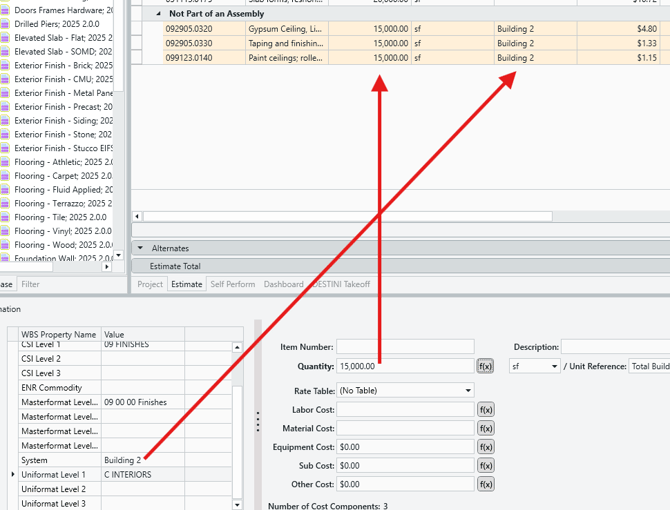
This approach is especially useful when creating variations of existing line items while preserving original values.
Essential Keyboard Shortcuts
|
Shortcut |
Action |
|
CTRL + A |
Select all line items in the estimate |
|
SHIFT + Click |
Select all line items between the last selected item and the clicked item |
|
CTRL + Click |
Select multiple line items individually |
|
CTRL + Z |
Undo the last change |
Submit Your Suggestions to Help Improve This Article