
When a List WBS property needs a lot of new values, such as a full set of MasterFormat codes, floor levels or systems, you don't have to add them to DESTINI Cloud Cost Library one at a time. You can use the following faster options:
- Excel export and import: Best for long lists, many properties at once, or values you already have in a spreadsheet
- Press Enter in the WBS drawer: Best for adding a few to a few dozen values to one property
The steps in this article apply to List WBS properties. Number, Price, True/False and Formulaic properties don't keep a list of values the same way.
Method 1: Bulk add values with Excel export and import
Import and Export in DESTINI Cost Library provides a fast and efficient way to manage large volumes of Cost Library data. Rather than updating records individually within Cost Library, users can export library data to Microsoft Excel, make changes in bulk, and then import those changes back into the library.
Before You Begin
- Read DESTINI Cloud Cost Library Export and Import to understand the bulk editing process before you complete the steps in the following procedure.
- Verify you have Cost Library administrator access.
- Be aware that imports can't be undone. Export a backup copy of your Cost Library before importing so you can restore it if needed.
Export Your Data
To bulk add values to a List WBS property start by exporting your data from Cost Library:
- Open Cost Library in a web browser.
- Click Export in the upper-right corner (the up arrow).

- If Regionalized Pricing is enabled, select a Region to export.
- Click Export.
- Open the downloaded workbook.
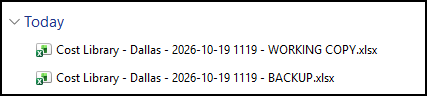
- Choose File > Save. Save a backup copy of the file with the name BACKUP.
- Rename the other file to include the phrase WORKING COPY.
- Verify the workbook has a separate worksheet for each kind of WBS data.

- Open the WBS - List sheet.
- Find the column for the property you want to update, for example, Bid Package. Note that the first cell in the column is the property ID. Do not change the property ID. Cost Library uses it to map data between the spreadsheet and the database.
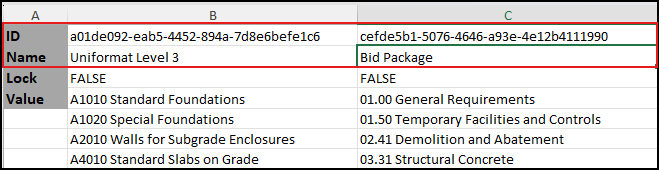
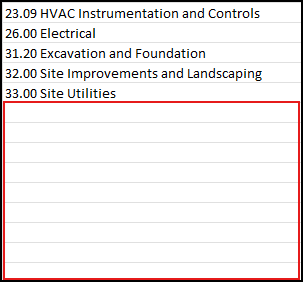
- Scroll to the bottom of a column and locate empty cells. Enter each new value in its own cell below the existing ones, one value per row. You can copy a column of values from another spreadsheet and paste it straight into this sheet.
- To add a new List property, add a new column. Specify a name, but don't create an ID. Cost Library will create a new ID during import.
Add values on the WBS sheet and the Line Items sheet. Typing a new value into a WBS column on the Line Items sheet doesn't add that value to the property's value list on the WBS sheet:- Don't list the same value twice in one property. Cost Library doesn't allow duplicate list values.
- Clear cells by deleting them. Cells that only look empty can still count as data.
Import Your Data
When you've finished adding values in the spreadsheet, import the workbook back into Cost Library.- Save your workbook. (Confirm it remains an .xlsx file.)
- Open Cost Library in a web browser.
- Click Import in the upper-right corner (the down arrow).

- Choose the correct Region.
- Choose the updated copy of the Excel workbook (not the saved BACKUP file).
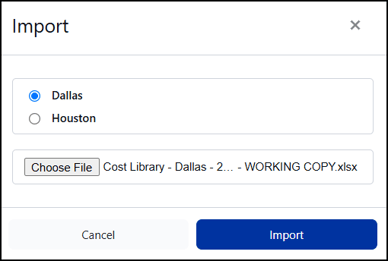
- Click Import.
- Wait for processing to complete.
- Review the import results in the Import dialog box.
- Resolve any errors if necessary.
- Verify the imported changes in Cost Library.
- Go to the WBS page and open the property's drawer to confirm your new values are there.
- When you're ready to make the new values available to DESTINI Cloud Estimator, click Publish in the Cost Library top navigation. Estimators can download an updated database snapshot from the Settings menu by clicking Cost Library > Check for Updates.
Method 2: Add values in the WBS drawer
For shorter lists, you can add values on the WBS page in Cost Library without exporting/importing using Excel.
- Open Cost Library in a web browser.
- Click WBS in the left navigation.
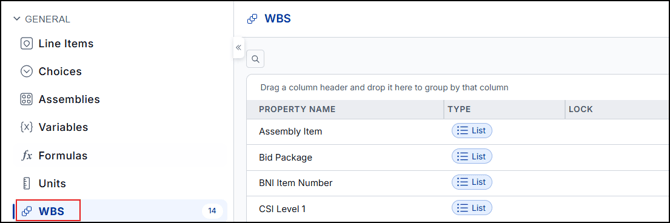
- Click a WBS property that shows List in the Type column. To create a new List property, click Add WBS Property in the top left.
- In the property drawer, in the VALUES section, click Add Value.
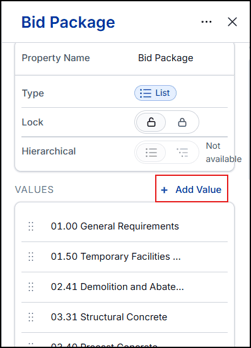
- Enter the new value and press Enter. The value is saved and a new blank field opens for the next value.
- Keep typing and pressing Enter until every value is in.
- Close the drawer, then Publish when you're ready for estimators to use the values.
Troubleshooting
-
New values don't show up after import
Make sure you added them on the WBS - List sheet, not only on the Line Items sheet. -
A new WBS column on the Line Items sheet didn't create a property
This is expected. Define the property on the matching WBS sheet. -
Data changed in the wrong region
Check the Region selection in the import window. It defaults to Base. -
Estimators can't see the new values
Publish the Cost Library, then update the estimate's Cost Library snapshot. -
The import changed more than you intended
Imports can't be undone. Re-import your backup export to restore the earlier data.