
DESTINI Cloud Reports automatically distribute fees into the associated line items, which means distributed fees are not shown in the fees section. With a couple of minor changes, you can introduce a parameter/toggle that controls this behavior, allowing fees to either remain allocated within line items or be pulled out and displayed as standard fees in the fee table.
1. Open the Report Designer
a. In DESTINI Cloud: Estimator, open an Estimate (any estimate, it doesn’t matter which).
b. Navigate to the Home View.
c. In the main Ribbon, click on New Report…
d. Report Designer will be launched
2. In the Report Designer, open your report template file
a. Click the Open button
b. Navigate to the location of the report template file (.repx) that you want to modify
3. On the right side of your screen, open the Field List
a. Locate the Report Explorer on the right side of the screen.
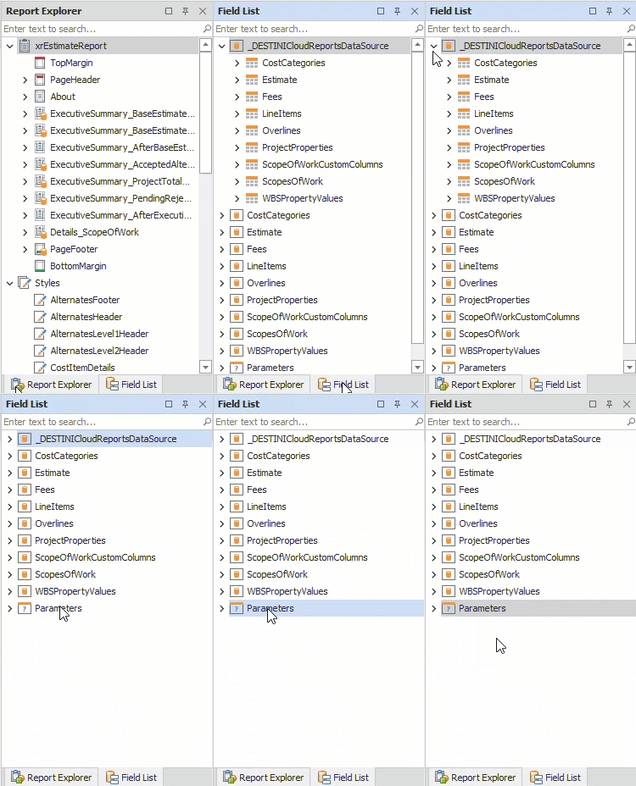
b. Using the tabs, switch to the Field List.
4. At the bottom of the Field List, right-click Parameters and select Edit Parameters…
5. On the left side of the Parameters window, select the Executive Summary group. Using the buttons at the top, click the Add Parameter button.
6. In the middle of the window, populate the following and click OK
-
-
Name: AllocateFees
-
Description: Allocate Fees
-
Type: Boolean
-
Default Value: Yes
-
.gif?width=560&height=271&name=AddAllocateFeesParameter-ezgif.com-video-to-gif-converter%20(1).gif)
The Name is used internally within the Report Designer to reference the parameter, while the Description is what appears in the parameters panel on the left when the report runs.
7. Inside your Field List, search for CostCategoryUnitCost. Right-click the result and select Edit Expression…
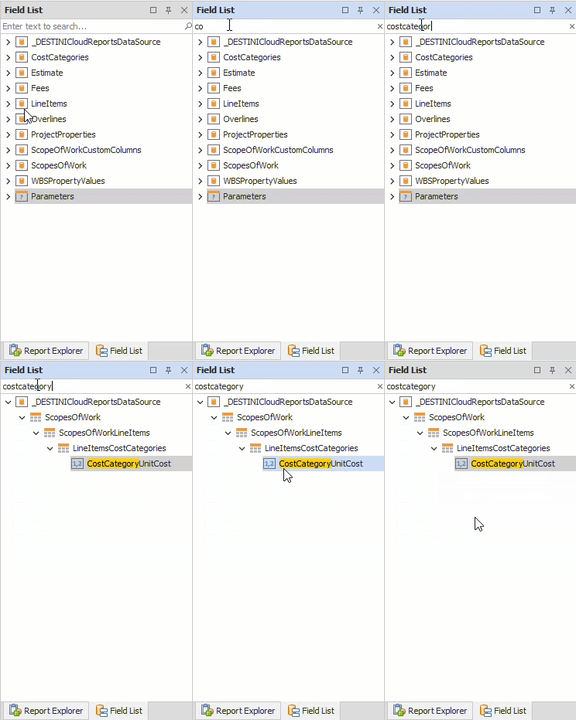
This calculated field is use to calculate the line item’s Unit Cost and Total Cost.
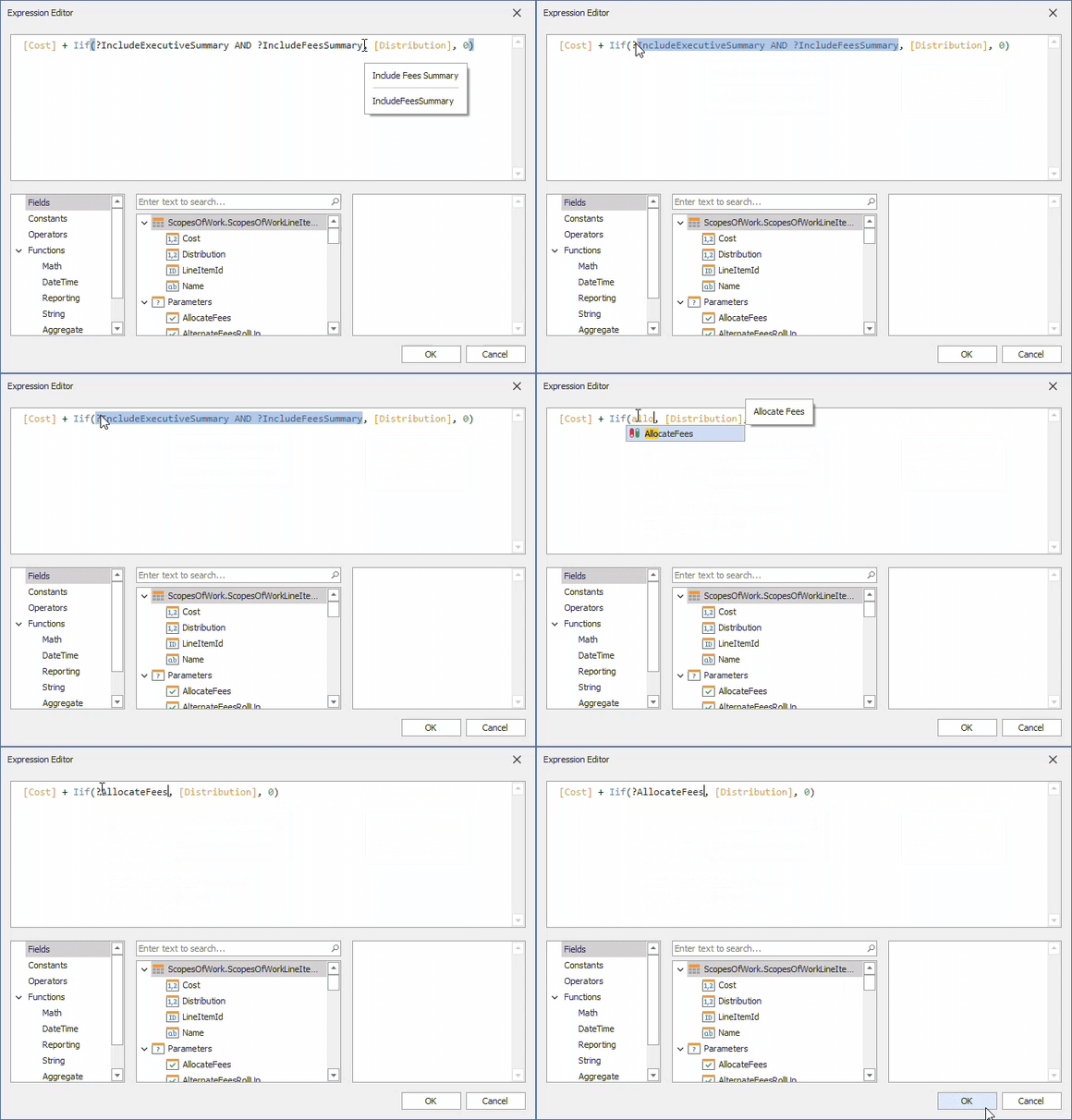
8. Replace the whole expression with the following and click OK
[Cost] + Iif(?AllocateFees, [Distribution], 0)
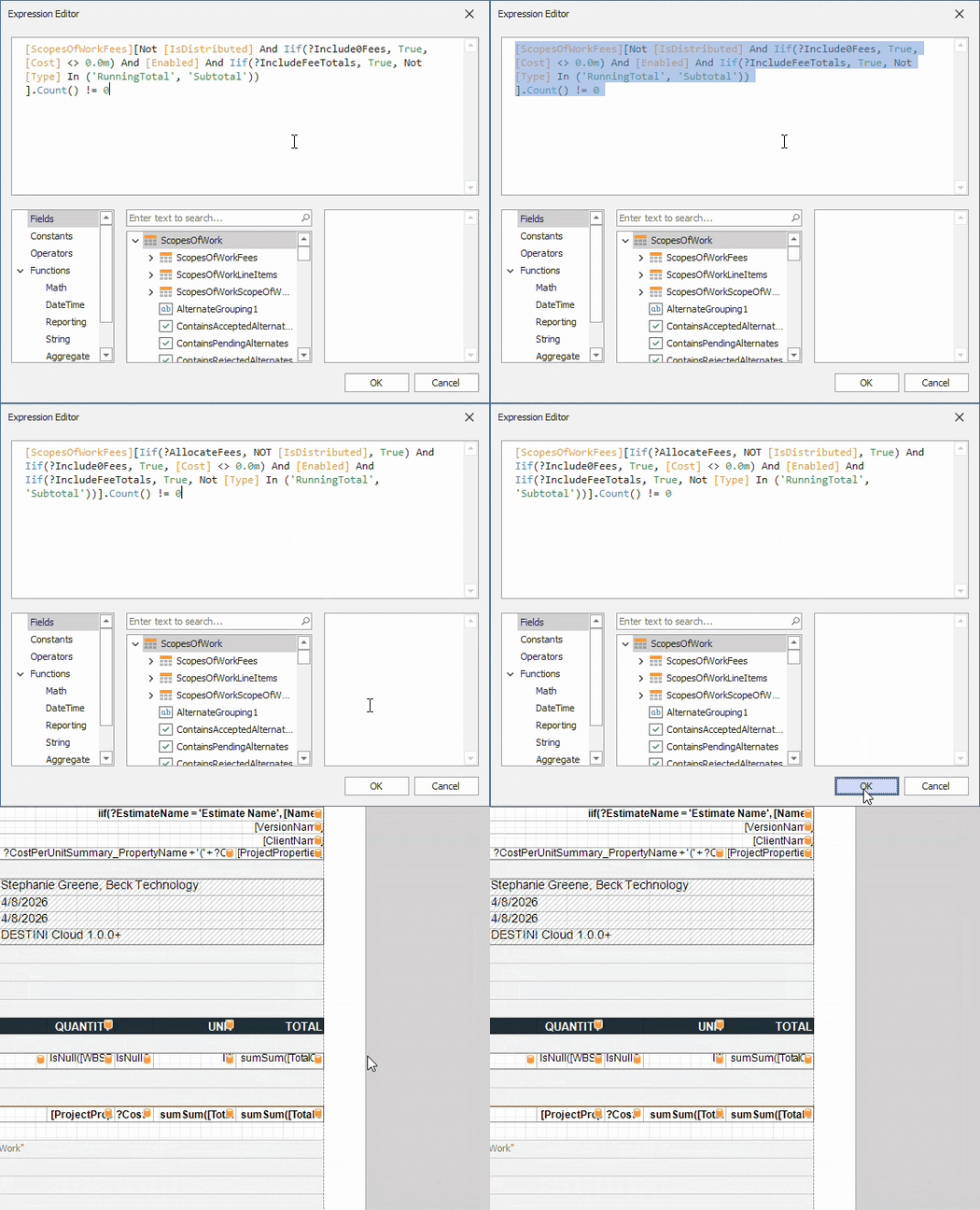
9. Inside your Field List, search for ContainsFees. Right-click the result and select Edit Expression
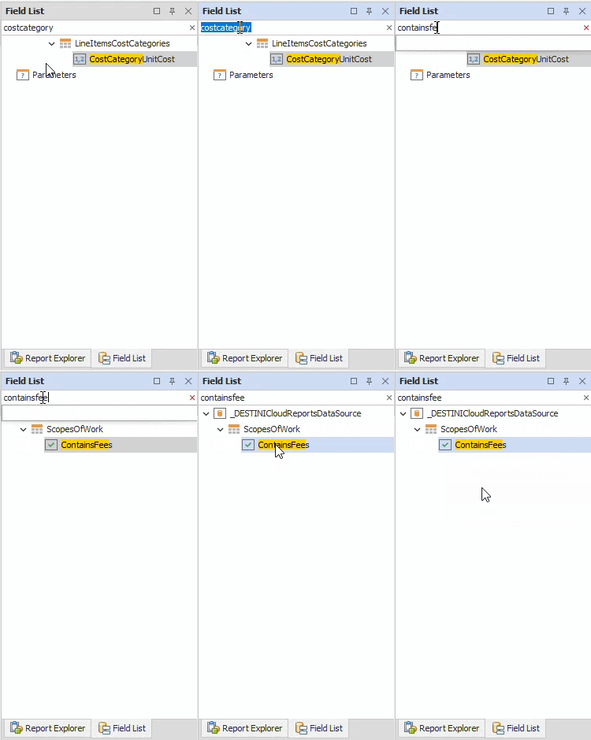
This calculated field is used to control the conditional visibility of fee detail reports.
10. Replace the whole expression with the following and click OK
[ScopesOfWorkFees][Iif(?AllocateFees, NOT [IsDistributed], True) And Iif(?Include0Fees, True, [Cost] <> 0.0m) And [Enabled] And Iif(?IncludeFeeTotals, True, Not [Type] In ('RunningTotal', 'Subtotal'))].Count() != 0
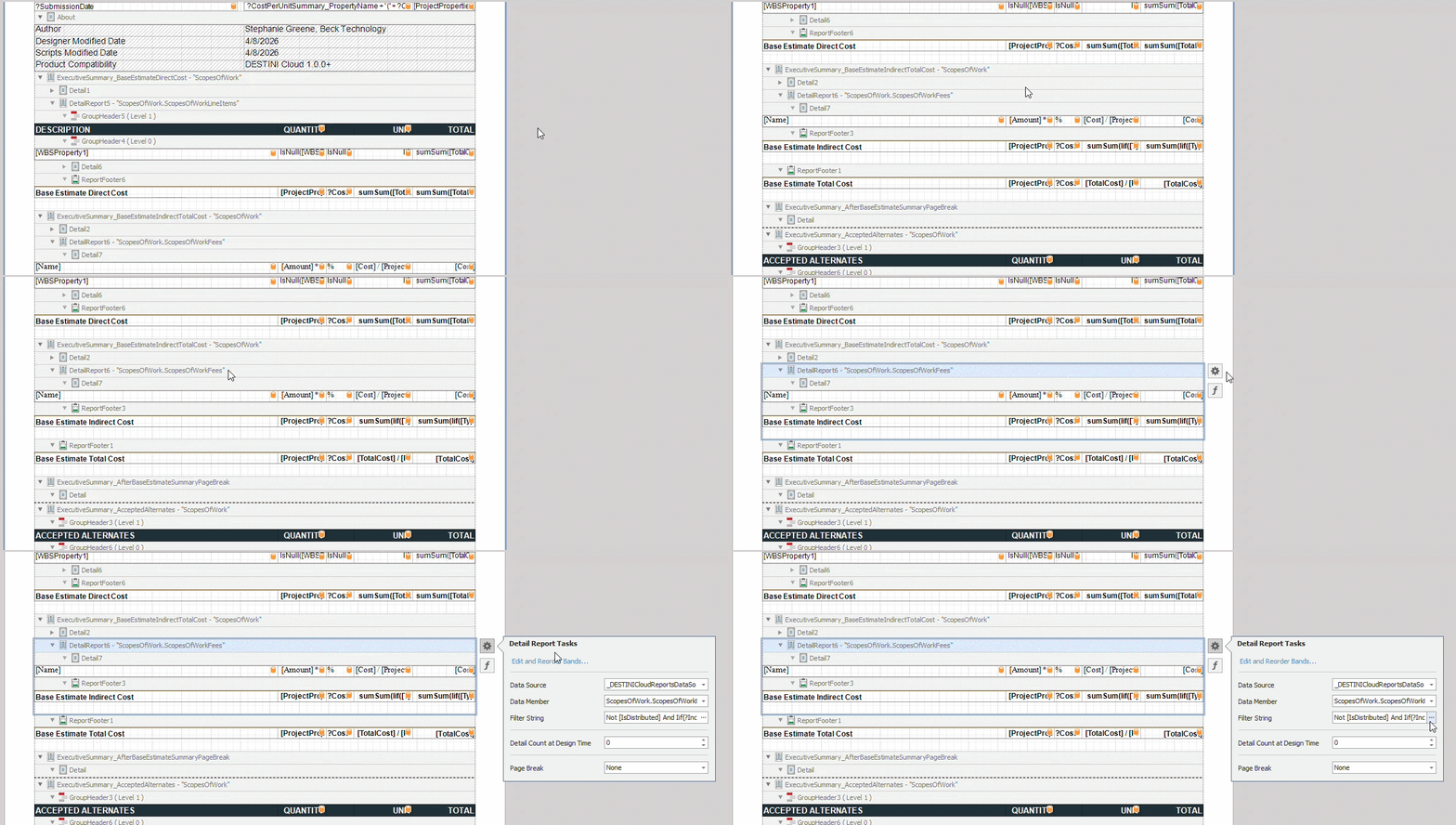
11. Inside the Designer in the middle of your screen, locate the detail report for top Fees. Select the detail report’s band.
12. On the right side of the band, click the Gear button, then the ellipsis button inside the Filter String property.
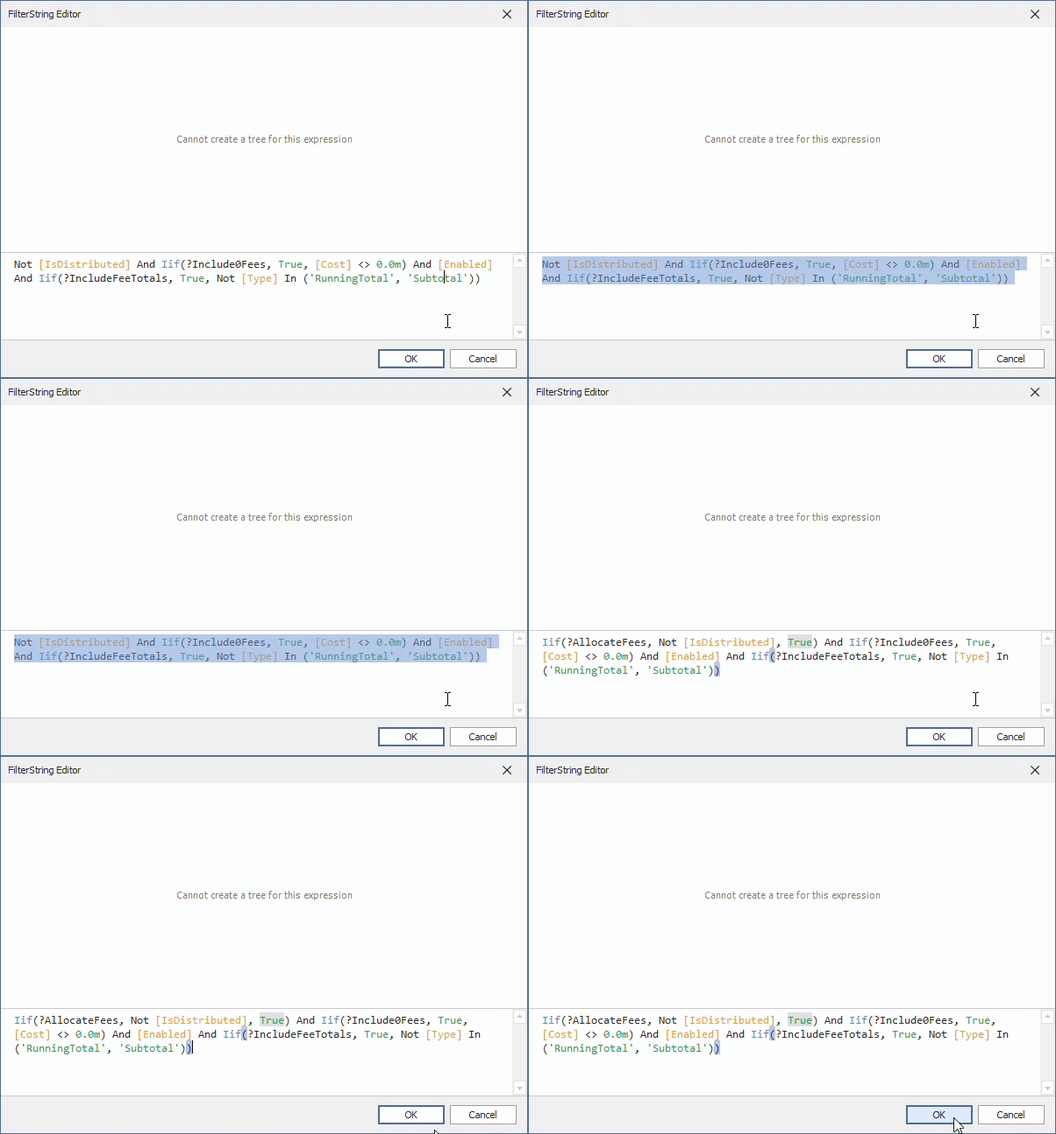
13. Replace the whole expression with the following and click OK
Iif(?AllocateFees, Not [IsDistributed], True) And Iif(?Include0Fees, True, [Cost] <> 0.0m) And [Enabled] And Iif(?IncludeFeeTotals, True, Not [Type] In ('RunningTotal', 'Subtotal'))
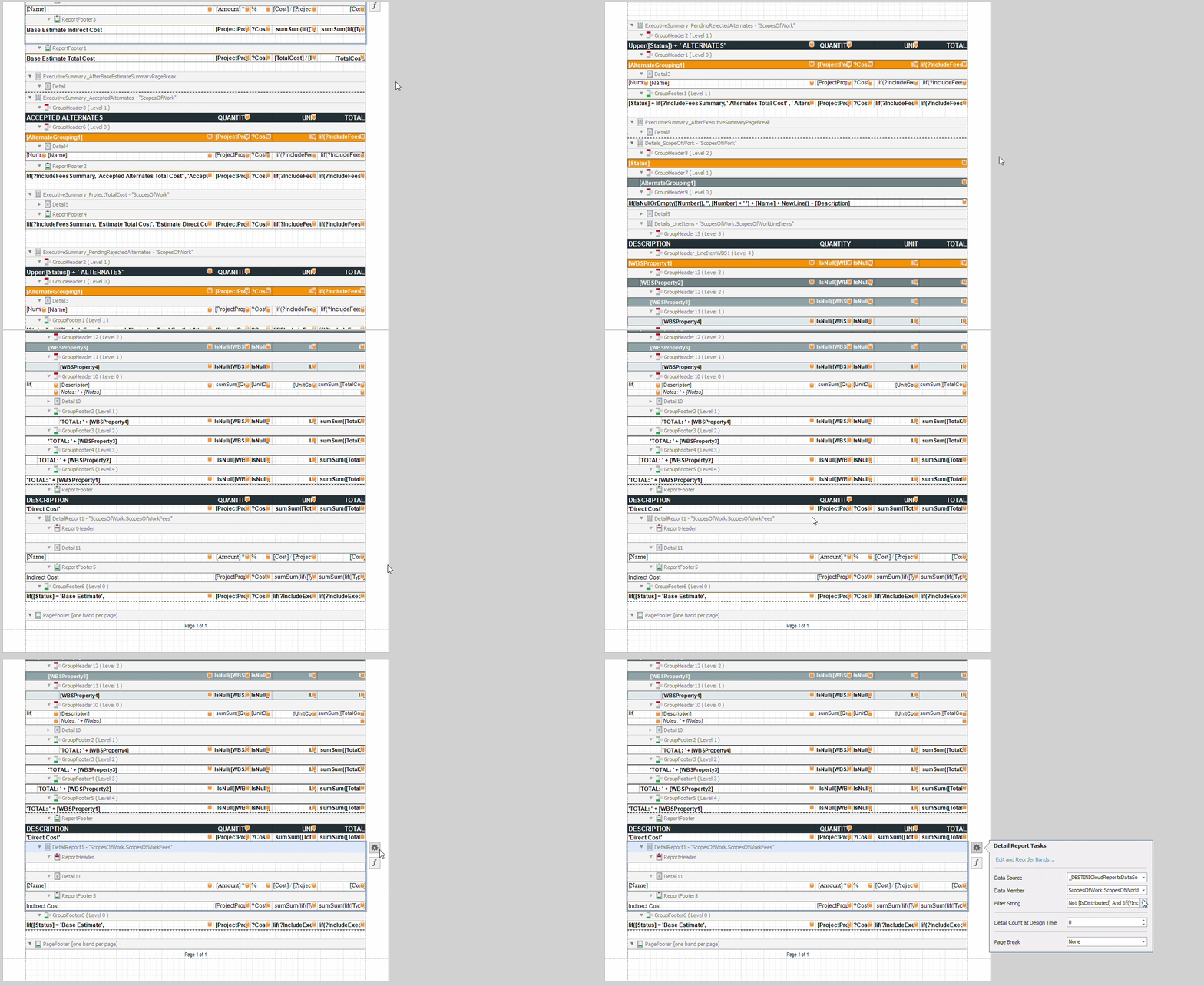
14. Inside the Designer in the middle of your screen, locate the detail report for the bottom Fees. Select the detail report’s band.
15. Repeat the steps above, using the same Filter String expression.
Iif(?AllocateFees, Not [IsDistributed], True) And Iif(?Include0Fees, True, [Cost] <> 0.0m) And [Enabled] And Iif(?IncludeFeeTotals, True, Not [Type] In ('RunningTotal', 'Subtotal'))
16. Save and run your report in DESTINI Estimator: Cloud.
Suggest an Improvement for this Article