
DESTINI Cloud reports include a Cost/Unit column based on a project property selected in the Report Viewer Parameters panel. If you need to compare costs against an additional project property, you can add a second Cost/Unit column. This article explains how to create additional project property parameters and display a new Cost/Unit calculation throughout a report.
This article includes the following sections:
- Add and Update Parameters
- Add a Calculated Field
- Designer Changes: Update the Page Header
- Designer Changes: Add Columns
- Designer Changes: Configure Remaining Column Cells
- Cell Configuration Reference
- Related Articles
Add and Update Parameters
- Open an estimate in DESTINI Cloud Estimator.
- Navigate to Home > New Report. Report Designer opens.
- Click File > Open.
- Navigate to the folder with the report template file (.repx) you want to modify.
- Click the .repx file to open it.
- On the right side of your screen, click the Field List tab at the bottom of Report Explorer.
- Scroll to the bottom of the Field List tab.
- Right-click Parameters and select Edit Parameters.
- On the left side of the Parameters window, locate the Cost/Unit Summaries group and select the first parameter inside the group, IncludedCostPerUnitSummaries.
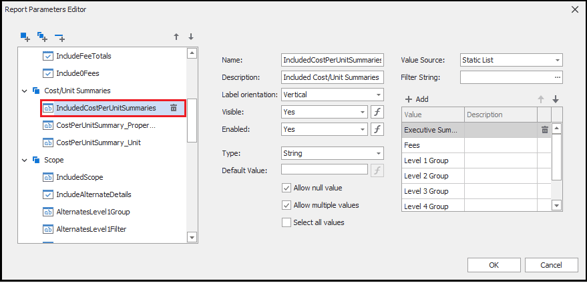
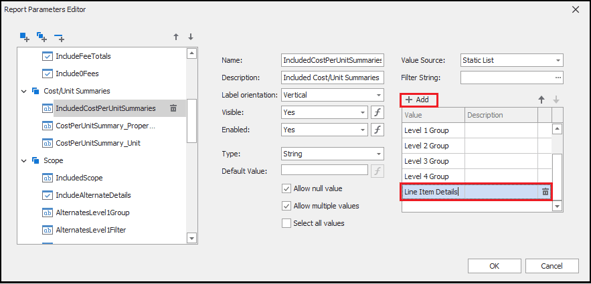
- On the right side of the window, click the +Add button. Enter a new value called Line Item Details.
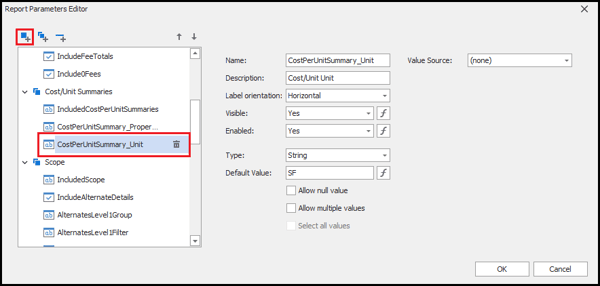
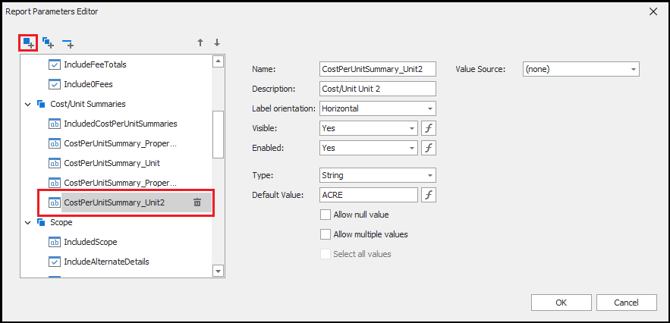
- In the left panel, in the same parameter group, select CostPerUnitSummary_Unit and then click the Add Parameter button on the top left side of the window.
- With the new parameter selected, enter the following information. For any setting not specified here, leave the default configuration:
- Name: CostPerUnitSummary_PropertyName2
- Description: Cost/Unit Property 2
- Type: String
- Default Value: Total Site Area (or any project property name with a numerical value from your estimate)
- Allow null value: Checked
- Value Source: Dynamic List
- Data Source: ProjectProperties
- Value Member: PropertyName
- Display Member: PropertyName
- Filter String:
[NumericValue] Is Not Null - Sort Member: PropertyName
- Sort Order: Ascending
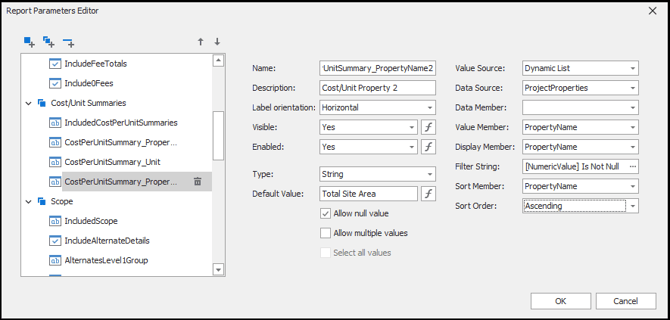
Verify that Allow multiple values is unchecked. If it is enabled, this workflow doesn't work correctly.
- Click the Add Parameter button again. Enter the following information for the second parameter and click OK.
- Name: CostPerUnitSummary_Unit2
- Description: Cost/Unit Unit 2
- Type: String
- Default Value: ACRE
Add a Calculated Field
Use the following procedure to create a calculated field that prints your project property value.
- On the right side of your screen, verify that the Field List tab is selected.
- Scroll up to _DESTINICloudReportsDataSource at the top of the hierarchy.
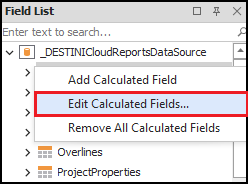
- Right-click any node underneath _DESTINICloudReportsDataSource and select Edit Calculated Fields. The Calculated Field Collection Editor opens.
- Click the Add button.
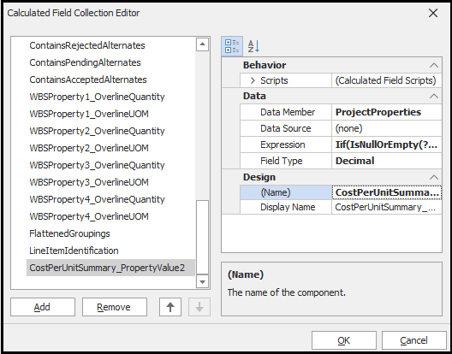
- With the new calculated field selected, enter the following information and click OK. For any setting not specified here, leave the default configuration:
- Data Member: ProjectProperties
- Expression:
Iif(IsNullOrEmpty(?CostPerUnitSummary_PropertyName2), 0, [][[PropertyName] == ?CostPerUnitSummary_PropertyName2].Single([NumericValue])) - Field Type: Decimal
- (Name): CostPerUnitSummary_PropertyValue2
Designer Changes: Update the Page Header
Use the following procedure to change the design of your PageHeader band so it accommodates the new parameter.
- In Designer in the middle of your screen, locate the PageHeader band at the top of the report. Right-click the last cell on the bottom right and select Insert > Row Below.

- Select the left cell of the new row and click the Gear button. The Table Cell Tasks dialog box opens.
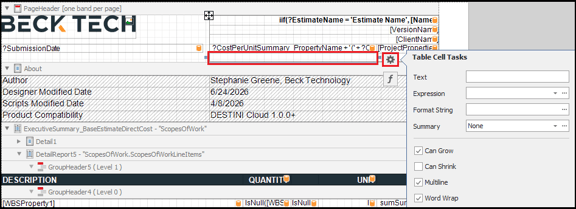
- Click the ellipses (...) in the Expression field, paste the following expression, and then click OK:
?CostPerUnitSummary_PropertyName2 + ' (' + ?CostPerUnitSummary_Unit2 + '): '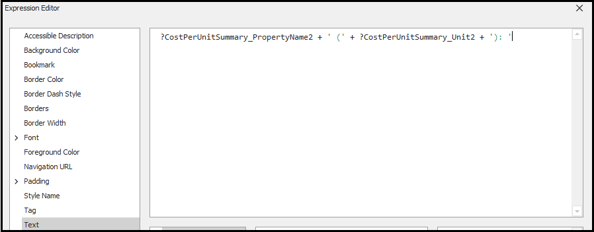
- Select the right cell of the new row and click the Gear button.
- Paste the following expression into the Expression field:
[ProjectProperties].[CostPerUnitSummary_PropertyValue2] - Paste the following format into the Format String field, and then click anywhere outside of the dialog box to save your changes:
{0:n0}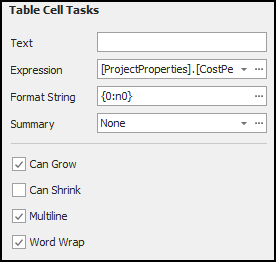
Note: For more information about format strings, see How to Change Numerical Formatting in DESTINI Cloud Reports - Save and run your report. Confirm that your new page header cells include the new project property parameters.
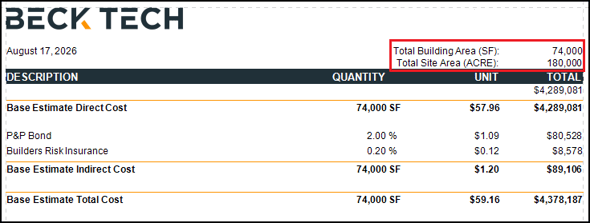
Designer Changes: Add Columns
- In Designer in the middle of your screen, locate the Executive Summary band below the PageHeader band.
- Right-click the Unit column header and select Insert > Column to Right.
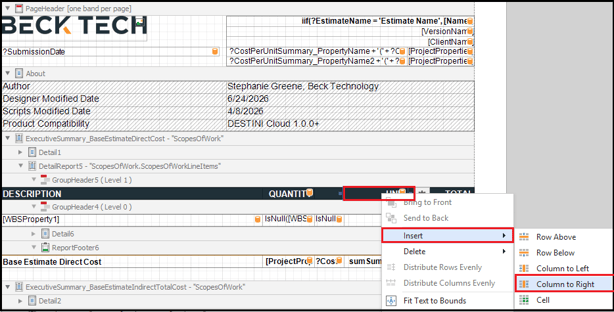
- Repeat the previous step for each row in the Executive Summary band (15 new cells in total).
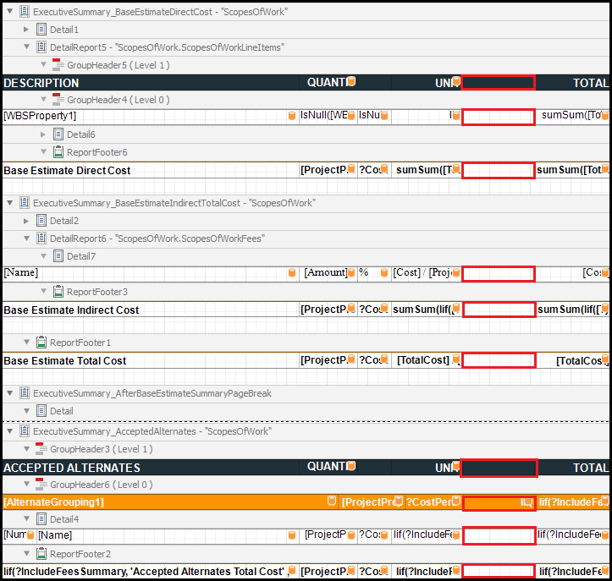
Note: If you would like to print this column inside the Line Item Details band, continue inserting cells to extend the new column throughout the report.
Adding a new column reduces the width of existing columns. As a result, some headers (such as Quantity) may wrap to a new line. To adjust column width, select the cell and drag its left or right edge. - At the top of the Executive Summary, select the new column header between the Unit and Total column headers and then click the Gear button to the right.
- In the Expression field, click the ellipsis (...).
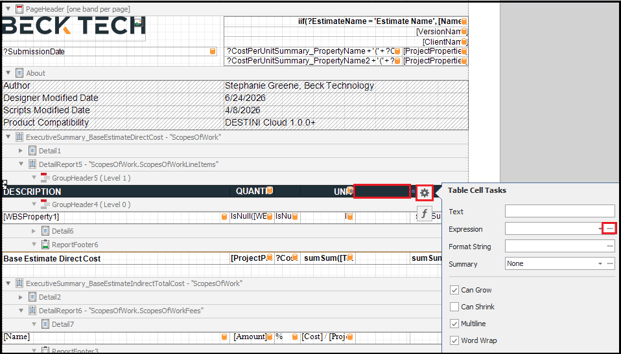
- In the text field, paste the following expression:
'COST/' + ?CostPerUnitSummary_Unit2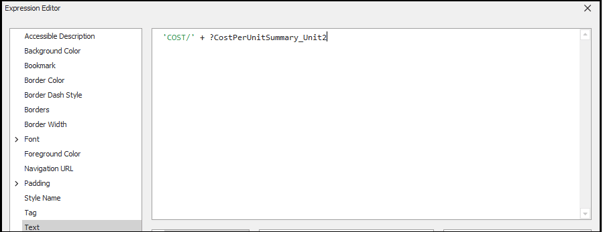
- In the left pane, click Visible and then paste the following expression:
'Executive Summary Totals' in (?IncludedCostPerUnitSummaries) OR ('Fees' in (?IncludedCostPerUnitSummaries) AND [ScopesOfWork].[ContainsFees]) OR 'Level 1 Group' IN (?IncludedCostPerUnitSummaries)
- Click OK.
- Select the next new cell you added beneath the column header in the [WBSProperty1] row and then click the Gear button to the right. Enter the following information in the specified order:
- Summary = Group
- Format String = {0:c2}

- In the Expression field, click the ellipsis (...).
- In the text section, paste the following expression:
Iif(IsNullOrEmpty(?WBSProperty1_Parameter), '', NOT 'Level 1 Group' IN (?IncludedCostPerUnitSummaries), '', sumSum([TotalCost] / [ProjectProperties].[CostPerUnitSummary_PropertyValue2]))
- Click OK
- Save and run your report.
Designer Changes: Configure Remaining Column Cells
In the previous procedure, you created 15 new cells within a new column (more, if you extended the column throughout the report). You then configured cells in the first two rows to display report data based on the column configurations.
You must now configure the remaining cells to display report data. Each cell requires a Text expression. A subset of cells also requires a Visible expression.
Repeat the following procedure for each row specified in the Cell Configuration Reference later in this article.
We recommend you open the Cell Configuration Reference on a separate browser tab or copy/paste it into a separate document. This will enable you to more easily copy and paste the cell configuration details from the reference while you work through the following procedure.
- Select a cell then click the Gear button to the right.
- Enter the following information in the specified order:
- Summary: Enter the Summary information for each specified row in the Cell Configuration Reference.
- Format String (always specify the following value): {0:c2}
For example:
- In the Expression field, click the ellipsis (...).
- In the text field, paste the Text expression. For example:
- If the specified row requires a Visible expression (as noted in the Cell Configuration Reference) then click Visible in the left pane and paste the specified expression in the field. For example:
- Click OK.
Cell Configuration Reference
You configured cells in the first two rows earlier in this article. Use the following reference to configure cells in rows three and later.
Executive Summary - Base Estimate Reference
Row 3: Direct Cost
-
Summary: Report
-
Text Expression:
sumSum([TotalCost] / [ProjectProperties].[CostPerUnitSummary_PropertyValue2]) -
Visible Expression:
'Executive Summary Totals' in (?IncludedCostPerUnitSummaries)
Row 4: Fees List
-
Summary: None
-
Text Expression:
[Cost] / [ProjectProperties].[CostPerUnitSummary_PropertyValue2] -
Visible Expression:
NOT [Type] IN ('RunningTotal', 'Subtotal') && 'Fees' in (?IncludedCostPerUnitSummaries)
Row 5: Indirect Cost
-
Summary: Report
-
Text Expression:
sumSum(Iif([Type] In ('RunningTotal', 'Subtotal'), 0, [Cost] / [ProjectProperties].[CostPerUnitSummary_PropertyValue2])) -
Visible Expression:
'Executive Summary Totals' in (?IncludedCostPerUnitSummaries)
Row 6: Total Cost
-
Summary: None
-
Text Expression:
[TotalCost] / [ProjectProperties].[CostPerUnitSummary_PropertyValue2] -
Visible Expression:
'Executive Summary Totals' in (?IncludedCostPerUnitSummaries)
Alternates Summary Reference
Row 7: Column Header
-
Summary: None
-
Text Expression:
'COST/' + ?CostPerUnitSummary_Unit2 -
Visible Expression:
'Executive Summary Totals' in (?IncludedCostPerUnitSummaries)
Row 8: Alternates Grouping
-
Summary: Group
-
Text Expression:
Iif(NOT 'Executive Summary Totals' in (?IncludedCostPerUnitSummaries), '', ?IncludeFeesSummary, sumSum([TotalCost]) / [ProjectProperties].[CostPerUnitSummary_PropertyValue2], sumSum([DirectCost]) / [ProjectProperties].[CostPerUnitSummary_PropertyValue2]) -
Visible Expression: Leave empty.
Row 9: Alternates List
-
Summary: None
-
Text Expression:
Iif(?IncludeFeesSummary, [TotalCost] / [ProjectProperties].[CostPerUnitSummary_PropertyValue2], [DirectCost] / [ProjectProperties].[CostPerUnitSummary_PropertyValue2]) -
Visible Expression:
'Executive Summary Totals' in (?IncludedCostPerUnitSummaries)
Row 10: Accepted Alternates Total
-
Summary: Report
-
Text Expression:
Iif(?IncludeFeesSummary, sumSum([TotalCost]) / [ProjectProperties].[CostPerUnitSummary_PropertyValue2], sumSum([DirectCost]) / [ProjectProperties].[CostPerUnitSummary_PropertyValue2]) -
Visible Expression:
'Executive Summary Totals' in (?IncludedCostPerUnitSummaries)
Row 11: Pending/Rejected Alternates Total
-
Summary: Group
-
Text Expression:
Iif(?IncludeFeesSummary, sumSum([TotalCost]) / [ProjectProperties].[CostPerUnitSummary_PropertyValue2], sumSum([DirectCost]) / [ProjectProperties].[CostPerUnitSummary_PropertyValue2]) -
Visible Expression:
'Executive Summary Totals' in (?IncludedCostPerUnitSummaries)
Estimate Total Cost Reference
Row 12: Estimate Total Cost
-
Summary: Report
- Text Expression:
Iif(?IncludeFeesSummary, sumSum([TotalCost]) / [ProjectProperties].[CostPerUnitSummary_PropertyValue2], sumSum([DirectCost]) / [ProjectProperties].[CostPerUnitSummary_PropertyValue2]) -
Visible Expression:
'Executive Summary Totals' in (?IncludedCostPerUnitSummaries)
Line Item Details Reference
Row 13: Column Header
-
Summary: None
- Text Expression:
'COST/' + ?CostPerUnitSummary_Unit2 -
Visible Expression: Leave empty.
Row 14: WBS Property1
-
Summary: Group
- Text Expression:
Iif(NOT 'Level 1 Group' IN (?IncludedCostPerUnitSummaries), '', NOT ?IncludeAllLineItemDetails, sumSum([TotalCost] / [ProjectProperties].[CostPerUnitSummary_PropertyValue2]),sumSum(Iif([WBSProperty1] in (?WBSProperty1_RollUp), 1, 0)) != 0, sumSum([TotalCost] / [ProjectProperties].[CostPerUnitSummary_PropertyValue2]), '') - Visible Expression: Leave empty.
Row 15: WBSProperty2
-
Summary: Group
-
Text Expression:
Iif(NOT 'Level 2 Group' IN (?IncludedCostPerUnitSummaries), '',NOT ?IncludeAllLineItemDetails, sumSum([TotalCost] / [ProjectProperties].[CostPerUnitSummary_PropertyValue2]),sumSum(Iif([WBSProperty2] in (?WBSProperty2_RollUp), 1, 0)) != 0, sumSum([TotalCost] / [ProjectProperties].[CostPerUnitSummary_PropertyValue2]),'') -
Visible Expression: Leave empty.
Row 16: WBSProperty3
-
Summary: Group
- Format String: {0:c2}
- Text Expression:
Iif(NOT 'Level 3 Group' IN (?IncludedCostPerUnitSummaries), '',NOT ?IncludeAllLineItemDetails, sumSum([TotalCost] / [ProjectProperties].[CostPerUnitSummary_PropertyValue2]),sumSum(Iif([WBSProperty3] in (?WBSProperty3_RollUp), 1, 0)) != 0, sumSum([TotalCost] / [ProjectProperties].[CostPerUnitSummary_PropertyValue2]),'') -
Visible Expression: Leave empty.
Row 17: WBSProperty4
-
Summary: Group
- Text Expression:
Iif(NOT 'Level 4 Group' IN (?IncludedCostPerUnitSummaries), '',NOT ?IncludeAllLineItemDetails, sumSum([TotalCost] / [ProjectProperties].[CostPerUnitSummary_PropertyValue2]),sumSum(Iif([WBSProperty4] in (?WBSProperty4_RollUp), 1, 0)) != 0, sumSum([TotalCost] / [ProjectProperties].[CostPerUnitSummary_PropertyValue2]),'') -
Visible Expression: Leave empty.
Row 18: Line Item Row
-
Summary: Group
- Text Expression:
Iif(NOT 'Line Item Details' IN (?IncludedCostPerUnitSummaries), '', sumSum([TotalCost] / [ProjectProperties].[CostPerUnitSummary_PropertyValue2])) -
Visible Expression: Leave empty.
Related Articles