
DESTINI Cloud Reports have built-in support to insert a page break after each Level 1 value in the Line Item Details section. This option is disabled by default. This article explains how to enable it at runtime and change the parameter’s default value.
Add Level 1 Page Break at Runtime
-
Inside DESTINI Cloud: Estimator, run your report
-
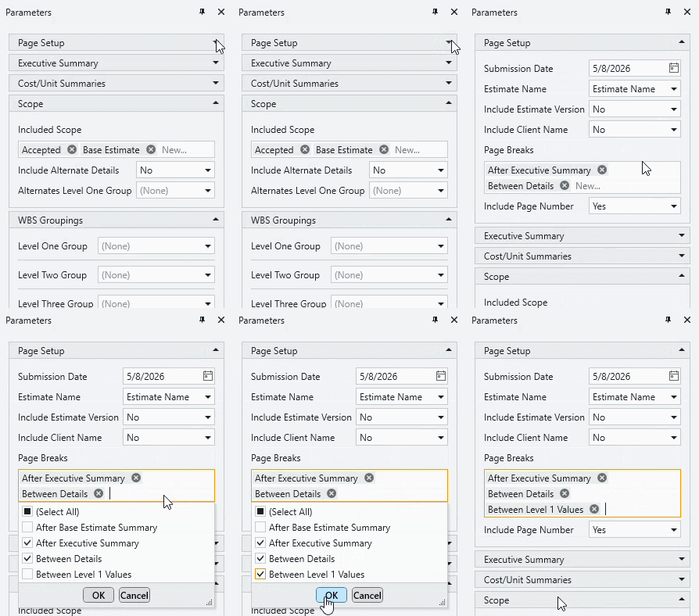
When the Report Previewer window opens, locate the Parameters panel on the left side of your screen.
-
Expand the Page Setup group
-
Click inside the Page Breaks parameter and select Between Level 1 Values. Click OK to close the drop-down menu.
-
Click the Submit button
Update the Parameter’s Default Value
1. Open the Report Designer
-
-
In DESTINI Cloud: Estimator, open an Estimate (any estimate, it doesn’t matter which).
-
Navigate to the Home View.
-
In the main Ribbon, click on New Report…
-
Report Designer will be launched
-
-
2. In the Report Designer, open your report template file
-
-
Click the Open button
-
Navigate to the location of the report template file (.repx) that you want to modify
-
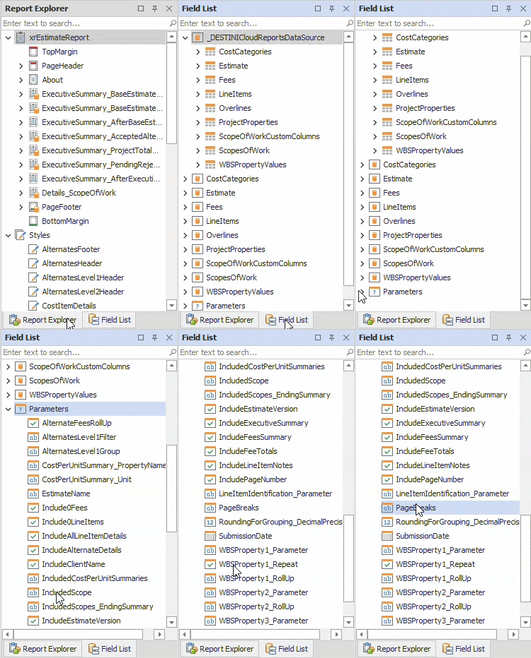
3. On the right side of your screen, open the Field List
-
-
Locate the Report Explorer on the right side of the screen.
-
Using the tabs, switch to the Field List.
-
4. At the bottom of the Field List, expand Parameters and select PageBreaks
5. On the bottom right side of your screen, locate the Properties
6. Inside the Value field, append the contents with ,Between Level 1 Values
.gif?width=234&height=307&name=HowtoAddaPageBreakafterLevel1ValuesinaCloudReport3-ezgif.com-video-to-gif-converter%20(1).gif)
Multiple values need to be separated by a comma (no space). Here is the full value after making the above change.
After Executive Summary,Between Details,Between Level 1 Values
7. Press the Enter key on your keyboard
8. Save and run your report in DESTINI Cloud: Estimator
Suggest an Improvement to this Article