
DESTINI Cloud: Estimator reports include several built-in page breaks that can be enabled or disabled through report parameters. This article explains how to add a new page break and connect it to the existing Page Breaks parameter.
In this example, you'll add a page break after the Level 2 grouping in the Line Item Details section.
- Open an estimate in DESTINI Cloud: Estimator.
- Navigate to Home > New Report. Report Designer opens.
- Click File > Open.
- Navigate to the folder with the report template file (.repx) you want to modify.
- Click the .repx file to open it.
- In the Designer section in the middle of your screen, click the GroupFooter band for 'TOTAL: ' + [WBSProperty2].

- In the Toolbox panel on the left side of your screen, scroll down to the Page Break control. Drag and drop a page break into the bottom of the 'TOTAL:'+[WBSProperty2] GroupFooter band.

Report Designer displays a colored alignment line showing where it will add the page break. The new page break appears as a dashed line. - Click the new page break and then click the Function button on the right. Expression Editor opens.
- In Expression Editor, click the Visible section in the left box.
- In the text box at the top of the window, paste the following and click OK.
'Between Level 2 Values' In (?PageBreaks)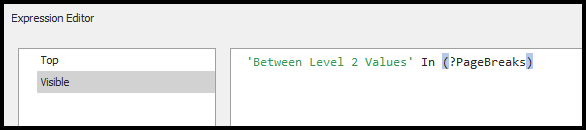
Relocate the Conditional Visibility of the Report Band
Estimator standard report bands determine whether or not objects in a band are visible based on certain conditions. This is called conditional visibility. When a new control with different conditional visibility, such as a page break, is added to a band, the new control may not behave as expected.
For the page break you just added, the band's conditional visibility would roll up Level 2 Values and disable the new page break, regardless of the page break parameter setting.
To mitigate this issue, you must relocate conditional visibility to the table inside the band. This way, the table and page break control have independent conditional visibility expressions.
- Reselect the GroupFooter band for 'TOTAL: ' + [WBSProperty2] and then click the Function button to the right. Expression Editor opens.
- In Expression Editor, click the Visible section in the left box.
- Copy everything inside the text box. For example:
!IsNullOrEmpty(?WBSProperty2_Parameter) &&!([WBSProperty1] in (?WBSProperty1_RollUp)) &&!([WBSProperty2] in (?WBSProperty2_RollUp)) &&?IncludeAllLineItemDetails - Delete everything inside the text box and click OK.
- On the right side of your screen, verify that the GroupFooter band you selected at the start of this procedure is selected in Report Explorer. For example:
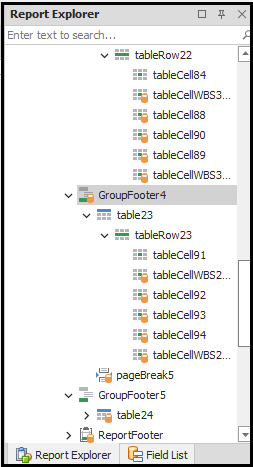
- Click the table under the GroupFooter. For example, table23.
- In the Designer section in the middle of your screen, verify the table you click in the previous step is selected. Click the Function button for the table.
- In Expression Editor, click the Visible section on the left.
- Paste the expression you copied in Step 3 of this procedure and click OK.
Update the Page Breaks Parameter
- On the right side of your screen, click the Field List tab at the bottom of Report Explorer.
- Scroll to the bottom of the Field List tab and expand Parameters.
- Right-click PageBreaks and select Edit Parameters.
- On the right side of Report Parameters Editor, click the Add button
 .
. - Paste the following into the new field:
Between Level 2 Values - (Optional) In the middle of Report Parameters Editor, add the following to the Default Value field. Include the leading comma:
,Between Level 2 Values
The Default Value field should include the following:After Executive Summary,Between Details,Between Level 2 Values - Click OK
- Save and run the report