
Distributed fees allow you to allocate a fee’s cost across specific estimate line items rather than applying it as a single lump sum. This article explains how distributed fees behave in Estimator, where they appear in the estimate, and how custom criteria can be used to accurately control distribution.
Understanding Distributed Fees
A distributed fee represents a defined cost that is allocated across estimate line items. Distribution controls where a fee’s cost appears in the estimate, not how much the fee contributes to the total.
- To mark a fee for distribution, click the checkbox in the Distribute column in the Fee Editor.
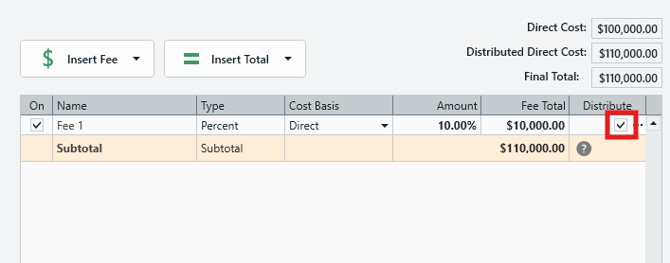
When a fee is marked as distributed:
- The fee’s value is spread across qualifying line items based on defined criteria.
- Distributed fees are shown at the line‑item level, not as a single fee value.
Fee Distribution Criteria
Adding custom fee distribution criteria gives you precise control over which line items receive a portion of a distributed fee. Using the Fee Distribution window, you can allocate fees across one or more cost categories, and define custom rules based on specific WBS properties.
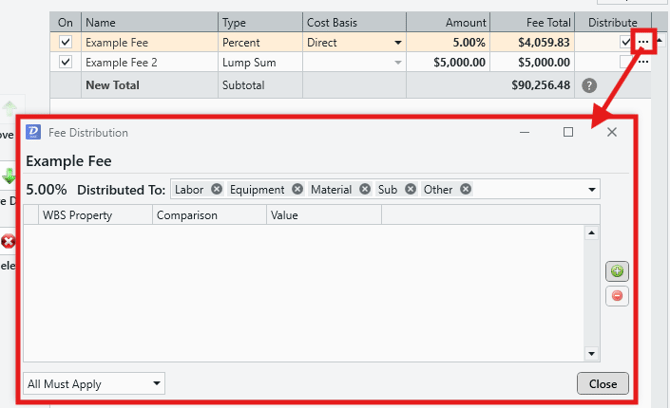
Fee Distribution Window: Click on the ellipsis next to the Distribute checkbox to access the Fee Distribution window.
-
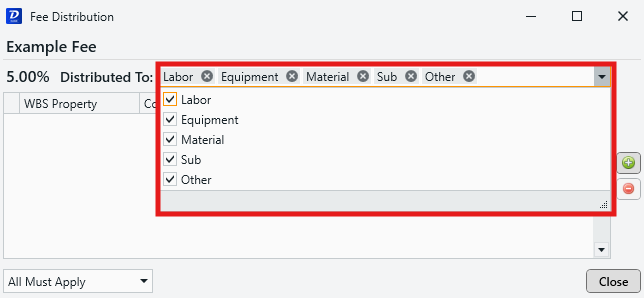
Distribute To: Determine which cost categories to distribute your fee to by adding/removing them from the dropdown field.
-
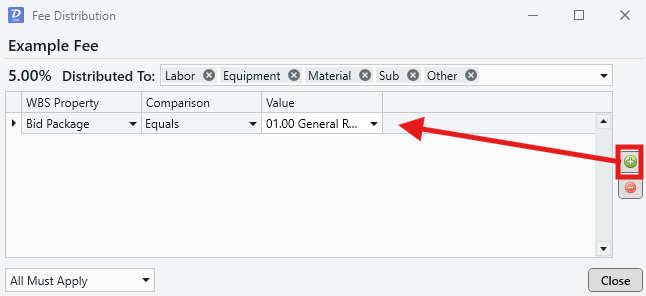
Add custom criteria: Click on the '+' icon to add a custom criteria for fee distribution.
-
Set the criteria conditions:
- WBS Property: Select a WBS Property to test against.
- Comparison: Choose an operation to perform.
- Value: Enter a value to compare to. This setting controls whether a line item is included or excluded based on the criteria you’ve defined.
-
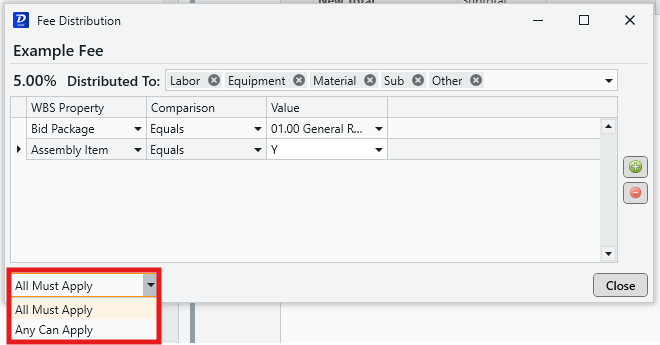
Application Rules: When you have more than one distribution criteria, it is important to set how these criteria are applied in the dropdown:
-
- All Must Apply: The fee is only distributed to line items that meet all of the listed criteria. Use this setting for a more restricted distribution method.
- Any Can Apply: The fee will be distributed to line items that meet any of the listed criteria. This is useful if you have several separate conditions that you'd like to specify for distribution.
Key points:
- If a fee is set to distribute against a specific division, only line items in that division receive the fee.
- If a line item is excluded by a distribution criteria, it will no longer receive a portion of the distributed fee.
- The excluded amount is automatically redistributed across the remaining eligible line items.
- The total fee amount remains unchanged - only the allocation across the estimate is affected.
Where Distributed Fees Appear
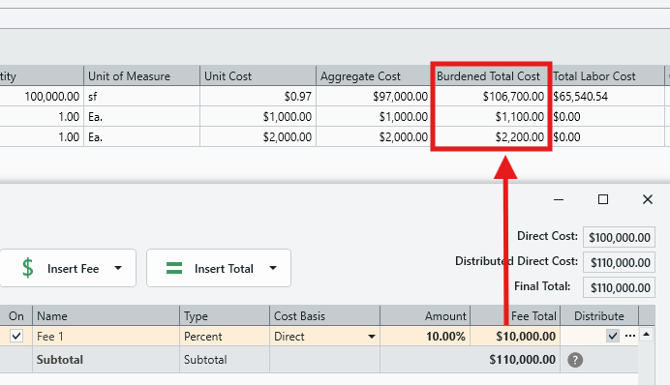
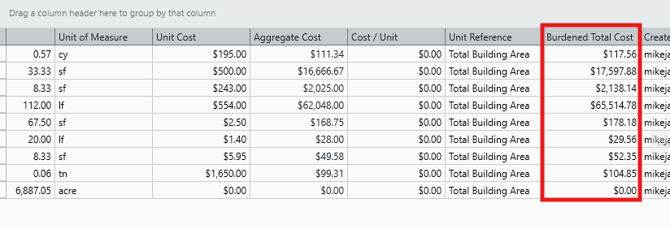
Distributed fees are displayed at the line-item level in the Burdened Total columns in the Estimate View.
-
The Burdened Total Cost column shows how distributed fees affect each individual line item.
-
Non-distributed fees do not appear at the line-item level.
- Burdened Costs are included in reports.
Add various Burdened Total columns to your Estimate View using the Column Chooser:
-
Right-click on the column header and select Show Column Chooser:

-
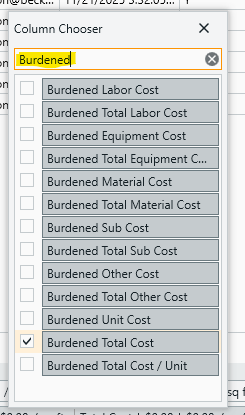
In the Column Chooser, search the word 'Burdened' to reveal the full selection of burdened cost columns available:
-
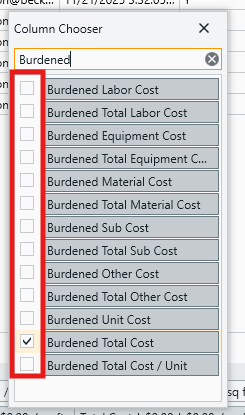
Check the boxes on the left to add your preferred columns to the Estimate View, or drag and drop them directly into the Estimate View column header.
-
The sum of line item costs including distributed fees will be displayed in these columns:
NOTE: If your distributed fees are not calculating as you would expect, please see the below related topics: