
Hosted clients migrating to the DESTINI Cloud platform will need to make a backup copy of any data that they have stored in the Z: drive in the Hosted environment. Once migration is complete, the Z: drive will be deleted.
This article outlines a recommended approach for backing up your Z: drive content using Microsoft’s AZCopy utility. However, you may use any backup method that aligns with your organization’s standards and preferences.
IMPORTANT: Beck Tech Support will provide clients migrating to the DESTINI Cloud platform a Windows command prompt containing a unique SAS Token and Storage Account URL. This command prompt is required for completing the below backup process.
If you do not have your Z: drive Backup command prompt, please contact Beck Tech Support.
The Backup Process in Summary
Here's a quick overview of the backup process detailed below:
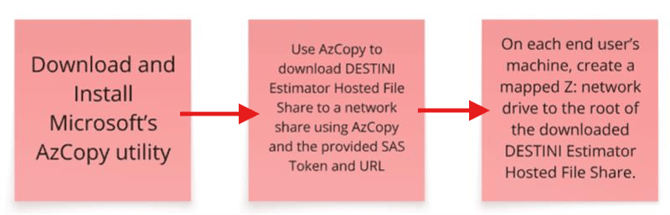
Prepare AZCopy
- Download AZCopy:
- Click here to open the downloads page for AZCopy.
- Under the section 'Download a portable binary', download the 'Windows 64-bit' version.
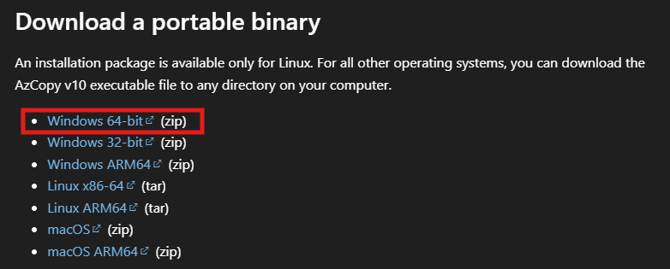
- The application will be downloaded as a compressed (.zip) file.
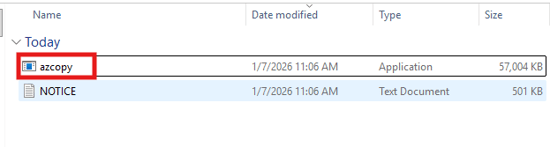
- Extract AZCopy.
- Once extraction is complete, navigate into the folder where the AZCopy application file is located. Keep this File Explorer window open - we will need it in the following section.
Use Windows CMD and AZCopy to Backup Your Z: Drive
- You should still have the File Explorer window open inside the folder containing the AZCopy application downloaded in the previous step. Type 'CMD' into the address bar of that Explorer window and hit Enter to launch Windows Command Prompt.
- NOTE: It's important that you do the above step while inside the folder where AZCopy is located.
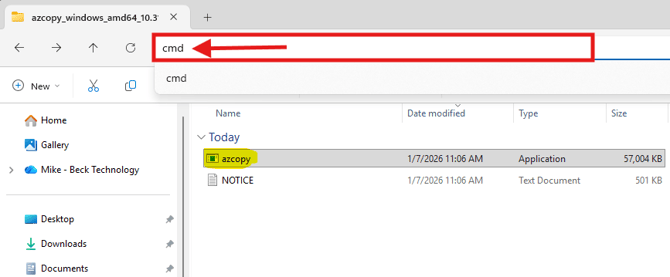
- Entering CMD into the address bar will launch Windows Command Prompt, and it will be automatically navigated to the folder containing AZCopy. To confirm, you should see the relevant filepath pre-populated in CMD. Here is an example:
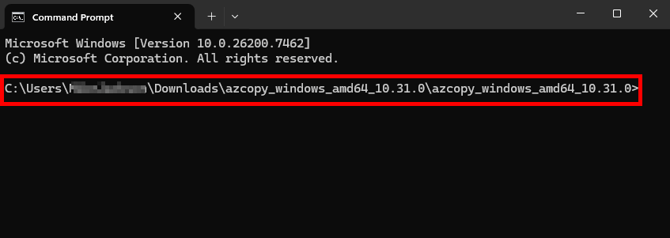
- Beck Tech Support will provide you with a command prompt containing your unique SAS Token and Storage Account URL.
NOTE: If you do not have your Z: drive Backup command prompt, please contact Beck Tech Support.
-
Enter and run the prompt you received from Beck Tech in CMD. This will initiate the backup process.
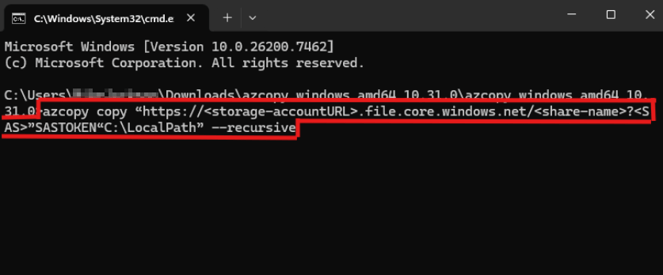
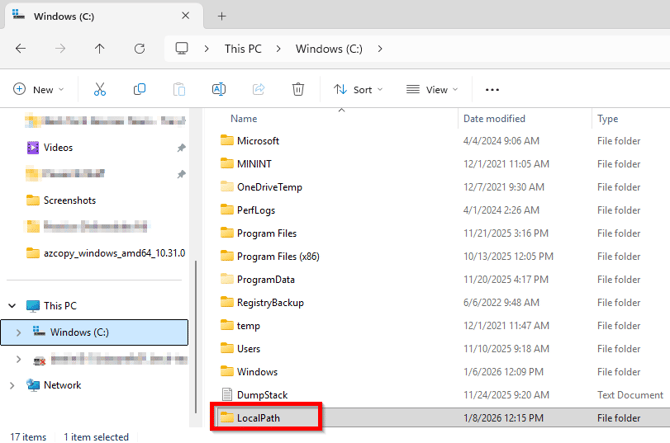
- Once complete, you will find the contents of your Z: drive on your local C: drive. In a File Explorer window, click on This PC and navigate to your C: drive. You will see the folder as shown below.
Suggestion - Hosting Data in a New Z: Drive
Many Hosted clients have estimates that reference PDF takeoff drawings and report template files stored on the Hosted Z: drive. After migrating to the DESTINI Cloud platform, the Z: drive is no longer available. As a result, when these estimates are opened in DESTINI Cloud, links to the associated PDF drawings and report files will be broken.
Estimator allows users to update the file location for PDFs, but this process must be completed individually for each estimate. To avoid—or minimize—the need for per-estimate updates, a more efficient approach is to create a replacement Z: drive in the local environment and restore the backed-up Z: drive data to that location.
IT administrators may consider the following approach:
- Create a new network drive to serve as the Z: drive replacement and upload all backed-up data to the root of that drive.
- On each end user’s machine, map the new network drive using the Z: drive letter.
NOTE: The replacement drive must use the Z: drive letter to preserve existing file paths. Using a different drive letter will break the links in existing estimates and require each estimate to be reconfigured manually.
User Training
The Beck Technology Portal has new courses designed to get users up to speed with what’s new in DESTINI Cloud.
Submit Your Suggestions to Help Improve This Article