
When upgrading your report template files to the latest standards release by Beck Technology, you will likely want to bring over any custom stylization changes that you made in the older files (header and background colors, typography, etc.).
The easiest way to do this is via the Styles Import/Export feature built into Report Designer. This article will walk you through the simple process of exporting a Style from an older report file, and importing that Style into the new report.
Export Your Style
-
Open Report Designer.
- In Estimator, open an Estimate (any estimate, it doesn't matter which).
- Navigate to the Home View.
- In the main Ribbon, click on New Report...
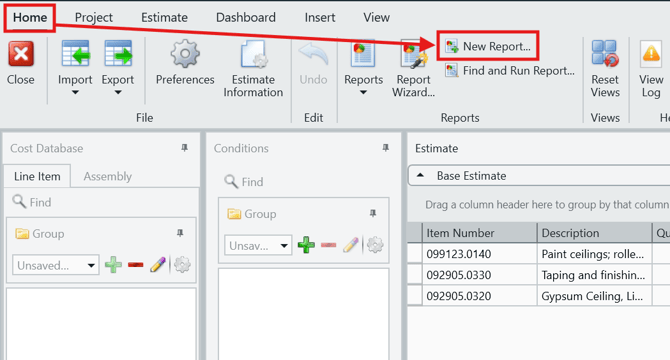
- Report Designer will be launched.
- In Report Designer, open your old report template file that contains your custom styling.
- Click the Open button.
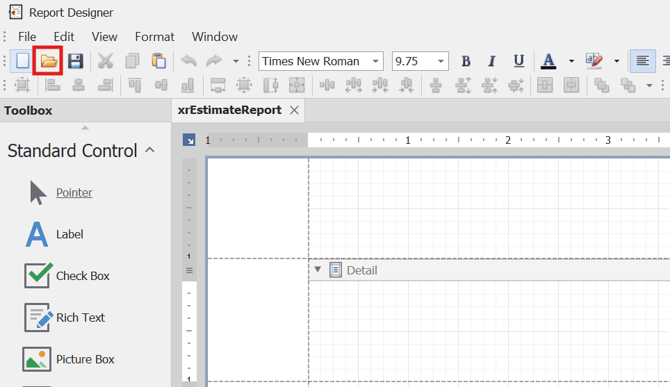
- Navigate to the location of the report template file (.repx) that you want to export from and open it.
- Click the Open button.
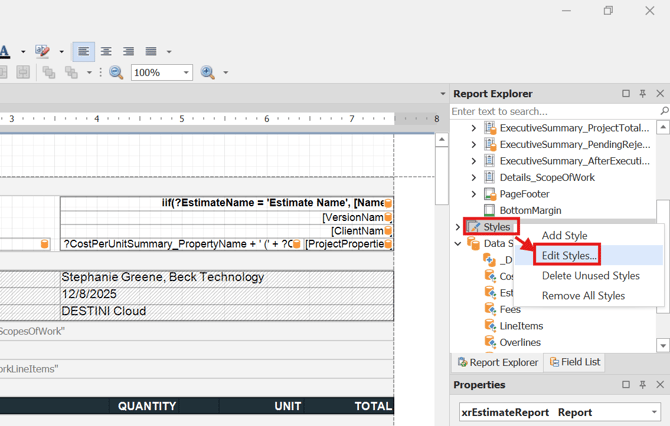
- In the Report Explorer panel, right-click on Styles and select Edit Styles.
- The Styles Editor will appear. Click on the Save styles to a file button at the top (the floppy disk icon).
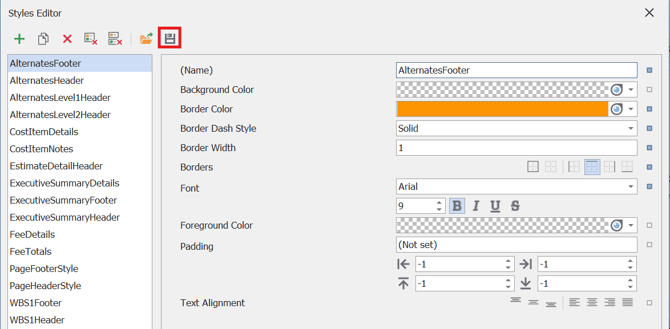
- Navigate to your chosen location, enter a file name and click Save.
- You will now have a .repss file, ready to be imported into the latest report template.
Please be aware: only styles existing in the old report will import to the new report. If there are new styles, you'll need to manually update them. For example, we recently added Alternates to the standard reports, so there will not be an existing style in your old report for those and they will need to be manually assigned branding in the styles editor.
Import Your Style into the Newest Report
- In Report Designer, open the newest report template file from Beck Technology.
- Click the Open button.
- Navigate to the location of the new report template file and open it.
- Click the Open button.
- In the Report Explorer panel on the right, right-click on Styles and select Edit Styles. The Styles Editor will appear.
- Click on the Load styles from a file button (the folder icon).
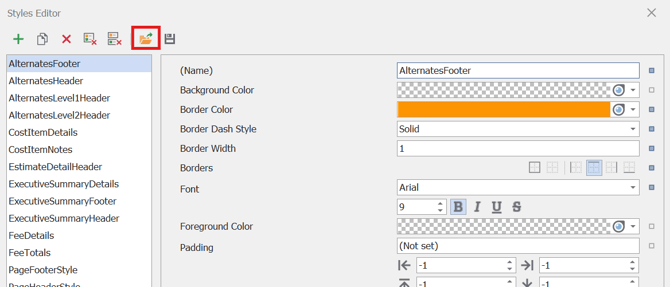
- Navigate to and select the .repss file you exported earlier.
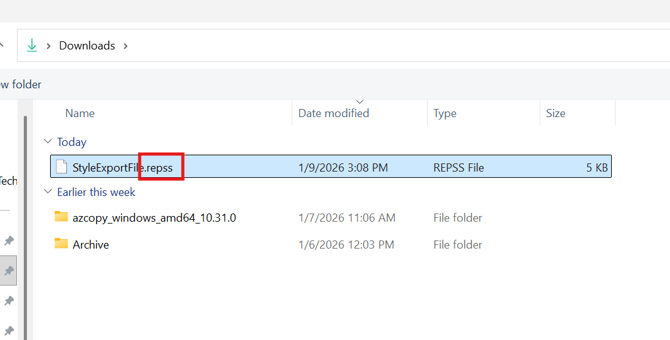
- Click open.
- Your customizations will now be loaded to the Styles list in the new report template.
NOTE: Only customizations that were made using Styles will be imported. If you made any manual customizations to individual components in your old report template, those changes will not be brought over as part of this process.
-
You can now close the Styles Editor. Don't forget to click on the Save button (the floppy disk icon) to lock in these changes, and then run a report to test before distribution to your team.
Submit Your Suggestions to Help Improve This Article