
This article offers a comprehensive overview of the options available in the Estimate Settings menu. This includes details on the Estimate Information and Alternates menu options. More options, including Takeoff and Self Perform menus, are coming later.
Accessing Estimate Settings
Estimate Settings can be access in two ways:
-
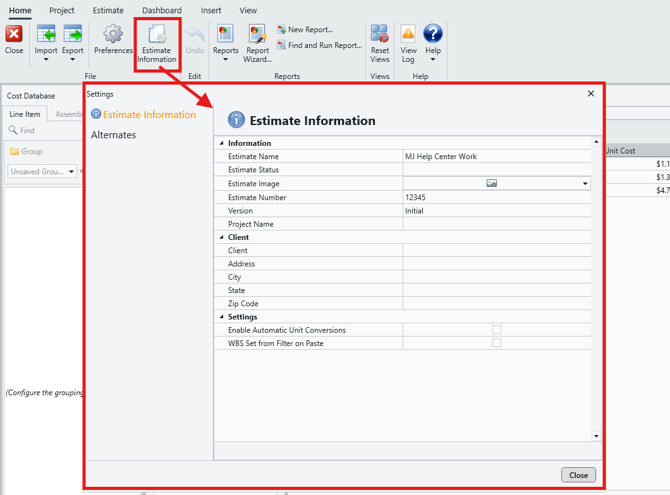
Click the Estimate Information button in the main ribbon in the Home View...
-
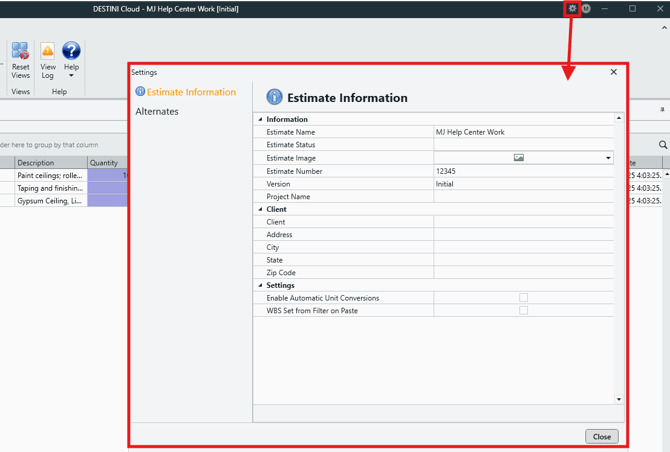
...or, click the Gear icon in the top-right of the Title Bar. You may find this method more convenient since it's available at all times in any View.
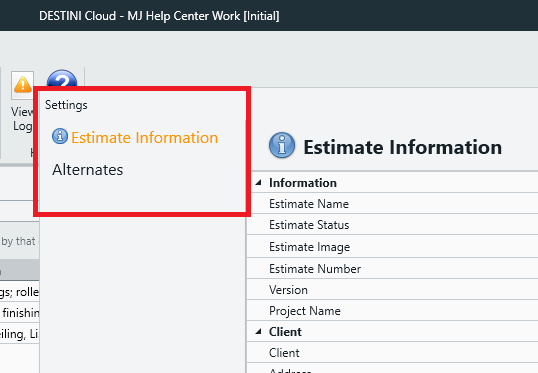
The Estimate Settings menu has two main sections, accessible via the left panel (click to skip to the desired section):
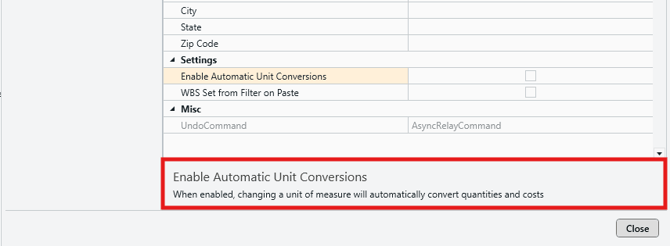
Tool tips: Note that the Estimate Information tab displays information related to the selected option in the footer panel - just click on an option to display the relevant tip:
Estimate Information
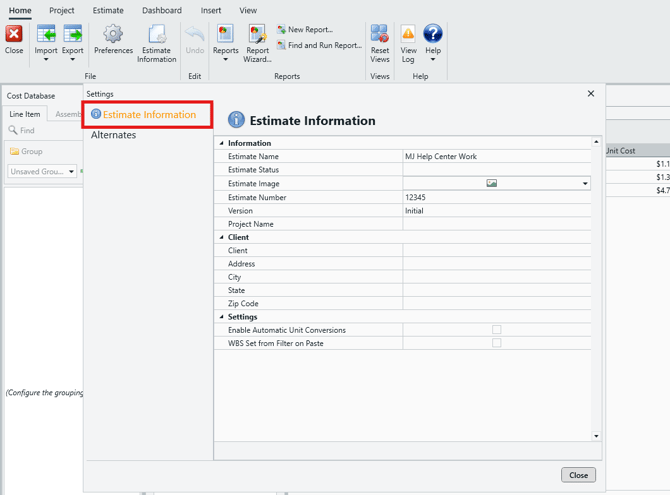
The Estimate Information menu offers fields for entering/editing essential estimate and client data, as well as estimate-specific configuration options related to unit of measure and WBS properties.
-
Information:
-
Estimate Name - Rename your estimate at any time here.
-
Estimate Status - Give your estimate a status.
- Estimate Image - Add an image to be displayed in the Estimate tile in the Start View. For more info, see article: How To Add an Image to an Estimate.
- Estimate Number - Give your estimate a number - this is useful for archiving and estimate search.
- Version - Rename this particular version of the estimate.
- Project Name - If the estimate is part of a bigger project, it can be stipulated here.
-
- Client - Fill in information related to the project client, including client name, address, city, state, and Zip Code.
- Settings:
- Enable Automatic Unit Conversions - When enabled, changing a unit of measure will automatically convert quantities and costs.
- WBS Set from Filter on Paste - When enabled, the WBS properties of pasted line items are overridden by the WBS properties selected in the filter view.
Alternates
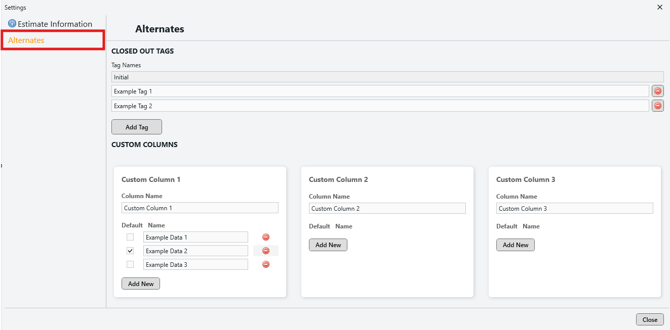
The Alternates settings lets you create new Closed Out Tags, and custom columns displayed in the Alternates Summary.
CLOSED OUT TAGS:
-
Tag Names: Lets you create custom tags to apply to closed out alternates.
-
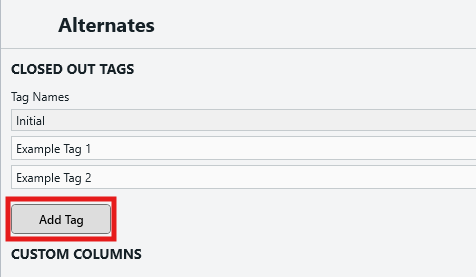
Click the Add Tag button to add a new tag, and fill in the Tag Name field.
-
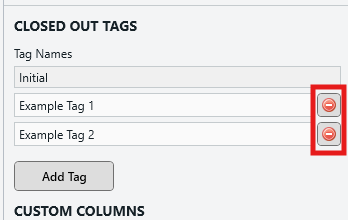
To delete a custom tag, click the red Delete icon to the right.
-
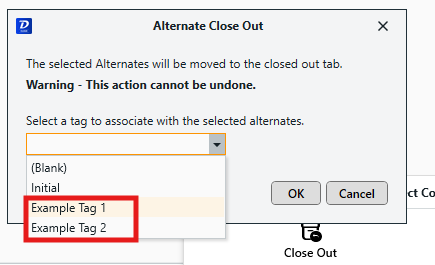
- When you close out an Alternate, the Alternate Close Out window will give you the option to apply a tag to the closed Alternate. This list will include the custom tags you create in the Estimate Settings menu.
CUSTOM COLUMNS:
-
This section lets you create up to three additional custom columns for alternates. These custom columns are displayed in the Alternates Summary view.
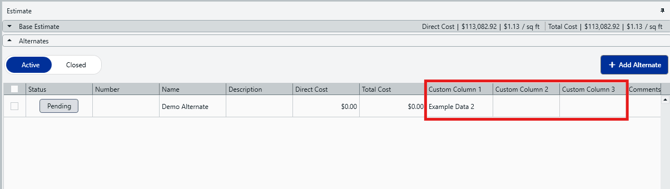
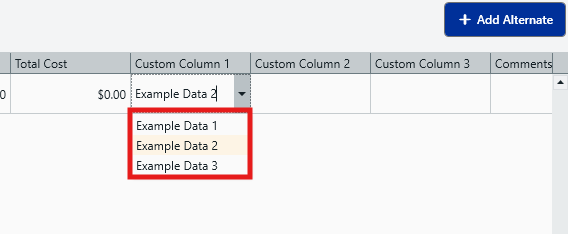
- Each column can be setup with a pre-populated drop-down list of options.
- In the Estimate Settings > Alternates menu, fill in the Column Name field as desired. If you want a drop-down list for this column, click on the Add New button to add custom properties that will be displayed, and name them appropriately.
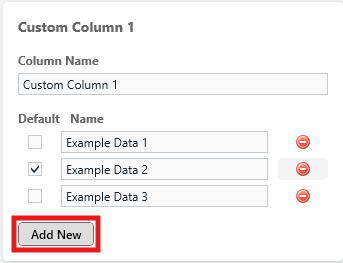
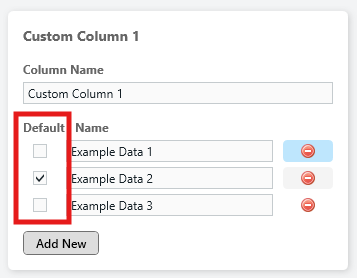
- If you'd like one of your custom properties to be pre-selected by default when creating alternates, select that property via the Default checkbox on the left. Note that you should only check one box at any given time.
-
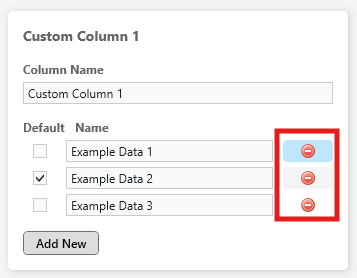
To remove custom properties, click on the red Delete icons on the right.
Submit Your Suggestions to Help Improve This Article