
This article defines the standard naming and versioning structure used for estimates in DESTINI Cloud. Following these standards ensures estimate uniqueness, version clarity, and consistent reporting across projects.
Name your Estimate
The Estimate name has to be unique, no two estimates can have the same name.
The recommended standard is to use the project name provided by the client from their project documentation.
Important notes:
- Though entered twice in DESTINI Cloud, the client name should be considered as a prefix in the estimate name.
- [MASTER] for the main team estimate
- [INITIALS] for individual sub-estimates
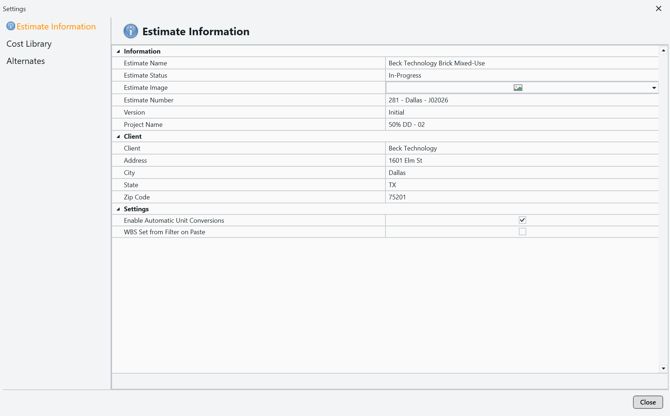
- Beck Technology Brick Mixed-Use
Estimate Number
The Estimate Number should follow this structure: Division/City (number and name, tailored to your company)
Estimate Number Examples:
-
California (31)
- 311 – Los Angeles – J0xxxx
- 313 – San Francisco – J0xxxx
- 315 – Sacramento – J0xxxx
- 317 – San Diego – J0xxxx
- 319 – San Jose – J0xxxx
- Texas (28)
- 281 – Dallas – J0xxxx
- 283 – Fort Worth – J0xxxx
- 285 – Austin – J0xxxx
- 287 – San Antonio – J0xxxx
- 289 – Houston – J0xxxx
Version
Include the Budget / Estimate Type and the Revision here.
[Budget Type] is the type of bid/budget (don’t include the brackets) tailor to your company list:
- RFP
- Program
- Concept
- SD (incl prefix %)
- DD (incl prefix %)
- CD (incl prefix %)
- GMP
- BP
- PC – As Bid
- PC – At Completion
- Archive
Revision Number (RX)
- R0 = initial version for a given Budget Type.
- While developing an estimate within the same Version, increment the Revision Number:
- R0, R1, R2, etc.
- When a new Budget Type is declared, the Revision Number resets to R0
Syntax Examples
- RFP Estimate – R0
- Program Estimate – R0
- Concept Estimate – R0
- 50% SD Estimate – R0
- 50% SD Estimate – R1
- 50% SD Estimate – R2
- 60% SD Estimate – R0
Additional Required Fields
The following fields must also be completed in Estimate Properties.
-
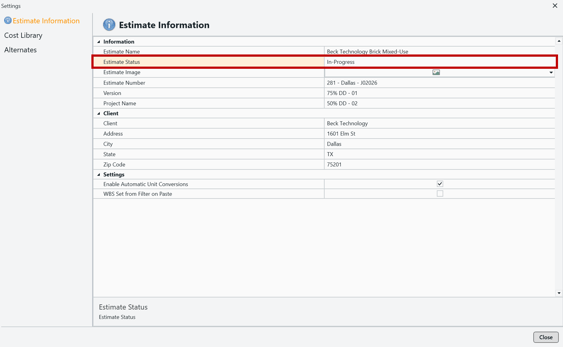
Status
- Tailor this list to your company standards:
-
Preliminary
-
In-Progress
- Submitted – MONTH/DAY/YEAR
- Benchmark
-
- Tailor this list to your company standards:
- Client
- General rule: Keep the Client name consistent and concise. Coordinate naming standards with your CRM and, if applicable, your ERP system.
-
Project Name
- This field may be redundant and may not be required, depending on company standards.
Closing an Estimate and Creating an Estimate Version
The estimator responsible for submitting the estimate must complete the following:
- Navigate to Recent Estimates.
- Locate the closed estimate.
- Click the ellipsis ( … ) in the top‑right corner next to the estimate name.
- From the dropdown menu, select Create Version.
- In the Create New Version panel:
- Enter a New Version Name (required).
- Notes are optional.
- Status is optional.
- It is best practice to complete all available fields.
- Click OK.
- The new version is created.
.gif?width=611&height=411&name=ezgif.com-animated-gif-maker%20(26).gif)
When an estimate is reopened for additional work, select and open the new estimate version.
-
Locate the estimate card.
-
The Initial version will display Closed next to the version name.
-
Within the estimate card, locate the Version dropdown.
-
Select the newly created version.
-
The card will auto‑update.
-
The Closed label will no longer appear, indicating the version is open.
-
-
Click Open.
.gif?width=536&height=365&name=ezgif.com-animated-gif-maker%20(25).gif)
Updating Project Status in the New Version
-
With the new version open, navigate to Estimate Information.
-
Edit the Project Status as needed.
-
Save changes.
Suggest an Improvement for this Article