
As your takeoff progresses, drawing sheets can quickly become crowded with overlapping measurements, symbols, and assemblies across multiple trades. Between walls, flooring, concrete, doors, windows, ceilings, and specialty items, looking at everything at once can be overwhelming and make quality control difficult.
A View in DESTINI Takeoff functions like a saved lens on your drawing. Instead of forcing you to sort through all takeoff data as one large pile, Views let you create named, dedicated setups built around the specific Conditions you need to see.
Why Use Views?
Views shift your workflow from a generic show me all my takeoff approach to focused, intentional reviews:
- Eliminate Visual Clutter: Isolate specific drawing components so you can inspect measurements and geometry without distraction from other trades.
- Trade- and Scope-Focused Quality Control: Package related Conditions together to review specific scopes of work (such as interior finishes or openings) in a single pass.
- Save and Switch Quickly: Save your configurations so you and your team can effortlessly toggle between different inspection lenses without manually hiding and unhiding layers each time.
How Views Work
Single-Condition Focus
When you want an uninterrupted look at one specific element, a View can contain just a single Condition.
- Example: A View named Walls that includes only the Walls Condition.
- When to use: Ideal when verifying linear wall footages, checking wall types, or performing detailed edits on wall geometry.
Multi-Condition Scopes (+ Add Condition)
A View is not limited to a single item. Using the + Add Condition option in the View configuration panel, you can group multiple complementary Conditions into one cohesive lens.
Organizing by review workflow makes validation faster and more thorough:
|
View Name |
Included Conditions |
Review Purpose |
|
Wall Review |
Walls |
Focus exclusively on wall assemblies and partitions. |
|
Flooring Review |
Carpet, Tile, VCT |
Inspect and verify all floor finish boundaries across the plan. |
|
Openings |
Doors, Windows |
Audit counts, penetrations, and wall openings in one pass. |
|
Structural |
Concrete, Foundations, Footings |
Isolate primary structural and concrete elements. |
Refining Views (+ Add Rule)
Within the View setup interface, you will also notice the + Add rule option:
- Purpose: Allows you to further narrow and filter what displays within your selected Conditions.
- Flexibility: Rather than simply showing all instances of a Condition, rules are designed to give you more granular control over your takeoff display based on specific criteria.
As you configure Views, focus primarily on selecting the necessary Conditions for your review scope. Advanced rule filtering can be layered on to fine-tune your display as your project requirements dictate.
Create a View
- Open a drawing in DESTINI Takeoff.
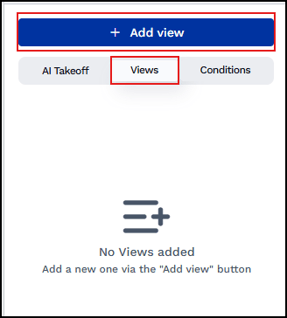
- Click the Views tab, and then click Add view.
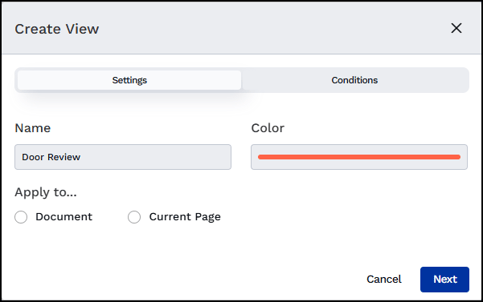
- In the Name field, enter a name that reflects the purpose of the view such as Flooring Review or Core & Shell.
- Choose a color for the view, and then choose whether the view applies to the Document or the Current Page.
- Click the Conditions tab in the Create View dialog box.
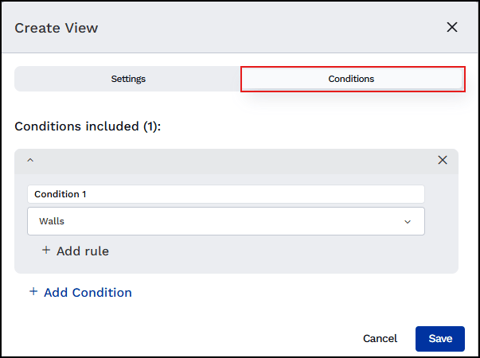
- In the Conditions included section, choose a Condition category from the list.
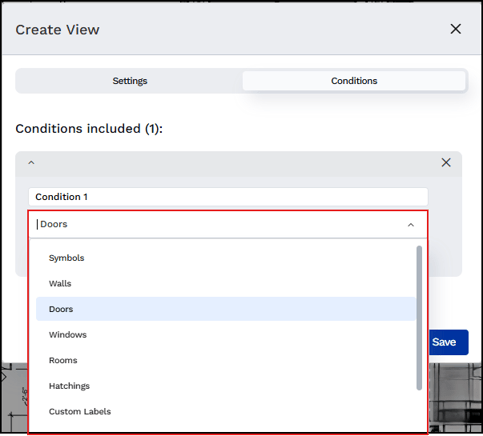
- To refine the View, click Add rule and choose options from the lists.
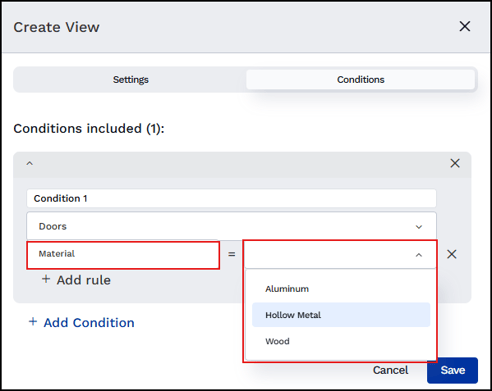
- Add additional Conditions or rules, if necessary.
- When you're finished, click Save.
- In the View tab, expand the view you just created and click a Condition.
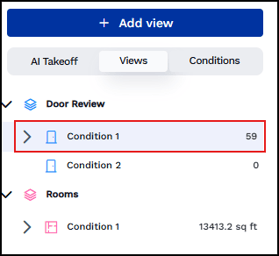
- To Show, Hide, Edit, or Delete a View, click the ellipses (...) beside.
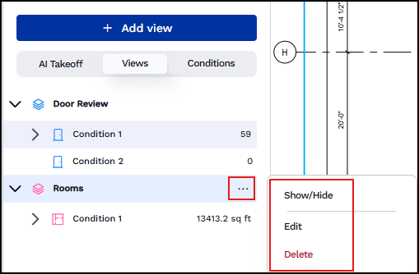
If you don't see the ellipses (...), click the Hide icon beside the View, then click the ellipses.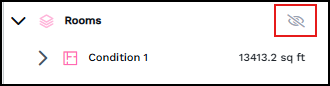
Best Practices
- Name by Task or Scope: Use consistent, descriptive names (such as Finishes Review, Structural Audit, or Exterior Envelope) so any estimator opening the project immediately understands the view's intent.
- Build Standard Review Sets Early: Set up your primary review Views early in the takeoff process. As you add new takeoff items, having pre-configured Views ready makes continuous quality checks much simpler.
- Keep Views Purpose-Driven: Rather than creating a View for every single Condition in your library, focus on creating Views that solve visual conflicts or align with trade-specific review workflows.
Related Topics