Overlays is a core revision-comparison feature in DESTINI Takeoff. Estimators use overlays to visually compare drawing set revisions, identify design changes, and manage takeoff transfers seamlessly.
After you load a revised version of a drawing and click the Overlay Revisions button, DESTINI Takeoff stacks the new drawing on top of the old drawing and displays differences in red and blue lines.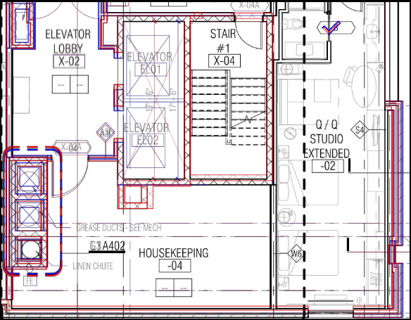
- Blue — items are present in the new version but not in the old version.
- Red — items are present in the old version but not in the new version.
If you want to focus the overlay comparison on one version over another, you can adjust the Overlay Opacity slider to compare the top revision with the underlying revision.
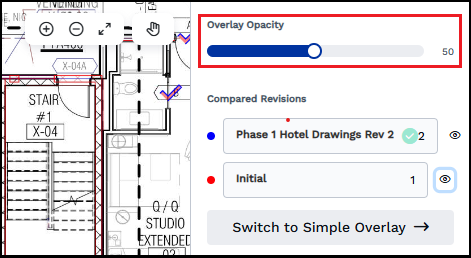
- 0 shows only the old version
- 50 shows only the new version
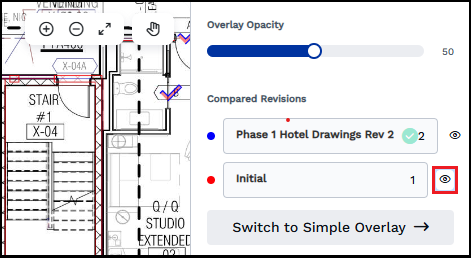
The Compared Revisions section displays the names and colors for each drawing. You can hide a drawing by clicking the eye icon beside it.
The Overlay Revisions view supports the following modes:
-
Simple Overlay: Generated automatically upon PDF upload and page label detection. Instantly available when opening the Overlay Revisions view to give quick visual feedback.
-
Full Overlay: Triggered by clicking the Full Overlay button. Runs an asynchronous detection task to re-evaluate thin lines and fine vector details.
Using Overlays to Compare Versions
Use the following procedure to compare two versions of a drawing using overlays in DESTINI Takeoff.
- Open DESTINI Takeoff and click the New Revision button.
- Upload a new version of a drawings PDF file.
- In the Target Set list, choose the old drawing set.
- In the Revision Name text box, enter a name for the new version.
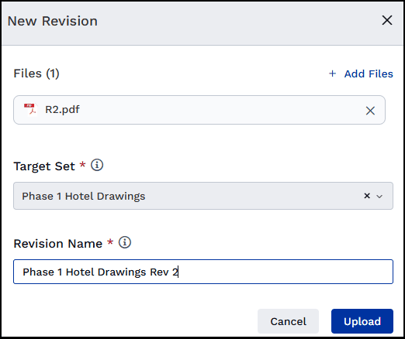
- Click Upload.
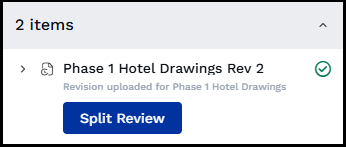
- After the initial upload processing completes, click Split Review.
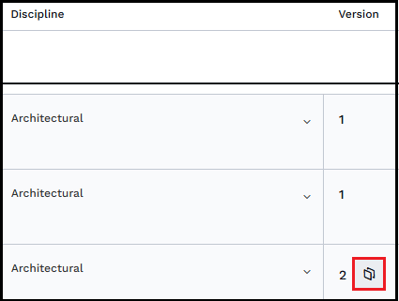
- In the Version column, click the Overlay Revisions icon.
- Use the features described earlier in this article to compare versions of the drawing.
- Close the Overlay Revisions dialog box and click Publish Selected.
- In the Update Current Set dialog box, select or clear the Transfer option in the Takeoff column. If you transfer, all takeoff and conditions assigned to the earlier version are assigned to the same drawing in the new version.

- Click Update Current Set, and then click Publish.
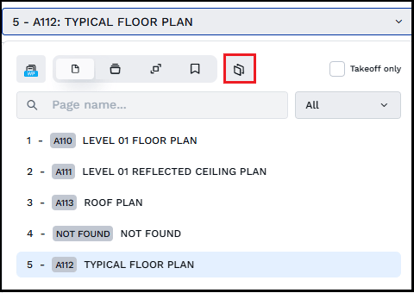
You can also start an overlay comparison using the drawing navigation list.