
During DESTINI Takeoff onboarding, a member of Beck Tech Support assigns the Company Admin role to one member of your organization. The Administrator has access to the Admin Panel at the top of the DESTINI Takeoff page.
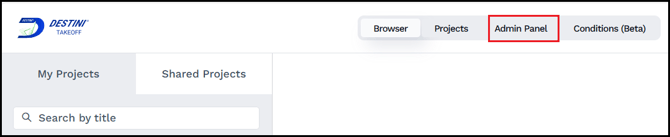
If a member of Beck Tech Support assigned the Company Admin role to you and you don't see the Admin Panel option in DESTINI Takeoff, refresh your browser. If you still don't see it, click the drop-down arrow beside your account name, and click Logout. If you don't see the Admin Panel option after logging back in, contact Beck Tech Support.
In the Admin Panel, the Company Admin can perform the following tasks:
- Import or manually add user accounts
- View, activate, disable, edit, and delete user accounts
- Reset passwords
- Assign the Administrator role to other users
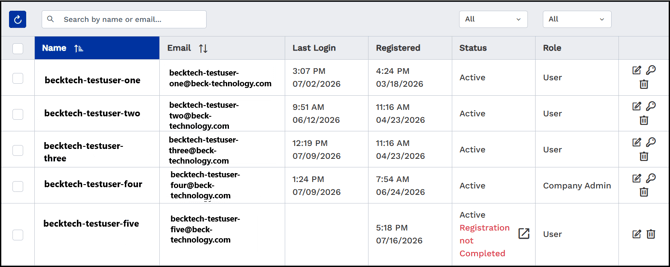
The Admin Panel includes a list of all active and disabled user accounts in the organization.
Managing User Accounts
This section provides simple instructions for managing user accounts in DESTINI Takeoff. Only users assigned the Administrator role can perform these actions.
Add Users
To add a new account from the Admin Panel, click + Add User. Complete the form and click Add. DESTINI Takeoff sends the user an email with a registration link where they can create a password. The user's Status in the Admin panel shows Registration not completed. After the user registers, they can access the software.
Import Users
To quickly add multiple users, you can import a list of account names and email addresses from either a Google Sheet or a Microsoft Excell spreadsheet. The import tool requires the information be specified in three columns: email | first name | last name
To import users
- Click Import. The Import Users dialog box opens.
- Either enter a Google Sheet URL or click Download Template in the bottom left corner. If you use the template, add user information to the Excel file, save your changes, and then drag and drop the file into the Import Users dialog box.
- Click Apply. DESTINI Takeoff sends all imported users a registration email and reports import status in the bottom tray.
If an imported account already exists in the database, or if an email is invalid, DESTINI Takeoff displays an error report in the bottom tray.
Edit, Activate, or Disable Users
You can edit a user's information, including their name, email, status (Active | Disabled), and role (User | Company Admin). You can't edit a user's username.
To edit an existing account from the Admin Panel, locate the account using the Search field (if necessary) and click the edit icon ( ) in the right column. Edit user details, status, or role options and click Save.
- If you disable a user account, the user is locked out of the software until the account is reactivated.
- If you change a user's role from User to Company Admin, that user can add, edit, or delete other accounts, including yours.
Delete Users
To delete an existing account from the Admin Panel, locate the account using the Search field (if necessary), and click the delete icon ( ) in the right column.
Activate, Disable, or Delete Multiple Accounts
You can perform bulk actions on user accounts from the Admin Panel, including activating, disabling, or deleting multiple accounts at one time.
To perform bulk actions
- Click the checkbox beside multiple user accounts or click the checkbox in the table header to select all accounts. The Activate/Disable Users and Delete Users buttons appear in the header.
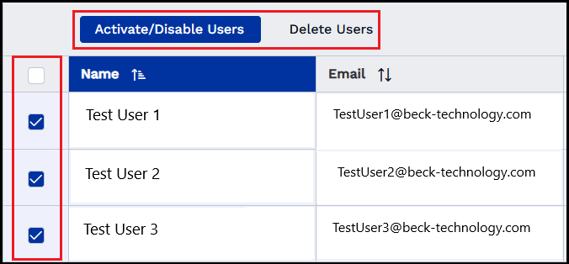
- If the selected users are currently active, clicking the Activate/Disable Users button immediately disables the accounts. If you click the Delete Users button, the system prompts you to confirm the deletion.
Assisting Users
Company Admins can assist users with the following tasks:
-
Get a Complete Registration link: If a user doesn't receive the Complete Registration email, you can resend it.
-
Change user email: You can change a user's email address or assist them in confirming an email change they've initiated themselves.
-
Reset user password: You can reset a user's password if the user is unable to log in with their current password.
For more information, see DESTINI Takeoff: Account Assistance.