
If you create a takeoff project in DESTINI Cloud Estimator, you can assign WBS properties to your takeoff conditions. In the following example, a Doors condition is assigned Bid Package and System WBS Properties with specified values. 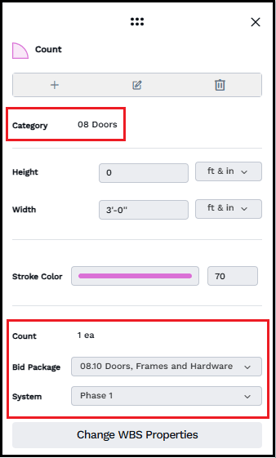
When you map a condition to a line item in an estimate, the totals and WBS properties are added to it in the Estimate View.
Assigning WBS properties to takeoff conditions isn't supported in the standalone version of DESTINI Takeoff, which is accessed from a Web browser. This feature is only available in the embedded version of DESTINI Takeoff, which is accessed from DESTINI Estimator.
Contents
- Before You Begin
- Configure WBS Properties for Takeoff
- Assign WBS Properties to Conditions
- Map Conditions to Line Items
Before You Begin
This article explains the process of assigning WBS properties to takeoff after a user has completed the following:
-
Created a DESTINI Takeoff project
-
Added drawings to their project
-
Added conditions to their project
-
Mapped conditions onto a drawing
For information about creating a new project and adding drawings to it, see either of the following articles:
For information about how to add conditions to your project and map them onto a drawing, see DESTINI Takeoff: Working with Conditions.
Configure WBS Properties for Takeoff
- Open an estimate in DESTINI Cloud Estimator.
- Click DESTINI Takeoff and then enter your username and password.
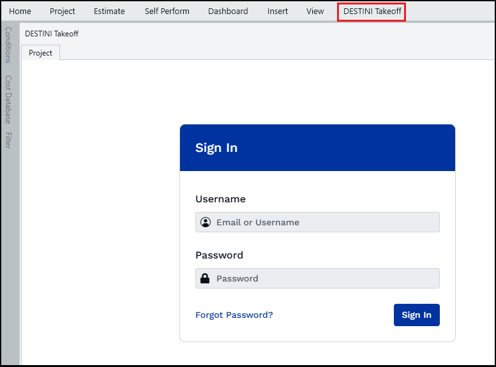
- After you log in to DESTINI Takeoff, click Estimate and then click the WBS Properties button.

- Select the Takeoff Enabled checkbox for each WBS property you want to assign to takeoff. Note: Only Text WBS Properties are supported. The Takeoff Enabled option is grayed out for all other property types.
Each property enabled for takeoff is sent to DESTINI Takeoff so you can tag and classify takeoff objects using the exact organizational schema defined in your estimate.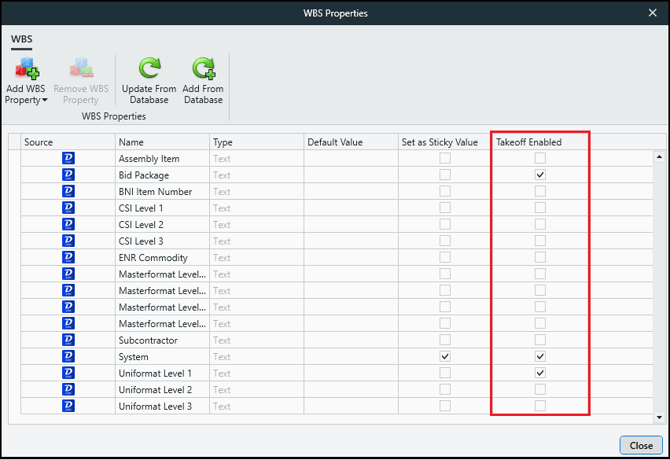
- Click Close.
Assign WBS Properties to Conditions
- Click DESTINI Takeoff, and then click the arrow to open a drawing set.
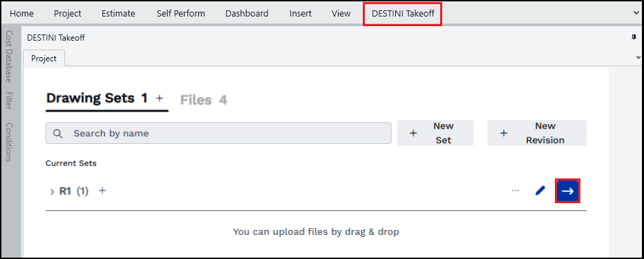
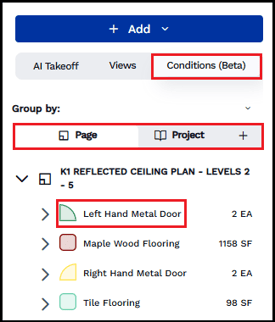
- In the left pane, on the Conditions (Beta) tab, click a condition on either the Page or Project tab.
The condition properties panel opens.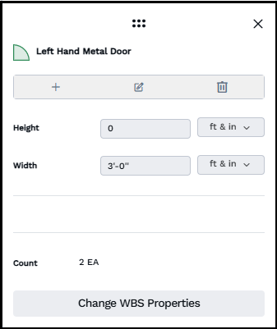
- Click Change WBS Properties.
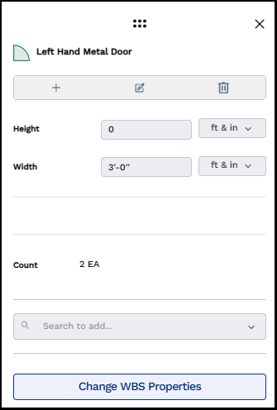
- Choose a property from the list. If you don't see a WBS property, verify you selected Takeoff Enabled in the WBS Properties dialog box in the Estimate View.
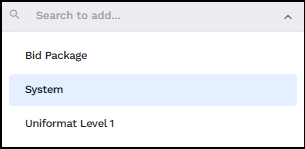
- If necessary, select a value for the property from the dropdown list.
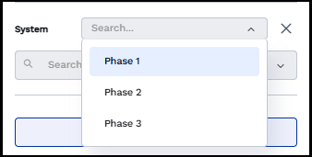
- Add additional WBS properties, as needed.
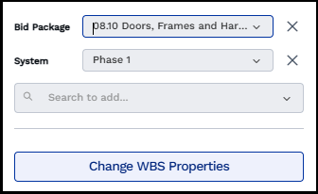
- When you're done, click Change WBS Properties again or close the condition properties dialog box.
Map Conditions to Line Items
After assigning WBS properties to conditions in the DESTINI Takeoff view, you can map each condition to a line item in the Estimate view. When a condition is mapped, its assigned WBS properties are automatically applied to the corresponding line item. The condition's takeoff counts and measurements are also transferred automatically, updating the line item quantities and associated costs in the estimate.
- In the DESTINI Takeoff view, on the Conditions > Page tab, make a mental note of the conditions you want to map to line items.
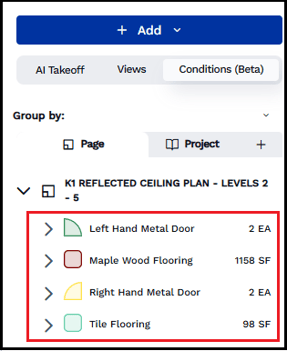
- At the top of the screen, click the Estimate view.

- Pin open the Conditions view and the Cost Information view.
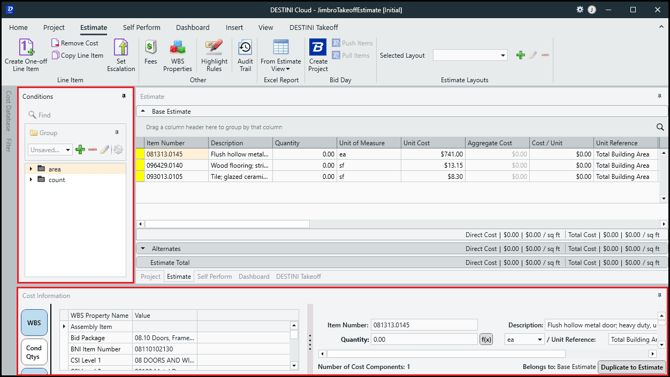
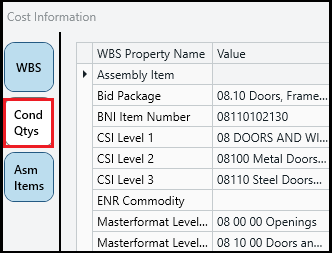
- In the Cost Information view, click the Cond Qtys button.
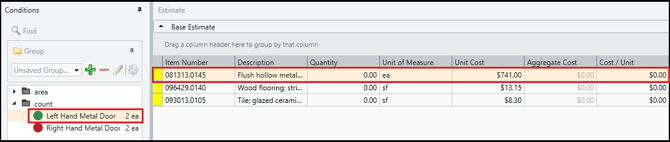
- In the Estimate grid, click a line item, and then click a condition in the Conditions view.
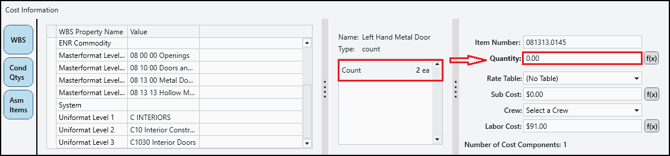
- In the Cost Information view, click the condition in the Cond Qtys view and drag it to the Quantity field.
The Cost Information view accepts the quantity and displays information about the mapping.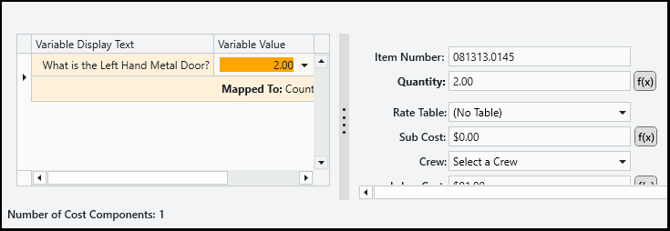
- In the Estimate grid, the values of the Quantity and Aggregate Cost columns, as well as any selected WBS properties, are automatically updated.

- Repeat these steps for other conditions you want to map to line items.
Note the following information about conditions mapped to line items:
- Value Precedence & Editing Restriction: When an Estimator line item is tied to a Takeoff condition, the value for Takeoff-enabled WBS properties on that line item is driven by Takeoff and can only be set or modified within DESTINI Takeoff.
- Line Item Splitting: If takeoff objects associated with a single condition line item have different Takeoff-enabled WBS property values (e.g., some objects assigned to Phase1 and others to Phase 2), Estimator automatically splits the line item into multiple line items based on the unique combination of Takeoff-enabled WBS values. Quantities are distributed accordingly, while unit costs, crew assignments, and other attributes are inherited.
- Line Item Combining: If takeoff objects across split line items converge back to matching WBS property values in Takeoff, Estimator automatically combines them back into a single line item.