
DESTINI Cost Library export and import provides a fast and efficient way to manage large volumes of Cost Library data. Rather than updating records individually within Cost Library, users can export library data to Microsoft Excel, make changes in bulk, and then import those changes back into the library.
Import and Export is particularly useful when you need to:
- Perform annual cost updates across thousands of records
- Update labor, equipment, or material resource rates
- Review Cost Library data outside the application
- Create backups before major changes
- Create new records in bulk
- Update resource markups and productivity values across multiple line items
Instead of making repetitive changes one record at a time, Excel allows you to update large amounts of information quickly and consistently.
The Import and Export feature enables a round-trip workflow between Cost Library and Excel:
- Export Cost Library data to an Excel workbook.
- Update or add records in Excel.
- Import the workbook back into Cost Library.
- Verify the imported changes.
- Publish the updated Cost Library for use in DESTINI Cloud Estimator.
An exported workbook contains both Cost Library data and system-generated identifiers used to match records during import. Because these identifiers are required for successful imports, every import process should begin with a Cost Library export.
Important Considerations
Before using Import and Export, keep the following rules in mind:
Do
- Begin with a Cost Library export.
- Save an untouched backup copy of the export.
- Use the exported workbook as the basis for all imports.
- Verify imported changes before publishing.
- Review import results for validation errors.
Don't
- Create an import workbook from scratch.
- Delete worksheets or columns.
- Rename worksheets.
- Reorder columns.
- Modify system ID values.
- Assume an import can be undone.
Imports update or add data but do not delete existing records. Records not included in the workbook remain unchanged.
What Data Can Be Exported?
A Cost Library export includes worksheets for supported Cost Library entities and their related configuration records.
Core Cost Library Data
- Line Items
- Assemblies
- Choices
- Variables
- Formulas
- Units
- WBS
Self Perform Data
- Rate Tables
- Resources
- Resource Markups
- Crews
Related Configuration Data
- Assembly Line Items
- Assembly Choices
- Choice Criteria
- Choice Options
- Choice Line Item Selections
- Assembly Questions
- WBS Assignments
These worksheets preserve the relationships between records so Cost Library can correctly process future imports.
Exporting Cost Library Data
Exporting creates an Excel workbook containing the complete working-state data for a selected Region. The workbook serves as both a backup and the starting point for future imports.
- Verify that you have an active subscription for Microsoft Excel.
- Open Cost Library in a web browser.
- Click Export in the upper-right corner (the up arrow).

- If Regionalized Pricing is enabled, select a Region to export.
- Click Export.
- Open the downloaded workbook.
- Click the README worksheet to review additional important information about your exported data.
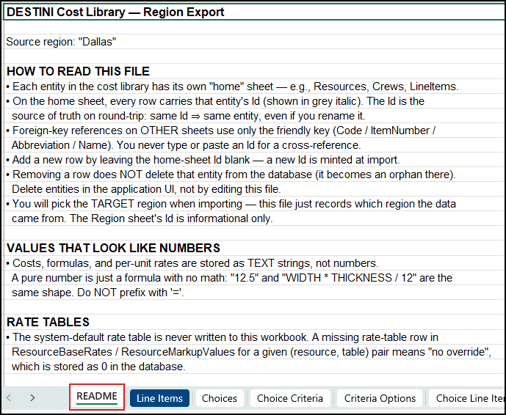
- Verify the following:
- Expected worksheet tabs exist.
- Data appears complete.
- The correct Region was exported.
- Choose File > Save. Save a backup copy of the file with the name BACKUP.
- Rename the other file to include the phrase WORKING COPY.
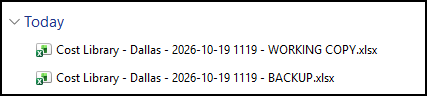
Best Practice
Maintain two copies of every export:
|
File |
Purpose |
|
Cost Library - Backup.xlsx |
Permanent untouched backup |
|
Cost Library - Working Copy.xlsx |
Excel file used for edits and future imports |
Understanding the Export Workbook
The exported workbook is intentionally structured to support re-importing data into Cost Library.
System IDs
Every worksheet contains system-generated identifiers that uniquely identify records.
Cost Library uses these identifiers during import to determine:
- Which records should be updated
- Which records are new
- How records relate to one another
Never:
- Edit ID values
- Delete ID columns
- Copy data into a new workbook
Changing IDs can cause records to fail validation, be duplicated, or be treated as new records.
Workbook Structure
Cost Library expects:
- Specific worksheet names
- Specific column names
- Specific column order
- Required system identifiers
Changing workbook structure significantly increases the likelihood of import failures. Update only the data values that need to change.
Productivity Values
Productivity information is exported using the UnitsPerMH field. Only UnitsPerMH is exported because other productivity metrics are calculated automatically.
When UnitsPerMH is updated and imported:
- MH/Unit is recalculated
- Units/HR is recalculated
- Related productivity values update automatically
UnitsPerMH should be considered the primary productivity field in the export workbook.
Importing a Workbook
After updating a workbook in Excel, import it back into Cost Library to apply your changes. Unlike exporting, importing modifies Cost Library data.
What Happens During Import?
During processing, Cost Library performs several validation steps:
|
Process |
Description |
|
Workbook Validation |
Verifies worksheets and columns |
|
Record Matching |
Matches records using System IDs |
|
Data Validation |
Checks required fields and relationships |
|
Updates |
Applies valid changes |
|
New Records |
Creates supported new records |
|
Error Reporting |
Reports validation issues |
Each worksheet and record is validated independently. This means one invalid row does not necessarily prevent other rows from importing successfully.
Import a Workbook
- Review and save your workbook.
- Confirm it remains an .xlsx file.
- Open Cost Library in a web browser
- Click Import in the upper-right corner (the down arrow).

- Choose the correct Region.
- Choose the updated copy of the Excel workbook (not the saved BACKUP file).
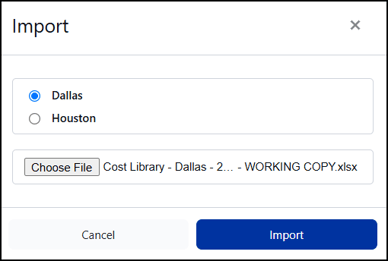
- Click Import.
- Wait for processing to complete.
- Review the import results in the Import dialog box.
- Resolve any errors if necessary.
- Verify the imported changes in Cost Library.
Importing an unchanged export file can return errors similar to the following. If you see these errors, you can ignore them:
- Sheet 'Units': Row 2: natural key 'SQ' is already used by entity d7eea946-839b-4ab5-9ed2-46188c864c1a; assigning to 2125a922-59db-4f60-993c-1bc143e5b3ed instead.
- Sheet 'Units': Row 3: natural key 'Acre' is already used by entity 0cee4400-c028-461e-905e-b886d14eebb5; assigning to dc2327d4-0fe1-485e-9265-2a8b5ad46912 instead.
- Sheet 'Units': Row 6: natural key 'EA' is already used by entity f4fb9ead-6c43-408d-9e0f-f6583e85229f; assigning to a793d2e9-9bd5-4579-96b1-ea2a2562257d instead.
- Sheet 'Units': Row 7: natural key 'DAY' is already used by entity 044fa79b-cd41-486f-8576-e01f8428c87e; assigning to b268f3d9-5859-4800-a63a-97c9759d0529 instead.
- Sheet 'Units': Row 7: natural key 'Day' is already used by entity 044fa79b-cd41-486f-8576-e01f8428c87e; assigning to b268f3d9-5859-4800-a63a-97c9759d0529 instead.
- Sheet 'Units': Row 8: natural key 'WK' is already used by entity 6c42daf1-4c6c-4734-9a77-0128a4083151; assigning to bfcd1156-2cf0-40eb-94f2-5da0ea0ab368 instead.
- Sheet 'Units': Row 9: natural key 'MO' is already used by entity ccad0e2f-7070-42d2-8c69-483000d21131; assigning to 6d1d7405-5a84-4804-a29c-aa46fa99ba3f instead.
- Sheet 'Units': Row 10: natural key 'LS' is already used by entity cf8f6306-b5f6-45ea-ae89-1386c69f1699; assigning to f40093ed-57f6-4615-b6d6-273ae0a5e6ae instead.
- Sheet 'Units': Row 21: duplicate abbreviation 'sq' — this row is a duplicate of an earlier row in the sheet.
- Sheet 'Units': Row 22: duplicate abbreviation 'ea' — this row is a duplicate of an earlier row in the sheet.
- Sheet 'Units': Row 23: duplicate abbreviation 'day' — this row is a duplicate of an earlier row in the sheet.
- Sheet 'Units': Row 24: duplicate abbreviation 'wk' — this row is a duplicate of an earlier row in the sheet.
- Sheet 'Units': Row 25: duplicate abbreviation 'mo' — this row is a duplicate of an earlier row in the sheet.
- Sheet 'Units': Row 26: duplicate abbreviation 'ls' — this row is a duplicate of an earlier row in the sheet.
- Sheet 'Units': Row 27: natural key 'Hour' is already used by entity 3646aa9e-6bf8-4fce-945a-948add0a5d94; assigning to f141bd38-e459-4dcb-9ebf-62dd5d408555 instead.
- Sheet 'Units': Row 52: natural key 'hour' is already used by entity f141bd38-e459-4dcb-9ebf-62dd5d408555; assigning to 3646aa9e-6bf8-4fce-945a-948add0a5d94 instead.
- Sheet 'Units': Row 57: natural key 'acre' is already used by entity dc2327d4-0fe1-485e-9265-2a8b5ad46912; assigning to 0cee4400-c028-461e-905e-b886d14eebb5 instead.
Import Results
An import may return one of the following results:
|
Result |
Meaning |
|
Success |
All records imported successfully |
|
Partial Success (Completed with errors) |
Some records imported and some failed validation or caused errors |
|
Failed |
The workbook could not be processed |
If you receive a Partial Success result, review the reported errors before continuing.
Common Import Issues
Missing Units
A record references a Unit that does not exist.
Resolution: Add the missing Unit and import again.
Required Fields Missing
A required field is blank.
Resolution: Populate the missing value and retry the import.
Workbook Structure Changed
Worksheet names, column names, or identifiers have been modified.
Resolution: Return to a clean export and reapply your changes.
Invalid Relationships
A record references another record that does not exist.
Resolution: Correct the relationship and re-import.
Verifying Imported Changes
Imports update the working state of Cost Library. The changes are not immediately available to estimators until the library is published.
Working State vs Published State
|
State |
Description |
|
Working State |
Editable version containing recent changes |
|
Published State |
Snapshot available for use in Estimator |
After importing, review only the areas affected by your changes. Depending on what was updated, verify:
- Line Items
- Assemblies
- Choices
- Variables
- Formulas
- Resources
- Resource Markups
- Crews
- Rate Tables
- WBS assignments
Also verify that relationships between records remain intact.
Publishing Imported Changes
Publishing creates a snapshot of the current working state and makes it available to DESTINI Cloud Estimator. Imported changes remain in the working state until you publish them.
- Open Cost Library in a web browser.
- Click Publish.

- Verify the selected Region (if applicable).
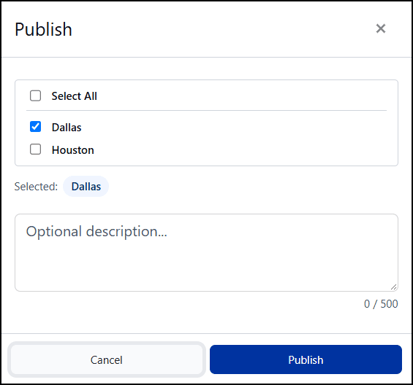
- Click Publish.
- Wait for the publish process to complete.
- Verify that the snapshot was successfully created.
A common cause of publishing failures is incomplete or missing resource information, such as blank resource units. Review any publishing errors before attempting to publish again.
Verify the Published Snapshot
After publishing, verify the results in DESTINI Cloud Estimator.
Create a new estimate using the newly published Cost Library snapshot and review the areas affected by your changes. Depending on the nature of your import, this may include:
- Assembly behavior
- Formula calculations
- Resource rates
- Resource markups
- Crew productivity
- Cost calculations
- WBS assignments
- Regional pricing
Verification in Cost Library confirms the configuration appears correct; verification in Estimator confirms the configuration behaves correctly during estimating.
Best Practices
- Always start with a fresh export.
- Keep an untouched backup copy.
- Use the exported workbook for all imports.
- Never edit System IDs.
- Never modify workbook structure.
- Verify imports before publishing.
- Publish only after completing verification.
- Test significant changes in Estimator.
- Review Partial Success results carefully.
- Maintain a record of major import activities for audit and troubleshooting purposes.