
DESTINI Cloud is available as a download from the Microsoft Store. This article describes how to install the application and log in using either Microsoft Active Directory or your own corporate email and a password you create.
Contents
Before You Begin
Before installing DESTINI Cloud, complete the following steps:
- Confirm installation permissions with your IT administrator to ensure you are authorized to download and install the DESTINI Cloud application from the Microsoft Store.
- Determine your organization's authentication method. Verify whether your organization uses:
- Microsoft Active Directory (AD) credentials to sign in to DESTINI Cloud, or
- Your corporate email address and a user-created password.
- Review system requirements. Verify that your Windows device meets the minimum hardware, software, and network requirements described in System Guidelines for DESTINI Cloud Products.
Install DESTINI Cloud
- Open the DESTINI Cloud download page on the Microsoft Store.
- Click View in Store and then click Get to download and install the software.
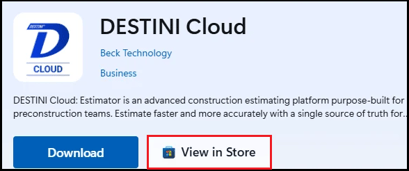
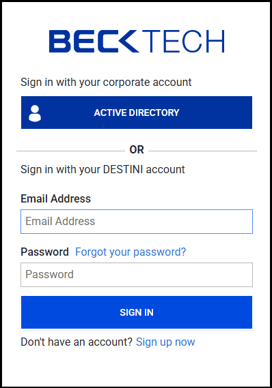
Optionally, click Download to download the DESTINI Cloud Installer.exe file. Locate the file in your Downloads folder and double-click it to install the software. - In Microsoft Store, click Open. Or, type DESTINI Cloud in the taskbar Search field and then click Open. The DESTINI Cloud log in page opens.
Tip: Right-click the DESTINI Cloud application in the taskbar and click Pin to taskbar.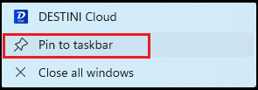
Log In to DESTINI Cloud
DESTINI Cloud supports the following log in methods:
- Log In Using Active Directory (Recommended)
You log in to DESTINI Cloud by entering your corporate email and password. DESTINI Cloud authenticates your credentials using Microsoft Active Directory (AD). - Log In Using Your Corporate Email and a Password You Create
You log in by entering your corporate email and a password you create. DESTINI Cloud stores your credentials in the cloud.
Note the following important information:
-
You must log in using the method enforced by your company. You can't choose to log in using your corporate email and a password you create if your company is configured to use AD authentication.
-
DESTINI Cloud licenses are directly associated with your corporate email domain. You must use your company email to log in.
-
Active Directory password resets are handled by your IT department. Beck Tech doesn't have access to AD log in credentials.
-
If you log in using your corporate email and a password you create, you can reset your password, as described later in this topic.
Log In Using Active Directory
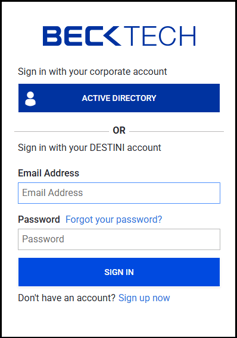
- In the DESTINI Cloud log in page, click Active Directory.
- In the Let DESTINI Cloud enumerate your passkeys? dialog box, click Yes if you're logging from your own computer. If you're logging in from a public machine, click No.
- On the Sign in page, enter your company email address and click Next.
- On the Enter password page, enter your company password and click Sign in. If you've forgotten your password, contact your IT administrator. Beck Tech doesn't have access to your Active Directory credentials.
- If your company uses multi-factor authentication (MFA) such as the Microsoft Authenticator application on your phone, DESTINI Estimator prompts you to complete the authentication process.
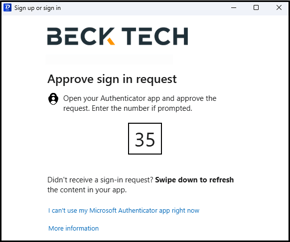
If you have trouble with MFA, contact your IT administrator. - On the Stay signed in? page select Don't show this again and then click Yes.
DESTINI Cloud opens.
Log in Using Your Corporate Email and a Password You Create
If your company hasn't configured Active Directory authentication for DESTINI Cloud, you can create an account using the DESTINI Cloud log in page. After you create the account, you can log in using your corporate email and a password you create.
- In the DESTINI Cloud log in page, click Sign up now to create a new account.
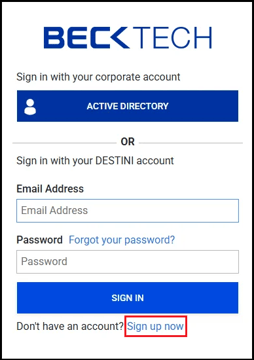
- Enter your corporate email in the Email Address field and click SEND VERIFICATION CODE. DESTINI Cloud sends an email titled Microsoft on behalf of Beck Technology B2C. The email can take several minutes to arrive.
- After you receive the email, enter the code in the Verification code field, and click Verify Code.
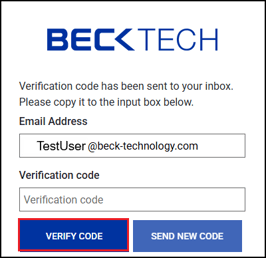
- Enter a password and a name.
- Click Create.
- After DESTINI Cloud creates the account, the log in page opens.
- Enter your email address and password and click Sign In.
DESTINI Cloud opens.
If you forget your password, click the Forgot your password? link on the log in page and follow the prompts to create a new password. This option isn't available for Active Directory users.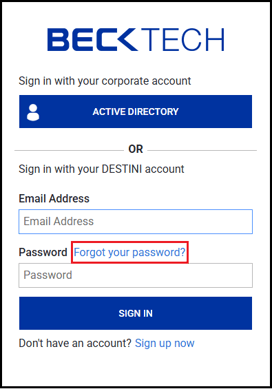
Related Resources
- Beck Tech Support
- DESTINI Cloud and Legacy Version Comparison Guide
- DESTINI Cloud Estimator and Legacy Version Comparison Guide
- DESTINI Web License Configuration and Technical FAQ