
DESTINI Cloud: Estimator incorporates a Manual Calculation mode in the Dashboard View that helps speed up performance on big estimates with complex dashboards.
Setting the dashboard calculation mode to Manual prevents the automatic recalculation task from occurring with every single estimate change, but rather only when the Calculate Now button in the ribbon or the Calculate button on the bottom status bar is selected, improving performance.
After selecting the preferred calculation mode, push the changes to the team and estimate by pressing the Commit button located in the left-side of the Dashboard ribbon in the Spreadsheet section.
How to Set the Calculation Mode
The Calculation Mode selection is located on the right-side of the Dashboard ribbon in the Calculation section.
Automatic mode means that as changes are made in the estimate they are automatically reflected in the Dashboard.
Manual mode means that additional action must be taken in order to calculate the Dashboard.
Features of Manual Mode
Calculate Status Bar
This status bar/button will only be displayed in the bottom status bar when the Calculation Mode is set to Manual and the calculations are out-of-date in the workbook. The moment the calculations are up to date, the button will disappear.
You may click , the Calculate Now button in the Dashboard ribbon, or the Calculate button on the bottom status bar.

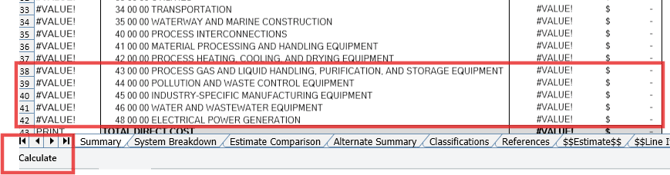
If you see #Value within the Dashboard, and the Dashboard is set to Manual, then most likely, the Calculate button needs to be clicked to engage the calculation.
Persistence Mechanism
The workbook itself will store the selected Calculation Mode. This means if you Commit the Calculation Mode to Manual and close the estimate, another user can open the estimate, and the calculation mode will be set to Manual.
Note: Excel exposes a third mode, ‘Automatic except for Data Tables’. Although Estimator does not expose that mode, in Excel if the user sets the workbook to that mode, saves it out, and loads it in Estimator, the user will see it set to Automatic. However, underneath the hood, Estimator notes that the mode was set to ‘Automatic except for Data Tables’. This means that if the mode does not change in the Estimate and if the user ever decides to save out to the dashboard from Estimator back to an Excel file (Save As ribbon button) when the user opens the workbook in Excel the mode will be set to ‘Automatic except for Data Tables’.
Calculate On Save
When in Manual Calculation Mode, Spreadsheet Gear, the underlying product powering the Dashboard, by default has a 'Calculate On Save' setting that automatically calculates the spreadsheet anytime you save the spreadsheet in any way. This means if you are in Manual mode, make some changes, and save out the estimate (Save As), the formulas will calculate.
Note: Excel also exposes this option. If the spreadsheet file has that option turned off, Estimator should respect it and persist it with the dashboard.
Suggest an Improvement for this Article