
Estimator allows you to customize how overline totals and summary values are displayed in the Estimate View. Using the Group Summary Editor, you can control default formatting for decimal values, percentages, and currency, as well as add custom prefixes or suffixes for overlines and footer summary values.
This gives you consistent, readable totals that match your estimating standards. It can also offer enhanced flexibility over the global decimal precision settings in User Preferences.
Access the Group Summary Editor
Before you can adjust summary formatting, you must apply at least one WBS grouping in the Estimate View.
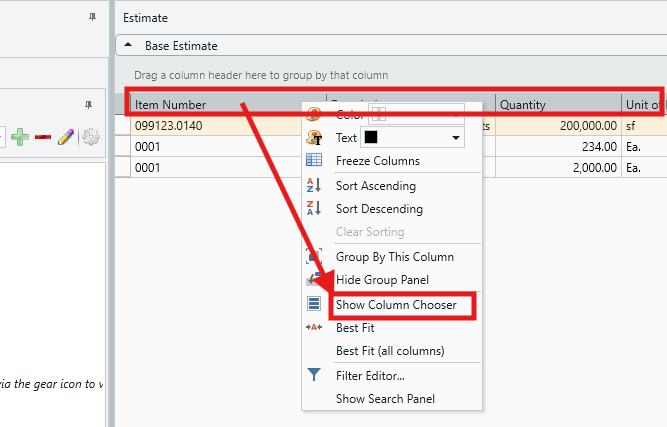
- In the Estimate View, right-click anywhere in the column header.
- Select Show Column Chooser.
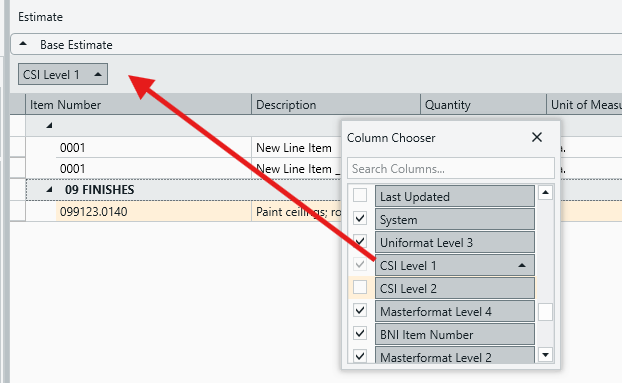
- In the Column Chooser, drag and drop a WBS Property into the grouping area above the column headers.
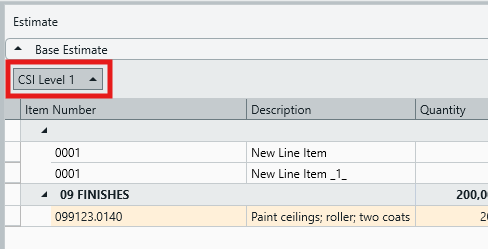
- Right-click the newly created grouping box.
- Select Group Summary Editor.
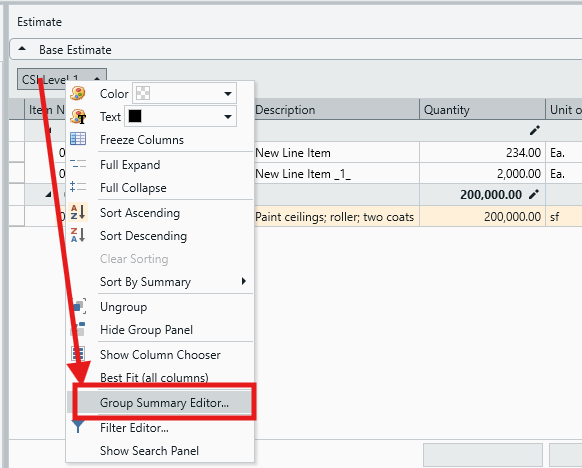
The Group Summary Editor opens and displays two tabs: Items and Order.
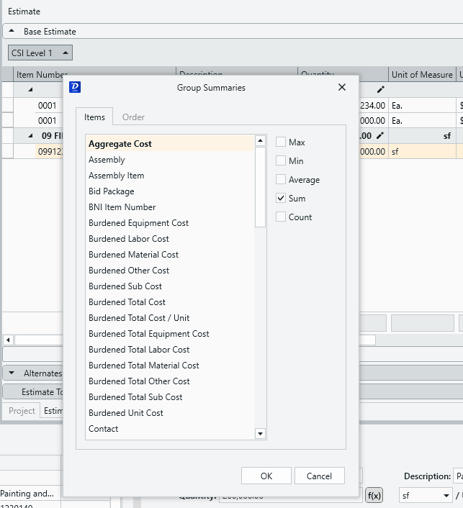
Using the Group Summary Editor
Items Tab
The Items tab controls which summary/overline calculations are available for each WBS Property.
- The main window displays a list of all WBS Properties in the estimate.
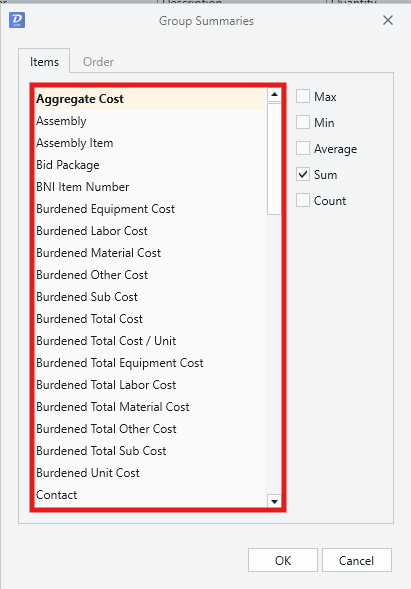
- Click a WBS Property to highlight it.
- Use the checkboxes on the right to enable or disable summary options for that property:
- Max – Displays the maximum value within the WBS group.
- Min – Displays the minimum value within the WBS group.
- Average – Displays the average of all values within the WBS group.
- Sum – Displays the total of all values within the WBS group.
- Count – Displays the number of values within the WBS group.
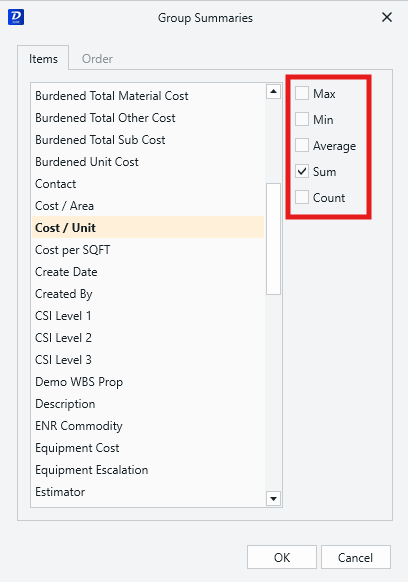
Summary options that are not compatible with the selected WBS Property are automatically disabled (grayed out).
NOTE: For custom WBS Properties, at least one summary option must be selected here before the property appears in the Order tab.
Order Tab
The Order tab controls how enabled summary values are displayed, including order, formatting and text.
- The main window displays all WBS Properties that have at least one summary option enabled, along with their available summary types.
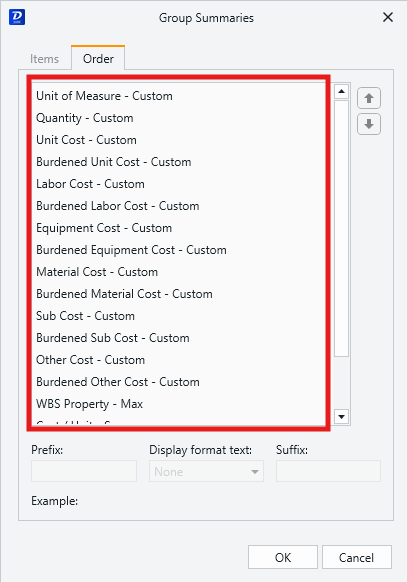
- If a WBS Property does not appear:
- Return to the Items tab.
- Select the property.
- Enable at least one summary option.
Once visible in the Order list:
- Click a WBS Property to highlight it.
- Customize the default formatting using the available fields:
- Prefix
Adds custom text that appears before the summary value (for example, $, Total:). - Suffix
Adds custom text that appears after the summary value (for example, %, hrs). - Display Format Text
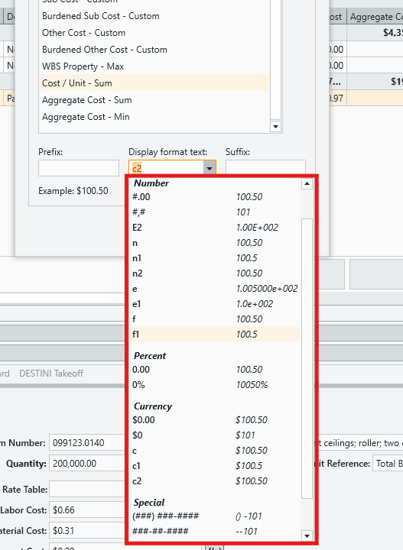
Use the dropdown to select how the value is displayed.
- Prefix
- The Display Format list dynamically updates based on the selected WBS Property and may include:
- Currency formats
- Percentage formats
- Numeric formats
- Special formatting options such as phone numbers
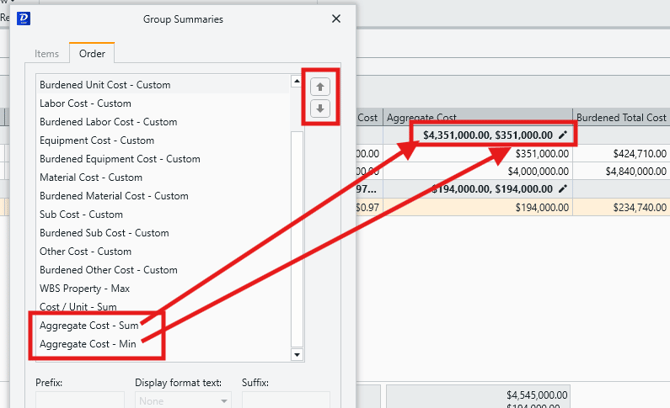
- If you have more than one type of summary value enabled for a single WBS Property, use the arrow buttons to change the order in which they appear in the Estimate View overline row.
- In this example, we have both Sum and Min values enabled for Aggregate Cost. List order is determined by the Order in the Group Summary Editor:
- In this example, we have both Sum and Min values enabled for Aggregate Cost. List order is determined by the Order in the Group Summary Editor:
- Click OK to apply your formatting changes.
Submit Your Suggestions to Help Improve This Article