
Users may modify a standard banded report to show or hide contents based on a report parameter. This article demonstrates hiding the Other cost column in the LMSEO standard banded report by adding and configuring a Boolean report parameter that toggles the visibility of specific columns.
Add New Report Parameter
-
Open the LMSEO report using the Report Wizard on the Home tab in DESTINI Cloud. Need a refresher? DESTINI Cloud Basic Training: 10 - Reports
-
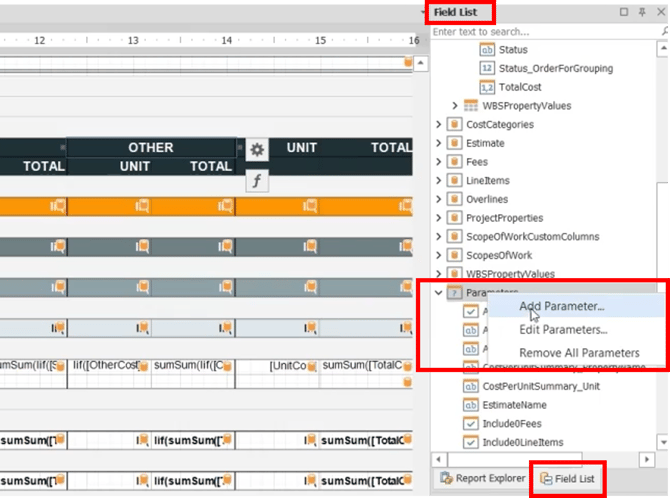
Navigate to the field list in the report designer
-
Go to the Parameter section
-
Right click on Parameters
-
Select Add Parameter
-
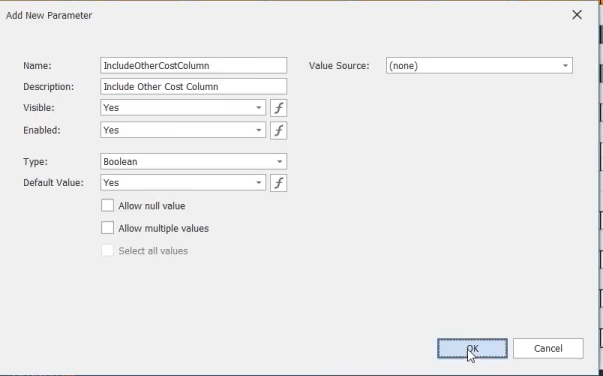
Assign a suitable name to the parameter, fyi, Description is the one visible to the user
- Name: IncludeOtherCostColumn
- Description: Include Other Cost Column
-
Since this will be either a Yes or No parameter, select the type as Boolean
-
Set the default to Yes for the desired field to display
-
Click OK to save
Add Parameter to Detail Line Item Section
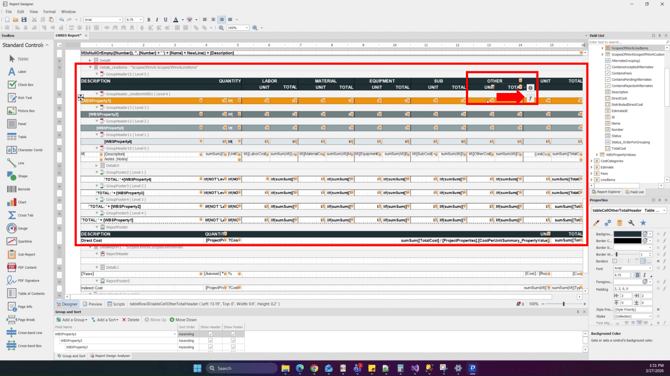
- Go to the Report Designer - the main area of the report
- Navigate to the detail line item section where the Other cost details are getting printed
- Click on the OTHER column header
- Click on the f icon which represents the Expression Editor
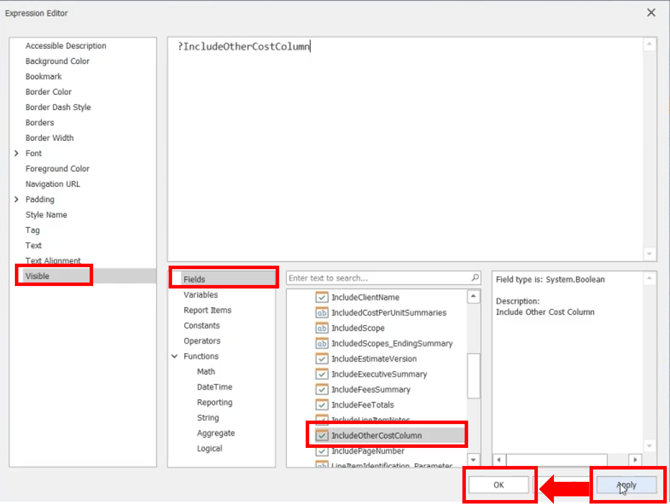
- Select Visible in the left pane of the Expression Editor
- Select Fields in the next pane to the right
-
Locate the new parameter in the list just under the search box in the Parameter section
-
Double-click on the new parameter
-
Click Apply
-
Click OK
Repeat Steps for Labels Within the Column
You will need to repeat the same steps for every cell that corresponds to the Other cost column in order for the entire column to hide or display based on the parameter selection. You may copy and paste the expression instead of navigating to the parameter and double-clicking to speed up the process.
The Expression Editor will open to the Text option as the default. Do not edit the expression displayed if there is one. Go to the Visible option and select or copy/paste the Parameter expression.
Save Report After Visibility Setup
Once done adding the Visible expression to all the cells, save the report in the report designer. Click the save icon in the ribbon.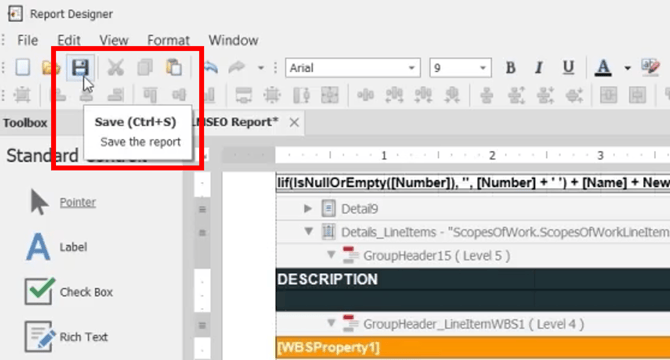
Run Report in DESTINI Cloud: Estimator
Do not open this report in legacy Estimator. It will corrupt the report.
-
Run the report in DESTINI Cloud: Estimator. Depending on where you saved the draft of the report, you may use the drop-down or Find and Run Report in the Home ribbon.
-
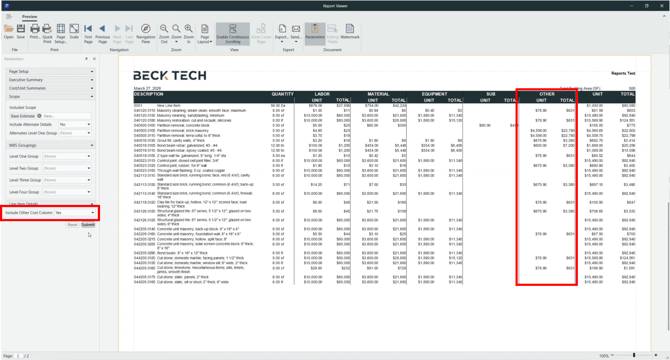
On the left-hand side in the parameter section, you will see the newly added parameter. The default is set to Yes, so page 2 will print the Other column header and all details.
-
Change the parameter to No
-
Click Submit
-
Navigate to page 2
-
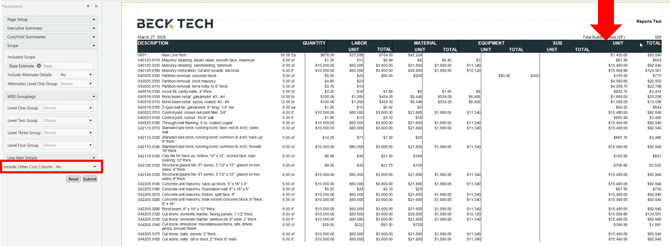
The Details on page 2 and following will have the Other column header and all details hidden if you applied the parameter to the Visible command in each of the labels within that column.
Suggest an Improvement to this Article