
By default, the Owners Banded Report prints on 8.5" × 11" letter paper in portrait orientation. Sometimes, you may want to print the report on a different paper size or in landscape orientation. This article explains how to change Page Setup at runtime and in the Report Designer for the Owners Report.
Change Page Setup at Runtime
1. Inside DESTINI Cloud: Estimator, run your report
2. When the Report Previewer window opens, click the Page Setup button in the top ribbon.

3. Select the Paper Size, margin, and orientation you want.
4. Click OK
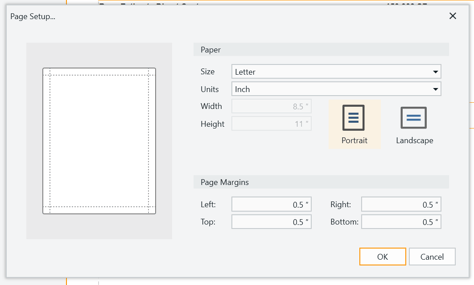
5. Confirm all the report’s contents print correctly.
If the report does not print correctly, one of your controls might need a small change. Continue through the rest of the article to identify and tweak that control.
Update the Report’s Default Page Settings
1. Open the Report Designer
-
-
In DESTINI Cloud: Estimator, open an Estimate (any estimate, it doesn’t matter which)
-
Navigate to the Home View
-
In the main Ribbon, click on New Report.
-
2. In the Report Designer, open your report template file
-
-
Click the Open button
-
Navigate to the location of the report template file (.repx) that you want to modify
-
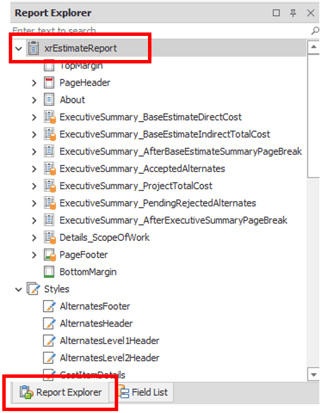
3. On the right side of your screen, locate the Report Explorer. Select the first item xrEstimateReport
4. On the bottom right side of your screen, locate the Properties panel.
5. Select the Page Settings tab
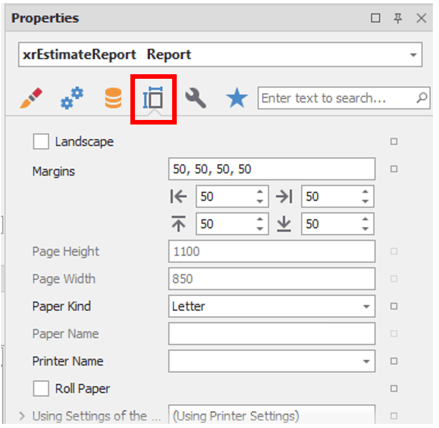
6. Adjust the Landscape toggle, Margins, and Paper Kind as needed.
7. Confirm all the report’s contents are in the correct place.
8. Save and run your report in DESTINI Cloud: Estimator
If the controls shifted after changing the Page Settings, one of your controls might need a small change. Continue below to identify and tweak that control.
Control is Too Small
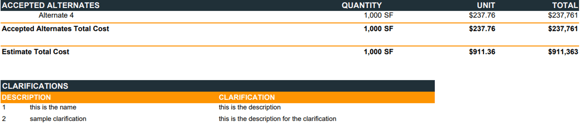
If control doesn’t touch the page margins anymore, you can apply the following steps.
1. Using either method above, identify which control is too small
2. Open the report inside the Report Designer
3. Inside the Designer, locate and select that control (typically a table)
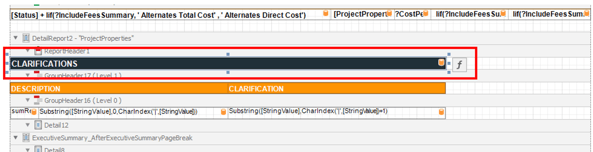
4. If you changed the page setup using the Report Previewer, continue to the next step. Otherwise, expand the right edge of the control to the right margin.

5. With the control selected, locate the Properties panel on the right side of your screen.
6. Using the tabs, switch to Behavior and set Anchor Horizontally = Both
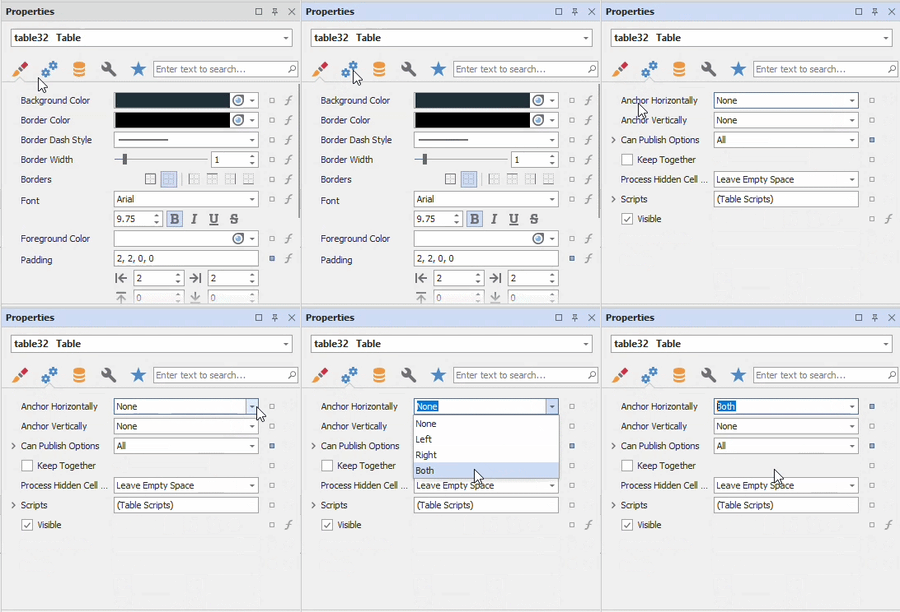
7. Repeat steps 3-6 for each control.
8. Save and run your report in DESTINI Cloud: Estimator
Control is Too Big
If your control falls off the page after resizing, you can apply the following steps.
1. Using either method above, identify which control is too big.

2. Open the report inside the Report Designer.
3. Inside the Designer, locate and select that control (typically a table)
If you changed the Page Settings inside the Designer, you will have a warning message inside the Report Design Analyzer panel at the bottom of your screen. Select the Source hyperlink to select and navigate directly to the affected control.
4. With the control selected, locate the Properties panel on the right side of your screen.
5. If you changed the page setup using the Report Previewer, continue to Step 7. Otherwise, shrink your control by reducing the Size - Width property.
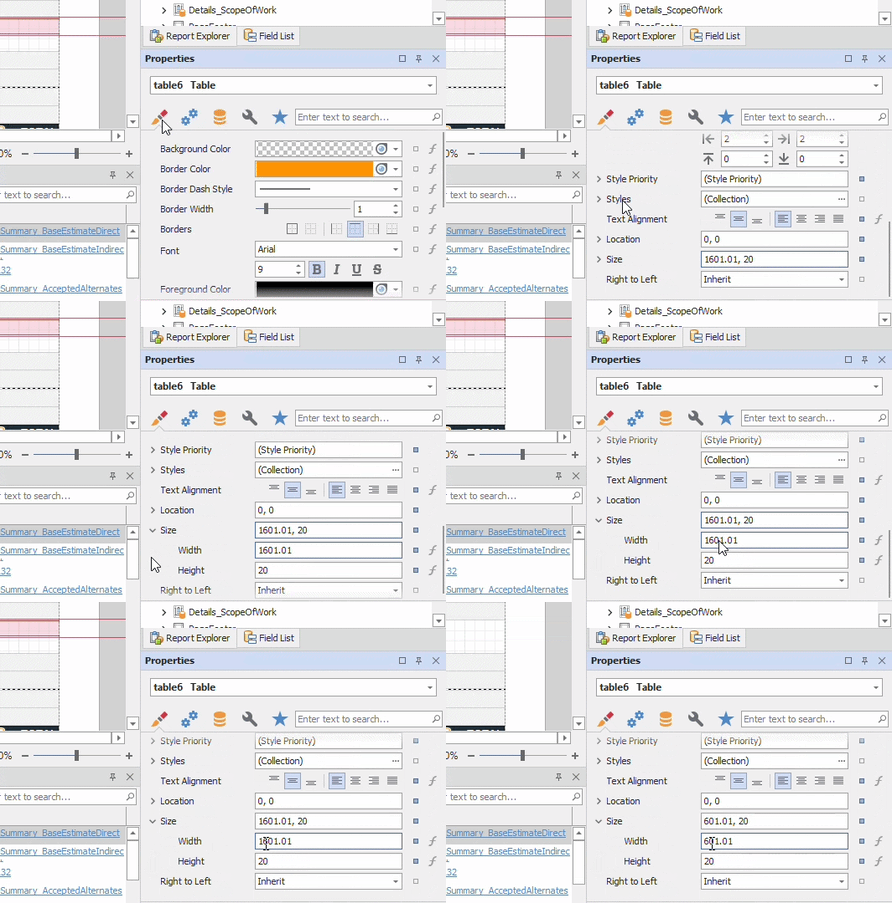
6. Inside the Designer, expand the right edge of the control to the right margin.
7. Inside the Properties panel, use the tabs to switch to Behavior and set Anchor Horizontally = Both
8. Repeat steps 3-7 for each control.
9. Save and run your report in DESTINI Cloud: Estimator
Suggest an Improvement for this Article