This article is for users who want to apply consistent colors and fonts across their reports.
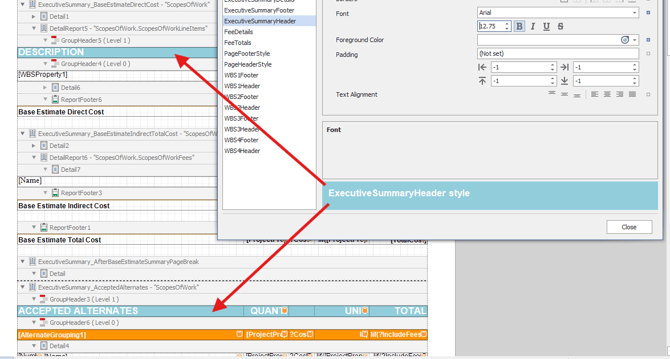
In our Standard Reports, we’ve streamlined this by using Styles. Each Style defines font settings—such as Arial, 9.75 pt, Bold—and is assigned to every text field in the new Standard Reports. By updating a single Style, you can instantly refresh multiple text fields at once. In this article, we’ll show you how to edit a Style so those changes automatically cascade through your report.
Steps
-
Open Report Designer.
- In Estimator, open an Estimate (any estimate, it doesn't matter which).
- Navigate to the Home View.
- In the main Ribbon, click on New Report...
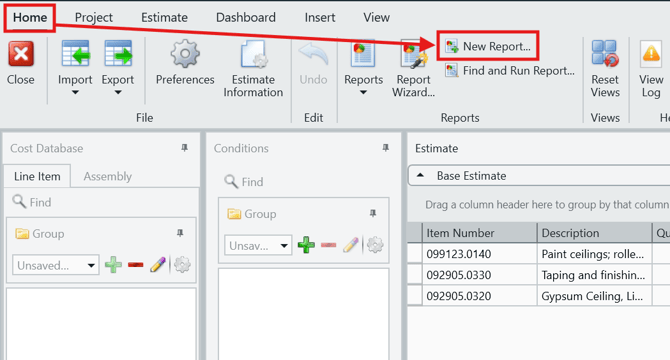
- Report Designer will be launched.
- In Report Designer, open your report template file.
- Click the Open button.
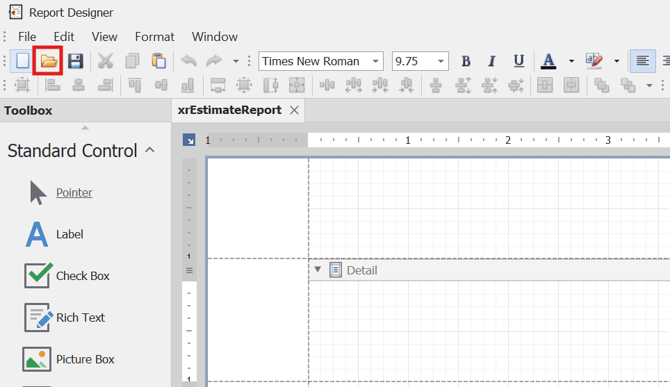
- Navigate to the location of the report template file (.repx) that you want to edit and open it.
- Click the Open button.
- Inside the Report Explorer on the right side of the screen, locate the Styles section
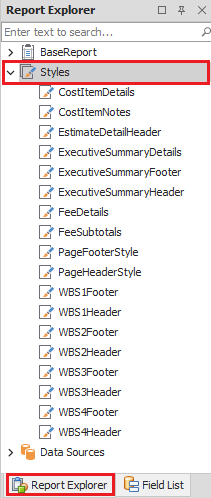
- Confirm which Style you need to edit:
- Right-click a Style in the list, and select Select Controls With Style.
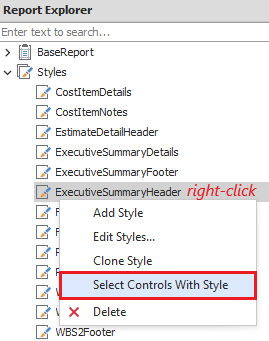
- This will select all the linked fields in the Designer section.
- This is a good way to confirm that the Style you picked is the correct one.
- Right-click a Style in the list, and select Select Controls With Style.
- Right-click the Style you want to modify and select Edit Styles.
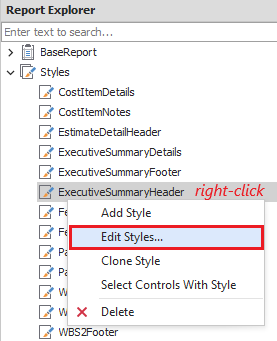
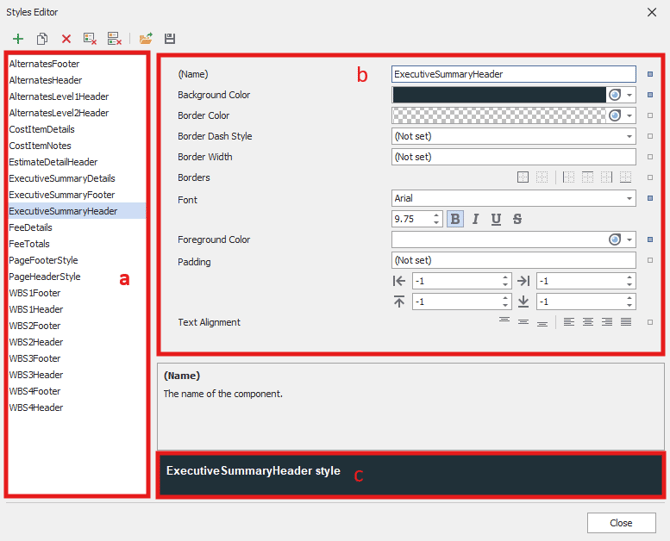
- In the Styles Editor window, change the appearance of that field using the following steps:
- Confirm the correct Style is selected on the left.
- Modify the Appearance fields in the main section, based on your company's branding.
- Preview your changes - style alterations are automatically applied to the Preview in this window.
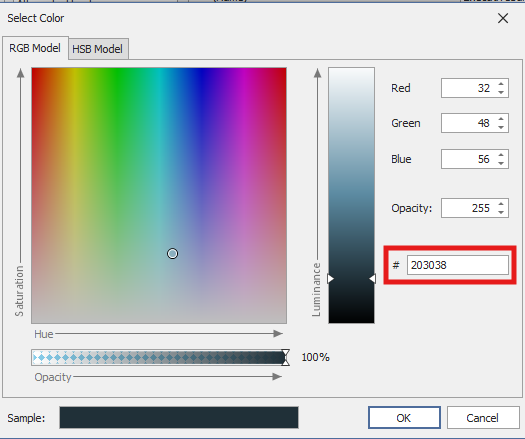
- Editing color: If you have a specific RGB or HEX code:
- Click the Background/foreground color field
- Go to the Custom tab and click More Colors...
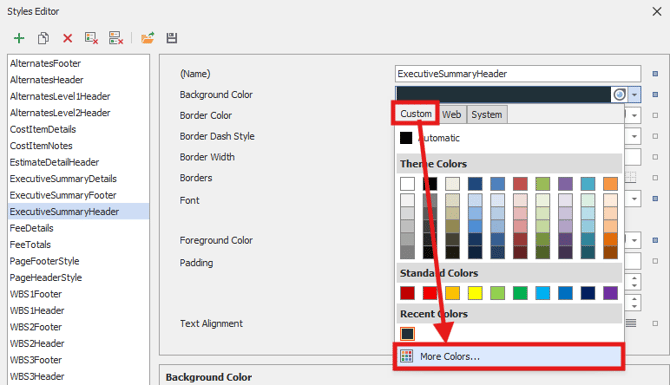
- Enter the HEX/RGB code in the # field.
- Close the Styles Editor.
- Confirm the changes you made are displayed correctly in the report fields.
- Repeat steps 5 and 6 for each Style you want to modify.
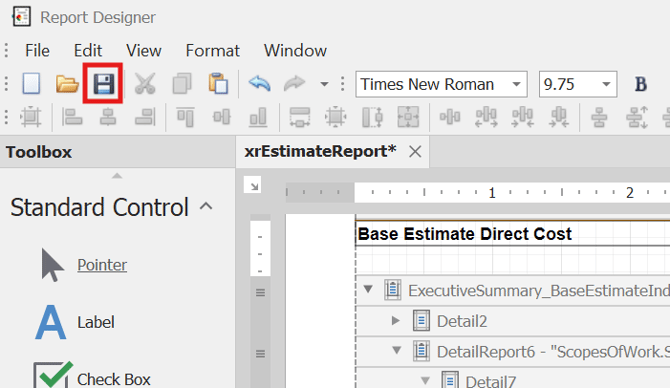
- Save your changes.