
Some fees, like overhead or profit, need to be based on the full estimate total. If you base one of these fees on Total, the fee's own amount becomes part of the total it's calculated from. That makes the fee compound on itself, so it comes out higher than you expect.
Assigning the Total Excluding Self cost basis to a fee fixes this. The fee still uses the estimate total as its base, but it leaves out its own amount. This gives you a more accurate starting point for these fees. Here's an example:
|
Estimate total |
Fee |
Cost basis |
Fee amount |
|---|---|---|---|
|
$100 |
10% |
Total |
$11.11 (the fee includes itself and compounds) |
|
$100 |
10% |
Total Excluding Self |
$10.00 (the fee leaves itself out) |
How the Calculation Works
Each time the estimate recalculates, a fee assigned the Total Excluding Self cost basis is calculated as follows:
(Current Total − This Fee's Current Value) × Fee Percentage
- Percent and Per Value fees: The fee's own amount is subtracted from the total before the rate is applied.
- Bond fees: The bond's own amount is subtracted from the base cost before the bond steps are applied. This means each step uses the reduced base.
This basis still depends on the estimate total, so other fees and changes to the total still affect a Total Excluding Self fee. The fee only ignores its own amount.
Supported Fee Types
|
Supported |
Not supported |
|---|---|
|
|
Lump Sum, Subtotal, and Running Total fees don't use a cost basis, so this option doesn't apply to them.
Reporting and Exports
- Dashboard: The fee type shows as % of Total Excluding Self.
- Estimate Data Lake export: The fee's basis is exported as Total Excluding Self.
- EV Reports and DX Reports: These show the fee type but not the cost basis, for any basis. This hasn't changed.
Bid Day integration
Fees that use Total Excluding Self are left out of Bid Day integration workflows. A fee that references a Total Excluding Self fee is left out too. Custom Direct, Cost Category, and Compounding bases work the same way.
How to Set a Fee's Cost Basis to Total Excluding Self
- Open an estimate in DESTINI Cloud Estimator.
- Navigate to Estimate > Fees.
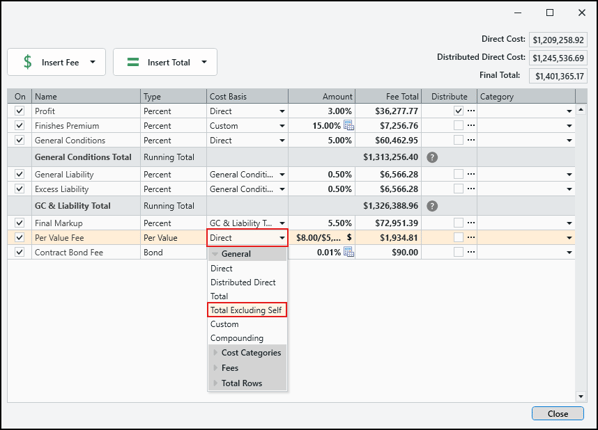
- Select a Percent, Per Value, or Bond fee you want to change, or add a new one.
- Open the Cost Basis dropdown.
- In the General section, select Total Excluding Self. The fee recalculates on its own.
Related articles