
When a new user encounters issues with logging into Bid Day, it can often point to a web browser login conflict, or an issue with one or more of their web browser settings. This article offers suggestions on which settings to adjust when troubleshooting login issues with Bid Day.
Web Browser Login Conflict
Being logged into your web browser can cause issues if the account that is signed in is different to the account used to log into Bid Day. When troubleshooting, we recommend signing out of the web browser login:
-
Chrome:
-
Click Profile
icon in the upper-right of the Chrome window.
-
Select Sign out.
-
- Microsoft Edge:
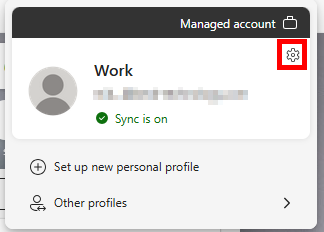
- Click on your profile image in the upper right corner.
- Click the Gear icon.
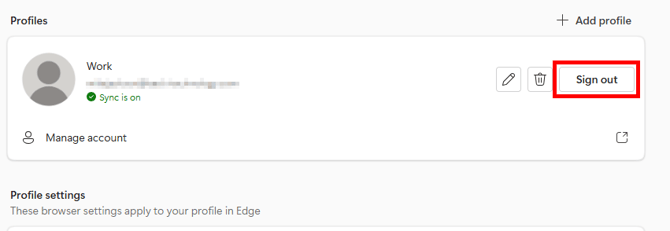
- Under Profiles, locate your account and click Sign out.
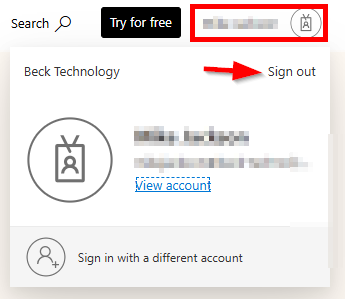
- Ensure that the user is not logged into any other Active Directory accounts. Go to office365.com and Sign out of all accounts not used to log into Bid Day.
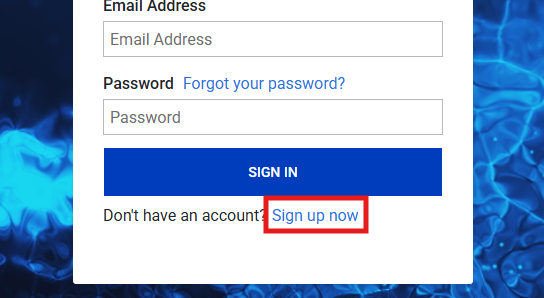
Once signed out, navigate to the Bid Day login screen and try running through the process of creating your account using the Sign Up Now option.
- If unable to create an account using this method due to Active Directory, proceed further in this article to edit the users browser settings.
Verify Browser Settings
Chrome:
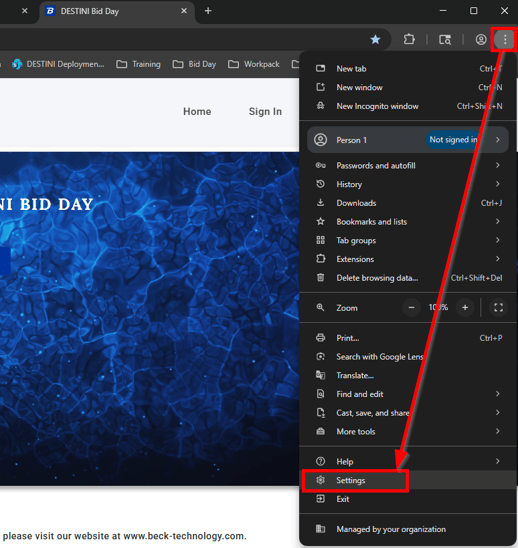
- Click the Ellipses and open Settings.
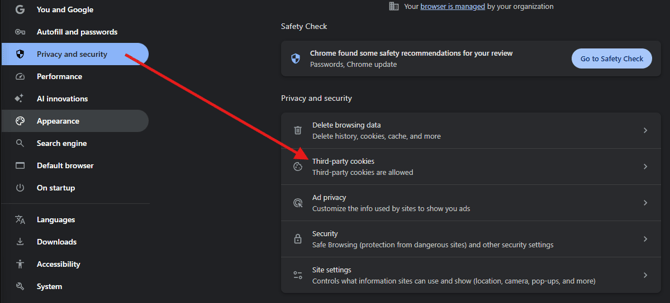
- Navigate to the Privacy and Security Tab in the left menu, and click on Third-party cookies.
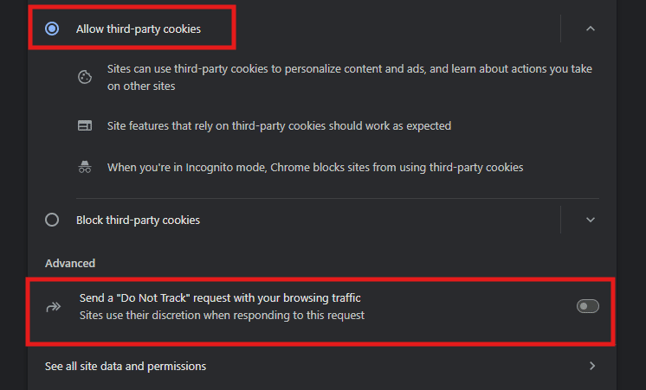
- Enable the Allow third-party cookies option.
- Disable the option to Send a "Do Not Track" request with your browsing traffic.
- Chrome users should "Allow third-party cookies" and disable 'Send a "Do not Track" request to browsing traffic'.
Edge:
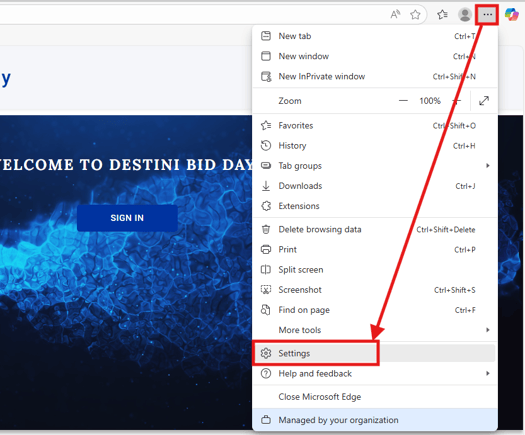
- Click the Ellipses in the upper right, and open Settings.
- Navigate to Privacy, search, and services, and select Privacy.
- Disable the 'Send "Do Not Track" requests' option.

- Navigate back to Privacy, search, and services, then select Cookies.
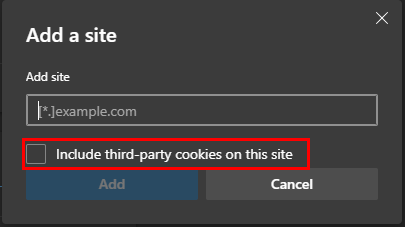
- Locate the Allowed to save cookies option and click on Add Site.
-
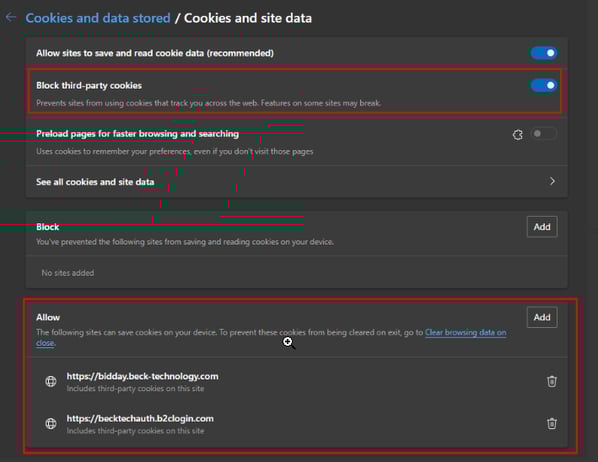
- Add each of the following URLs, clicking Add Site each time.
- When adding the URLs, check the Include third-party cookies on this site box.
- Enable Block third-party cookies.
-
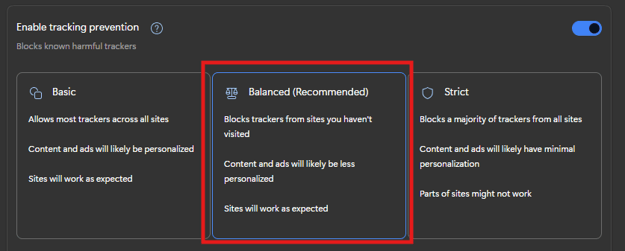
Go back to the Privacy, search, and services menu and click on Tracking Prevention.
-
Set Tracking Prevention to Balanced.
Firefox:
- Firefox users should enable Cookies and disable Send a "Do not Track" request to browsing traffic
- Firefox and Safari users are required to enable cross-site tracking or setup our Beck Tech URLs as exceptions. See URLs below.
If you're unable to access Bid Day after preforming these troubleshooting steps, please contact Beck Tech Support for further assistance.
Submit Your Suggestions to Help Improve This Article