
Accessing User Preferences
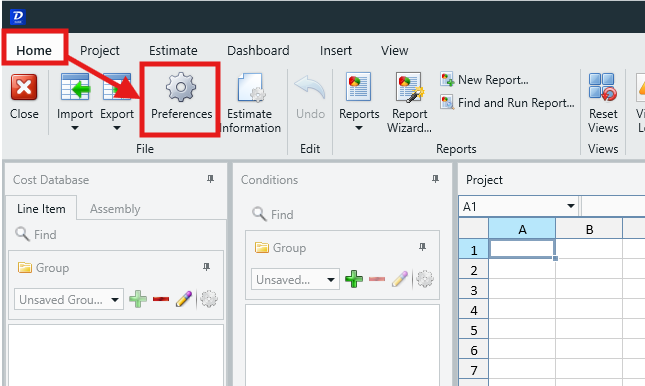
- Click the Preferences button in the main ribbon in the Home View:
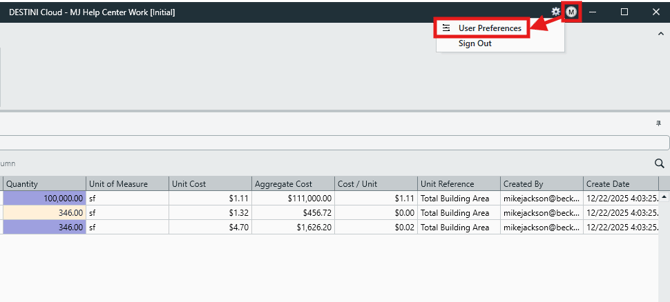
- Or, click on the User Menu button in the top-right of the Title Bar and select User Preferences. You may find this method more convenient since it's available at all times in any View.
User Preferences Overview
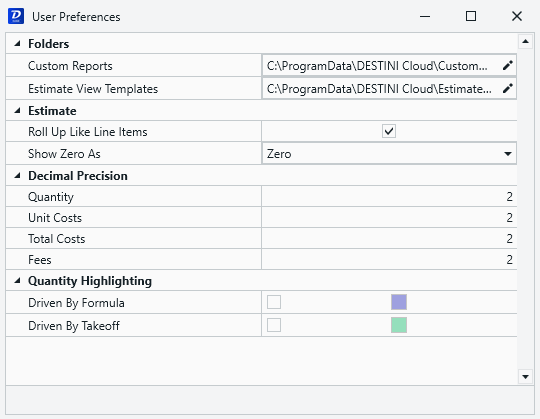
Folders
-
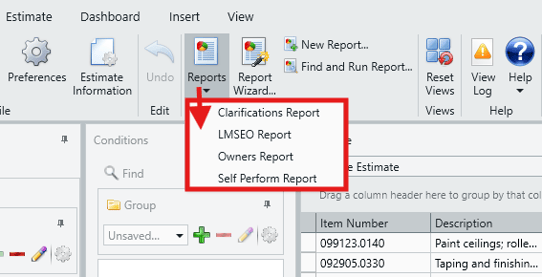
Custom Reports - Configures the file path to your banded report template files (.repx). You can either place your report template files into the default location shown, or you can click the pencil icon to change the filepath to a new location. Once set correctly, you will see your report files listed when you click the Reports button on the main ribbon in the Home View.
-
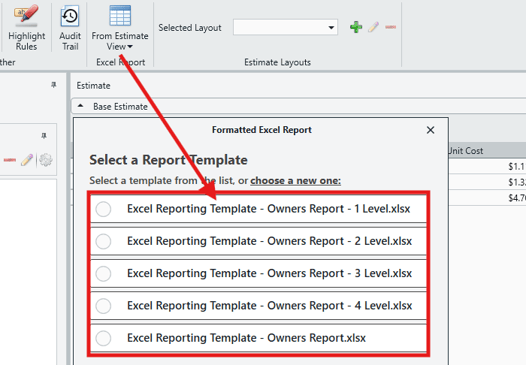
From Estimate View Reports - Configures the file path to your Formatted Estimate View Report template files (.xlsx). You can either place your EV report template files into the default location shown, or you can click the pencil icon to change the filepath to a new location. Once set correctly, you will see your EV report files listed when you click the From Estimate View button on the main ribbon in the Estimate View, and select Formatted Report.
Estimate
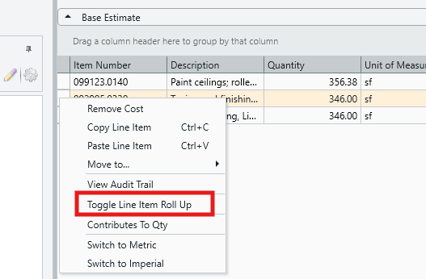
- Roll Up Like Line Items - You can choose whether or not your estimate will roll up line items in the Estimate View by default. Line Item Roll Up can also be easily toggled on and off in the Estimate View (right-click a line item and select Toggle Line Item Roll Up).
- Show Zero As - Choose to display Zeroes in Estimate View as Hyphens or Blanks instead. This is purely a visual change and doesn't affect calculations.
Decimal Precision
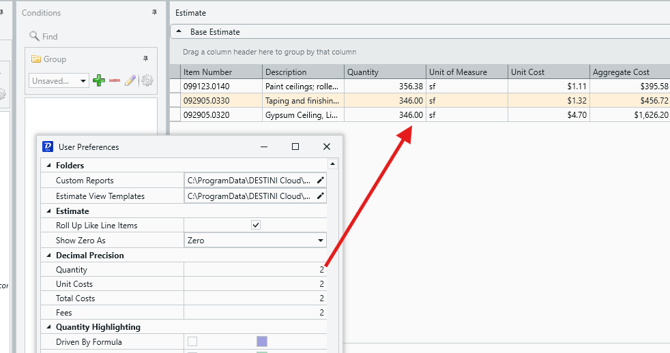
- Determine how many decimals points to display in the Estimate for Quantity, Unit Costs, Total Costs and Fees. Decimal range can be between 0 and 5. The default is 2. Reducing the decimal precision does not affect the accuracy of calculations - this is purely a visual preference.
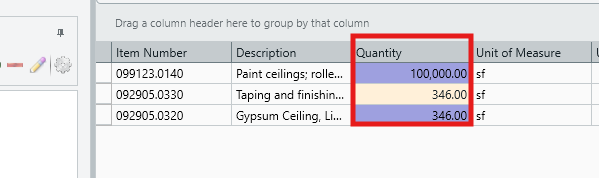
- Driven by Formula: Sets the highlight color for line items with formula-driven quantity.
- Driven by Takeoff: Sets the highlight color for line items with takeoff-driven quantity.
Submit Your Suggestions to Help Improve This Article