
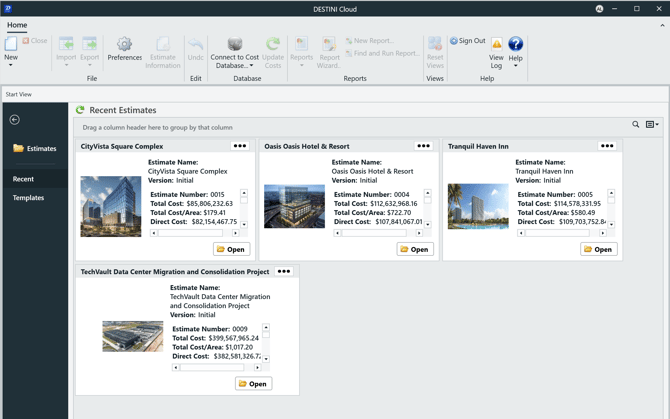
The Start Page of Estimator includes key project information on all of the projects being displayed. It opens natively to Recents which includes the estimates you last accessed. If you do not see an estimate you were in recently, click the Green arrow icon to refresh your Recent Estimates.
Start a New Estimate
To start an new estimate click Templates in the left-hand pane.
Click the New Estimate button on the card of the Estimate Template you wish to use.
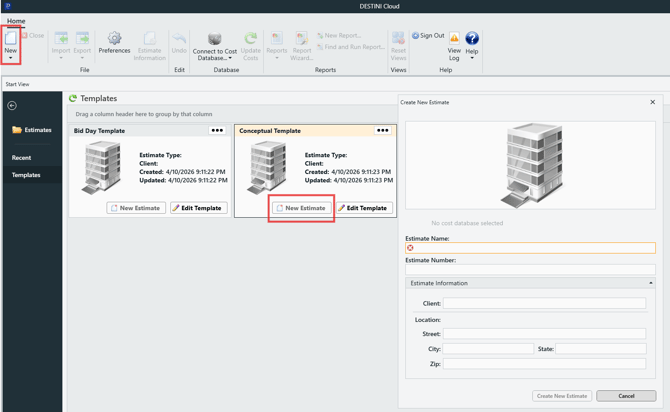
You may start an estimate from scratch by selecting New > Estimate in the ribbon; however, it will not include any Estimate Layouts, Project View or Dashboard View content. It will truly be a blank page.
Best practice is to always start from a Template to ensure your team has all of the tools needed for a successful estimate.
If you do not see an estimate in your Recent Estimates, and you've refreshed your Recent Estimates, then you may search for the Estimate.
Click on the Estimates folder in the left-hand pane of the Start page. Type in the number 2 for a wildcard to pull in the list of estimates. From here you can click on the list icon on the top-right of the screen just below the search box. Drag and drop the properties you wish to group the estimates by to have a view that is more easily navigable. 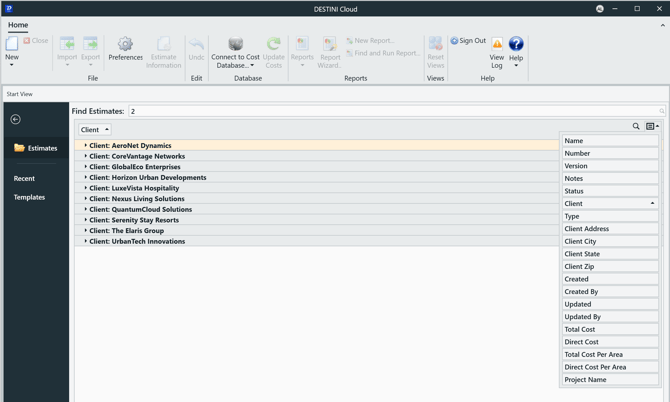
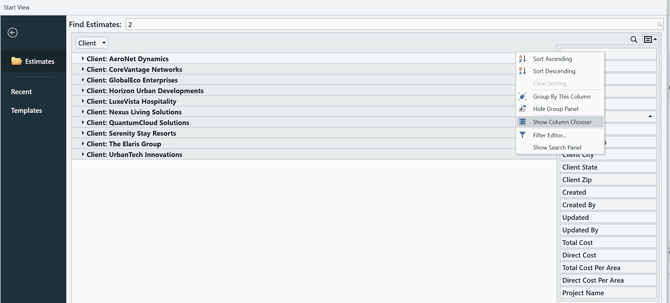
Note: If you drag off a column after grouping and don't see it from the list of Columns by clicking on the list icon, then that group is now in the Column Chooser.
Right-click on any of the columns and click Show Column Chooser, then drag that column back to the bucket.
Suggest an Improvement to this Article