
This article offers an overview of the Fee Editor in DESTINI Estimator. We will go over the basic features of the Fee Editor, along with the fee types and totals.
Fee Editor
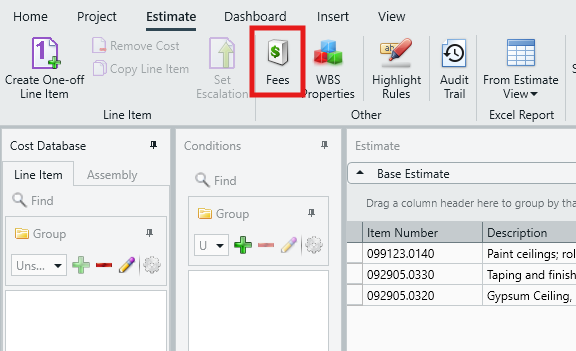
Open the Fee Editor via the Fees button in the the Estimate View main ribbon:
The Fee Editor helps estimates capture the full cost of doing business with fees and indirect costs such as overhead, profit, insurance, and more.
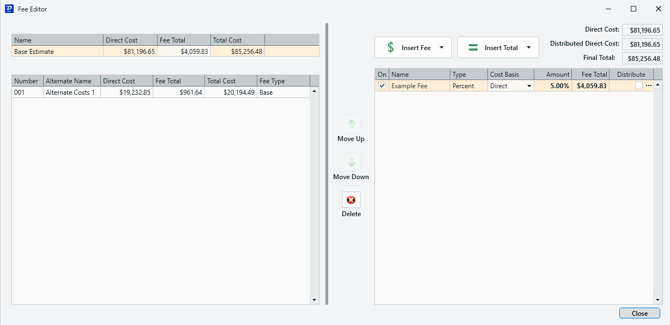
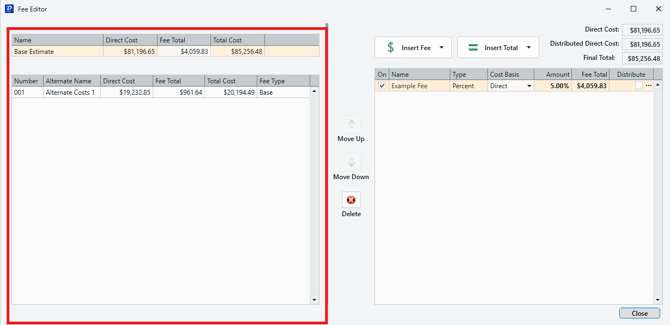
The left pane allows you to keep track how added fees affect the both your Base Estimate and each of the Alternates in the project. It shows the Fee Total, and the Total Cost after fees are applied, and is updated on the fly.
Fee Table - is where you will build your fees for the project.
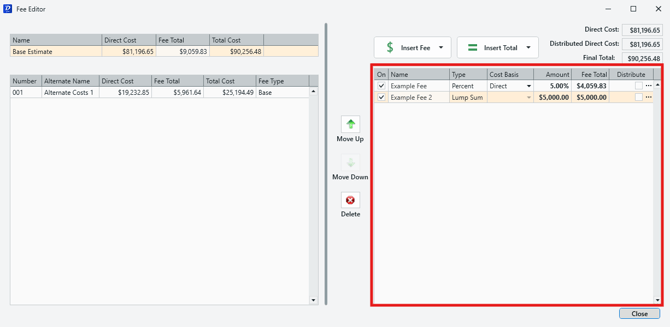
The Fee Table contains the following columns:
- On: Allows you to turn on/off fees, which is useful if you want to cancel the inclusion of a fee in the project, without deleting it completely.
- Name: The name of the fee - click to rename the fee.
- Type: Displays the fee type, which is determined at the point of fee creation - this cannot be changed.
- Cost Basis: The parameters upon which the fee calculation will operate. A Percent-type fee, for example, can be calculated based on the Direct, Distributed Direct and Total costs, a custom or compounding cost, another fee, row total or Cost category.
- The Custom Cost Basis lets you set custom fee criteria to adjust the application of fees to specific sets of line items and cost categories, ensuring greater control and accuracy over fees.
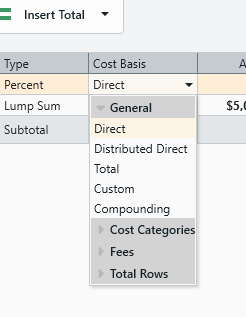
- The Custom Cost Basis lets you set custom fee criteria to adjust the application of fees to specific sets of line items and cost categories, ensuring greater control and accuracy over fees.
- Amount: Where you will set the percentage, or lump sum amount, that a fee will calculate.
- Fee Total: A clear view of how much each fee adds to the project total.
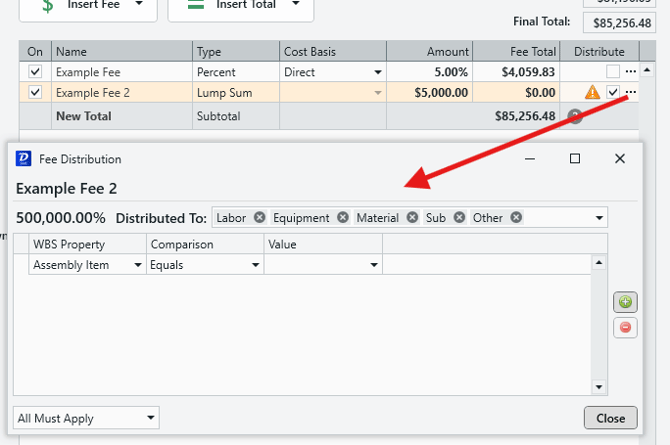
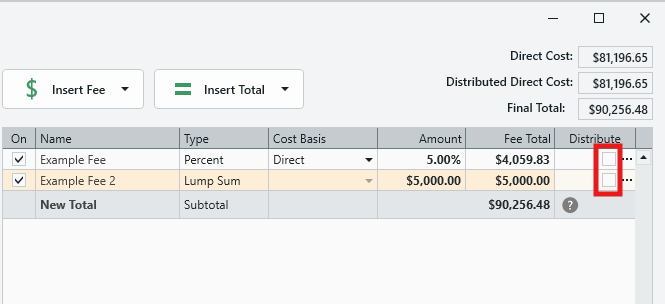
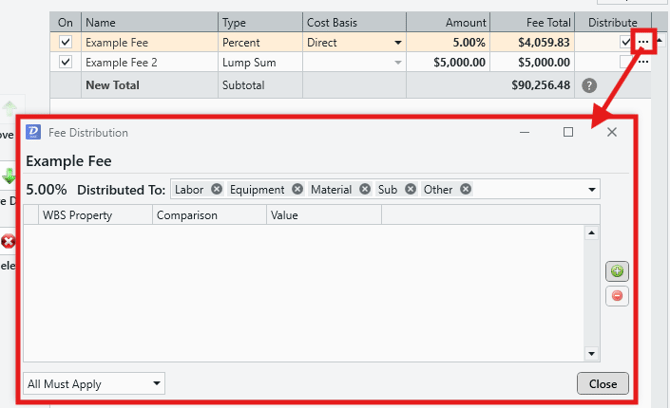
- Distribute: A checkbox option that allows you to distribute fees across one or more cost categories (labor, material, equipment, sub, other). Click the ellipses on the right to reveal the Fee Distribution window, where distribution conditions can be set (see below for more on the Fee Distribution window).
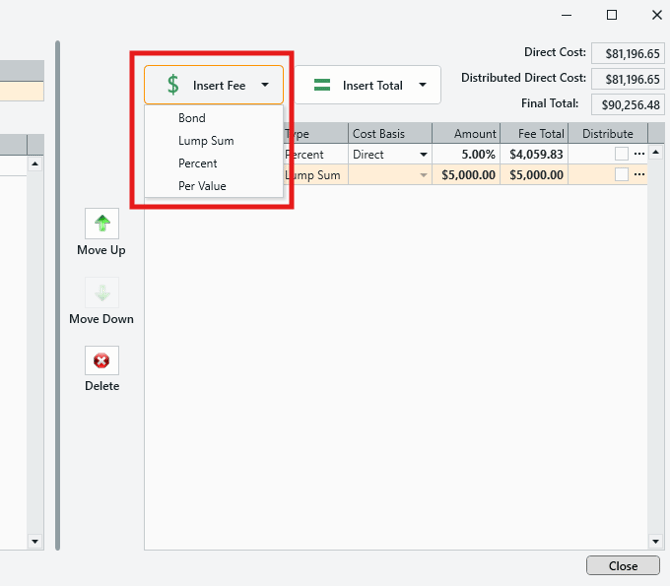
Insert Fee - Click this to add fees to the fee table. The fee type is determined at the point of adding the fee and this cannot be changed once the fee is added. Fee types include:
- Bond
- Lump sum
- Percent
- Per Value
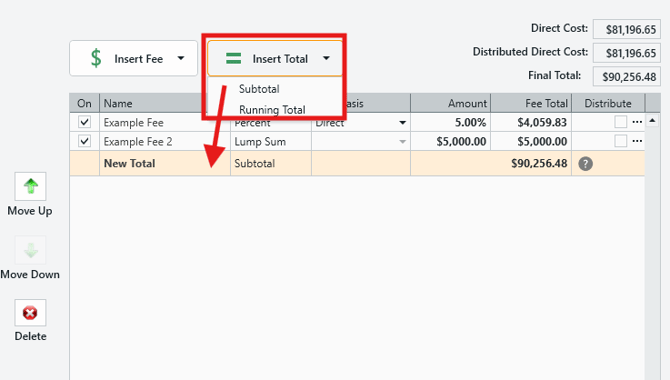
Insert Total - Lets you added a Subtotal or Running Total to your fee table. Totals can be renamed by clicking into the Name column.
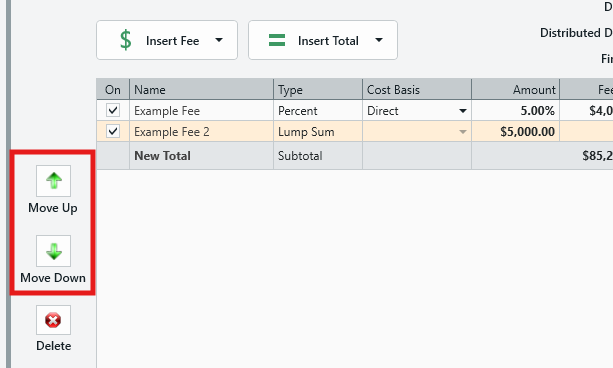
Move Up/Down Arrows: Allows you to move fees up and down in the table. This is important because fees are calculated from top-to-bottom.
Fee Distribution
Fees can be distributed across one or more cost categories via the Fee Distribution window. The tool also allows users to define custom criteria for distribution against specific WBS properties.
Distribute Checkbox: A fee can be distributed by checking the box in the Distribute column in the Fee Editor:
Fee Distribution Window: Click on the ellipses next to the Distribute checkbox to access the Fee Distribution window.
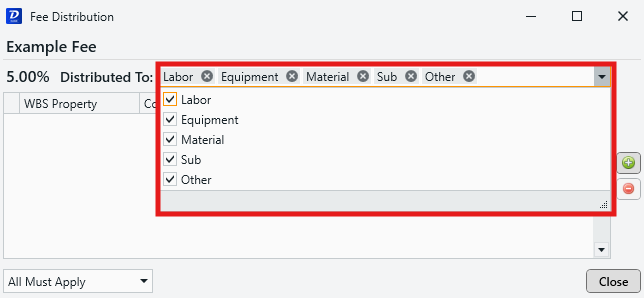
Distribute To: Determine which cost categories to distribute your fee to by adding/removing them from the dropdown field.
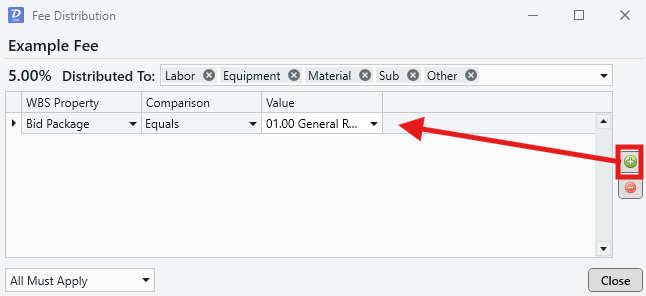
Distribution Criteria: Click on the '+' icon to added a custom criteria for fee distribution. This allows for tighter even tighter control over where your fee is distributed, be letting you to restrict distribution to a single standard or custom WBS (use the '-' icon to delete unwanted criteria).
NOTE: Distributed fees show up in the Burdened Cost columns, which are covered in the section below.
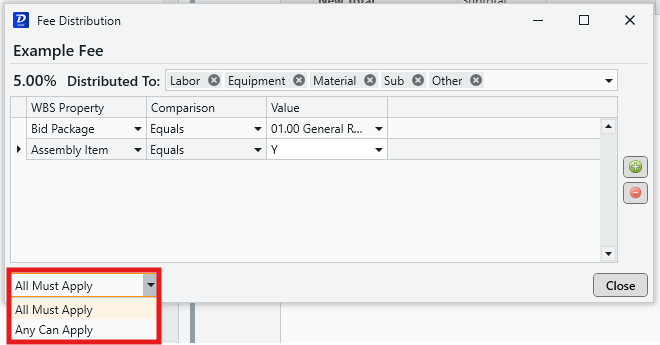
Application Rules: When you have more than one distribution criteria, it is important to set how these criteria are applied in the dropdown:
- All Must Apply: The fee is only distributed to line items that meet all of the listed criteria. Use this setting for a more restricted distribution method.
- Any Can Apply: The fee will be distributed to line items that meet any of the listed criteria. This is useful if you have several separate conditions that you'd like to specify for distribution.
Burdened Cost Columns
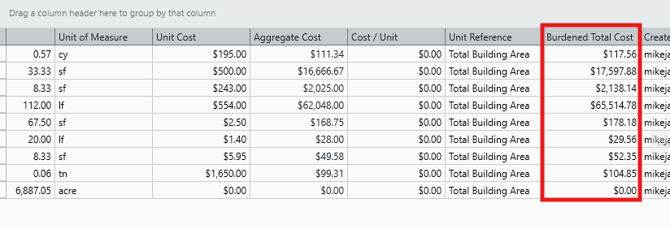
Users can monitor line item costs after fees have been added using the range of Burdened Cost cost columns available in the Estimate View.
Right-click on the column header and select Show Column Chooser:

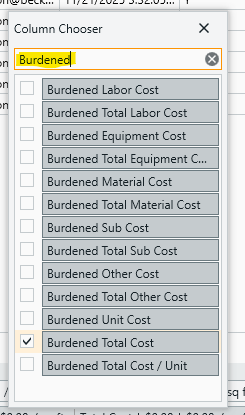
In the Column Chooser, search the word 'Burdened' for quick and easy access to the full selection of burdened cost columns available:
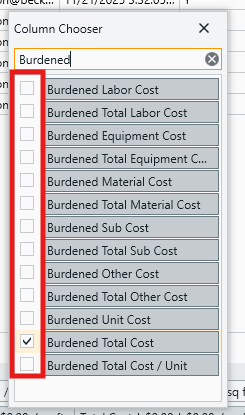
Check the boxes on the left to add the columns of your choosing.
Fee-affected costs will be displayed in these columns:
Submit Your Suggestions to Help Improve This Article