
DESTINI Bid Day uses a two-level permission model that controls both system access and project access. Understanding how these permissions work ensures that users have the appropriate level of access to manage projects, collaborate with team members, and maintain security across your organization.
Understanding Permission Levels
User access in DESTINI Bid Day is controlled through:
- License-level permissions configured on the User Permissions page.
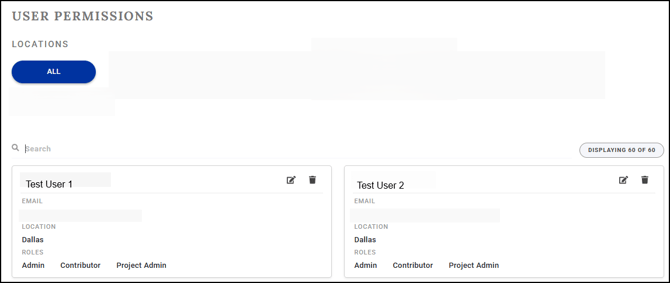
- Project-level permissions configured on the Edit Project page for each individual project.
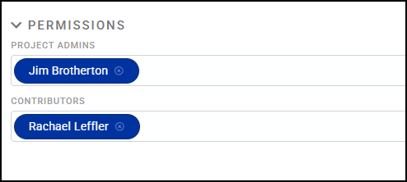
A user must have the appropriate permissions at both levels to fully participate in Bid Day projects.
Configure License-Level Permissions
License-level permissions determine what users can do across the entire Bid Day environment. Bid Day includes the following license-level permissions:
Admin
The Admin role is responsible for managing the overall Bid Day environment. Admins can:
- Configure system settings.
- Manage user access and permissions.
- Assign Admin, Project Admin, or Contributor roles to other users.
- Delegate administrative responsibilities to additional users.
The Admin role alone does not grant access to edit projects. An Admin must also be assigned as a Project Admin or Contributor within a project to actively participate in that project.
Project Admin
The Project Admin role provides elevated permissions for project management. Project Admins can:
- Create new projects.
- Invite users to participate in projects.
- Modify values on the Bid Summary page when a bid is not locked.
- Enable or disable alternates to evaluate their impact on bid results.
- Manage project participants and project settings.
Changes made to Bid Summary values are automatically recorded in the project audit history.
Contributor
The Contributor role is intended for users who actively work within projects. Contributors can:
- Access projects to which they have been assigned.
- Edit project data.
- Work on assigned Bid Packages.
- Collaborate with other project team members.
To assign or modify license-level permissions:
-
Log in to DESTINI Bid Day.
-
On the Home page, click the Gear icon in the upper right corner and then click User Permissions.
- Locate the user for whom you want to assign or edit permissions.
- Click the Edit icon in the user card.
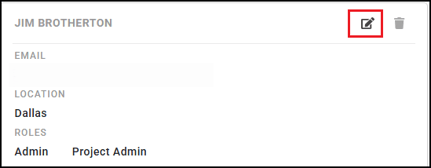
- Click the Roles field and select one or more roles.
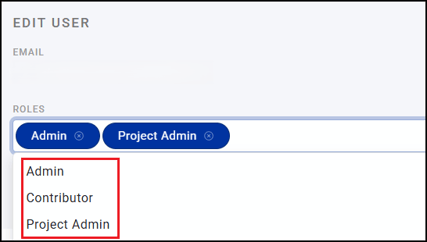
- Click Save.
Configure Project-Level Permissions
After assigning license-level permissions, you must also grant access within each project.
Project permissions are configured on the Edit Project page. Users who need to work within a project must be assigned as either a Project Admin or a Contributor for that specific project.
Project Admin (Project Level)
Users assigned as Project Admins within a project have full control of that project, including:
- Managing project participants.
- Making project-wide changes.
- Controlling bid-related settings.
- Reviewing and updating project data.
Contributor (Project Level)
Contributors can:
- Edit project information within assigned projects.
- Work on designated Bid Packages.
- Update bid information and supporting data.
Although Contributors can be assigned specific Bid Packages, this assignment does not restrict them from making changes elsewhere in the project if they have Contributor access.
To assign or modify project-level permissions:
-
Log in to DESTINI Bid Day.
-
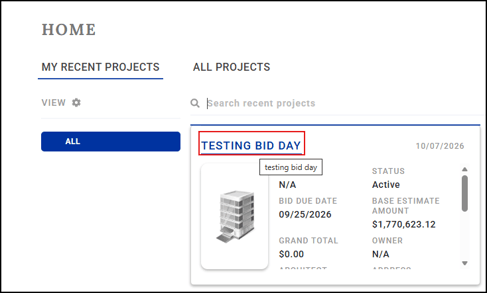
On the Home page, click the title of a project to open it.
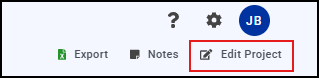
- In the upper right corner, click Edit Project. If you don't see this option, it means you are missing required permissions to edit the project. You must be an Admin in DESTINI Bid Day and have either Project Admin or Contributor permissions in the project.
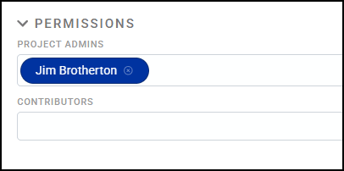
- Scroll to the bottom of the Edit Project page. In the Permissions section, click one of the fields and select a user from the list.
- Click Save.
Permission Requirements
The following table summarizes common permission scenarios:
|
User Goal |
Required Permission |
|
Manage system settings and users |
Admin |
|
Create new projects |
Project Admin |
|
Edit an existing project |
Project Admin or Contributor within that project |
|
Invite users to a project |
Project Admin |
|
Work on Bid Packages |
Contributor or Project Admin within the project |
|
Access a project as an Admin |
Admin plus Project Admin or Contributor assignment within the project |
Best Practices
- Assign at least two users the Admin role to prevent administrative access issues if a primary administrator leaves the organization.
- When creating a project, immediately assign additional Project Admins or Contributors as needed so team members can begin collaborating without delay.
- Review user permissions periodically to ensure access aligns with current project responsibilities.
- Grant the minimum permissions necessary to perform required tasks while maintaining project security.
Additional Notes
- User management and project access are controlled by your organization's designated Bid Day Administrators.
- Beck Technology Support cannot add users or assign users to projects on behalf of customers. User and project administration remains under the control of your organization's Admin users.
- Users who have license-level access but are not assigned as a Project Admin or Contributor within a project can view project information but cannot actively edit project content.