
If the Alternates Summary Dashboard is blank, one or more of the following conditions is true:
-
Line items are not assigned to an Alternate.
-
Alternate Status values are missing or incorrect.
-
Alternate Name or Status values do not exactly match the References sheet.
The dashboard does not calculate or infer Alternate information automatically; it only reports on data that already exists in the estimate.
Review Alternates in Estimate View
Navigate to Estimate View and open the Alternates panel.
In this scenario:
-
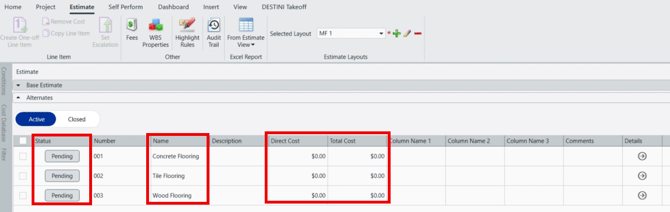
Multiple alternates are present
-
For example: Concrete Flooring, Tile Flooring, and Wood Flooring
-
-
All alternates are set to Pending
-
Direct Cost and Total Cost values are $0.00
-
Drilling into each alternate shows no line items
-
This confirms that alternates were created but do not yet contain line items.
How Line Items Are Added to Alternates
Line items can be added to alternates in one of two ways:
-
Adding items from the Cost Database while working inside a specific Alternate
-
Moving existing line items from the Base Estimate into an Alternate
The steps below outline moving line items from the Base Estimate.
Move Line Items from the Base Estimate
-
Return to the Base Estimate
-
In this example, identify Concrete line items
-
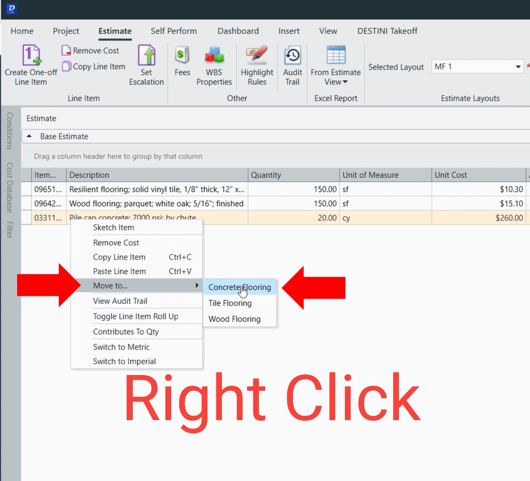
With the Estimate View select one or more line items
-
Right‑click the selection and choose Move To
-
Select the appropriate alternate (for example, Concrete Flooring)
-
Confirm the move when prompted
Verify Alternate Data
Open the Alternates panel again.
After the move:
-
The selected alternate now displays Direct and Total Cost values
This confirms the Alternate is correctly populated.

Repeat the same process to assign line items to the remaining Alternates.
Assign Alternate Statuses
After all alternates contain data, update their statuses as needed. For example:
-
Concrete Flooring → Accepted
-
Tile Flooring → Rejected
-
Wood Flooring → Pending
Alternate Status determines which column each alternate appears under on the dashboard.
Confirm Results on the Dashboard
Return to the Alternates Summary Dashboard.
The dashboard should now display:
-
All alternate names under Description
-
Costs populated under the appropriate Accepted, Pending, or Rejected columns
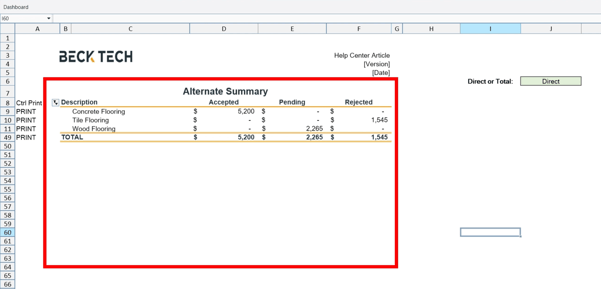
The dashboard updates automatically once valid alternate data exists as long as the automatic calculation is turned on. No manual refresh is required unless manual calculation is turned on.
References Sheet Considerations
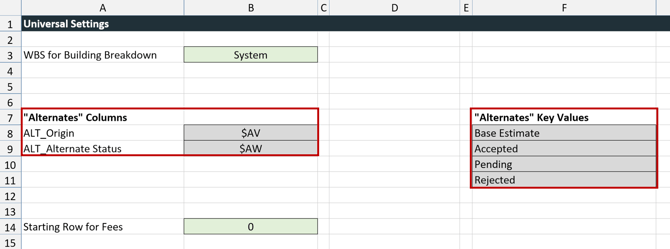
ALT_Alternate_Status and ALT_Origin values are automatically populated based on selections made in the Alternates module and are not manually entered on the References sheet.
Related articles: Dashboards
Suggest an Improvement to this Article