Alternates Summary Dashboard Overview
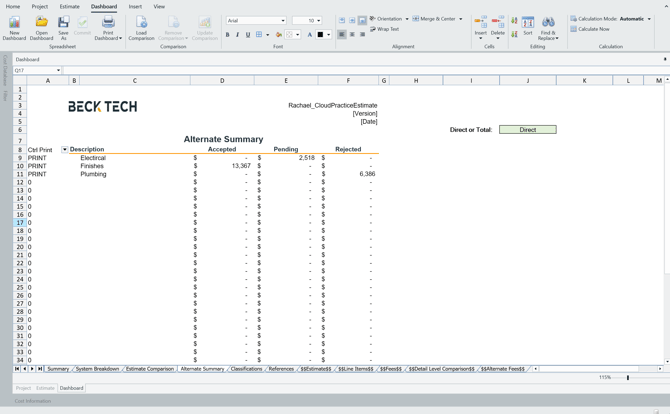
The Alternates Summary Dashboard displays all Alternates in the DESTINI Cloud estimate along with their assigned statuses. This dashboard provides a high‑level comparison of Alternates to help identify the overall impact each Alternate has on the estimate.
How Data Flows into the Alternates Summary Dashboard
The Alternates Summary Dashboard summarizes data that exists in the $$ sheets, which are populated directly from the Estimate View. As changes are made in the estimate, the data in these sheets, and subsequently the dashboard, updates automatically.
Data sources include:
-
Alternate cost items and associated WBS Properties from the Estimate View, which populate the $$Line Items$$ tab
-
Alternate fees, which populate the $$Alternate Fees$$ tab
Data from the $$ sheets is aggregated on the References tab and then reported on the Alternates Summary Dashboard.
Dashboard Layout
Header
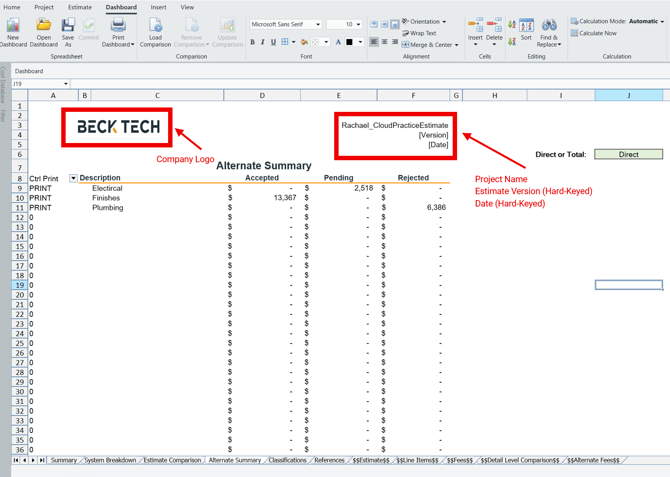
The Alternates Summary Dashboard header includes:
-
Company Logo
-
Project Name
-
Estimate Version
-
Date
Each field is directly linked to the corresponding cell in the Summary Dashboard, ensuring consistency across dashboards.
Alternate Summary
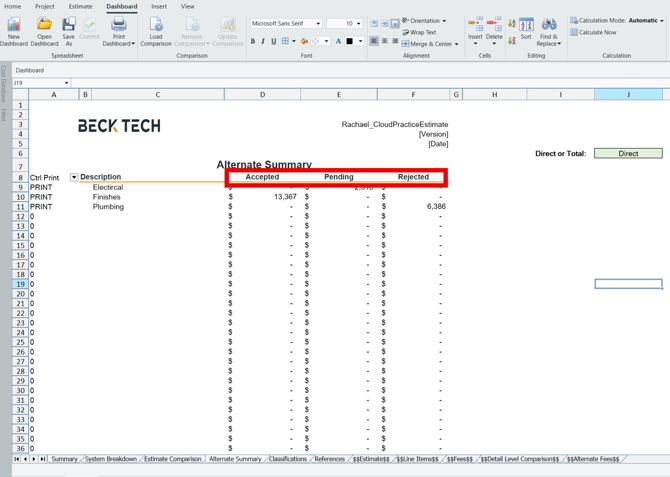
The Alternate Summary section lists each Alternate in the estimate in alphanumerical order.
-
The cost for each Alternate is displayed in the appropriate Accepted, Pending, or Rejected column
-
The column in which the cost appears is determined by the status assigned to the Alternate within the Estimate View
Cost Toggle
-
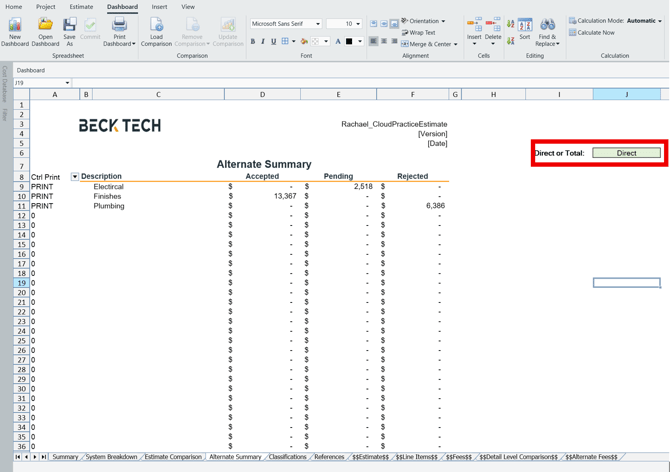
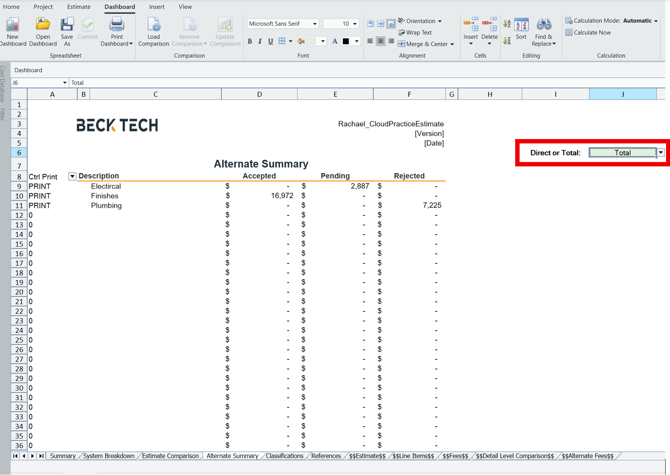
Cell J6 allows you to toggle between Direct Cost and Total Cost
-
When set to Direct, the dashboard displays the Distributed Direct Cost for each Alternate and does not include non‑distributed fees
-
-
-
When set to Total, the dashboard displays the Distributed Direct Cost plus all fees associated with the Alternate
-
-
By default, the toggle is set to Direct
-
Individual fees are not broken out per Alternate on this dashboard
The Total row represents the sum of all Alternates in the estimate, broken out by Alternate status.
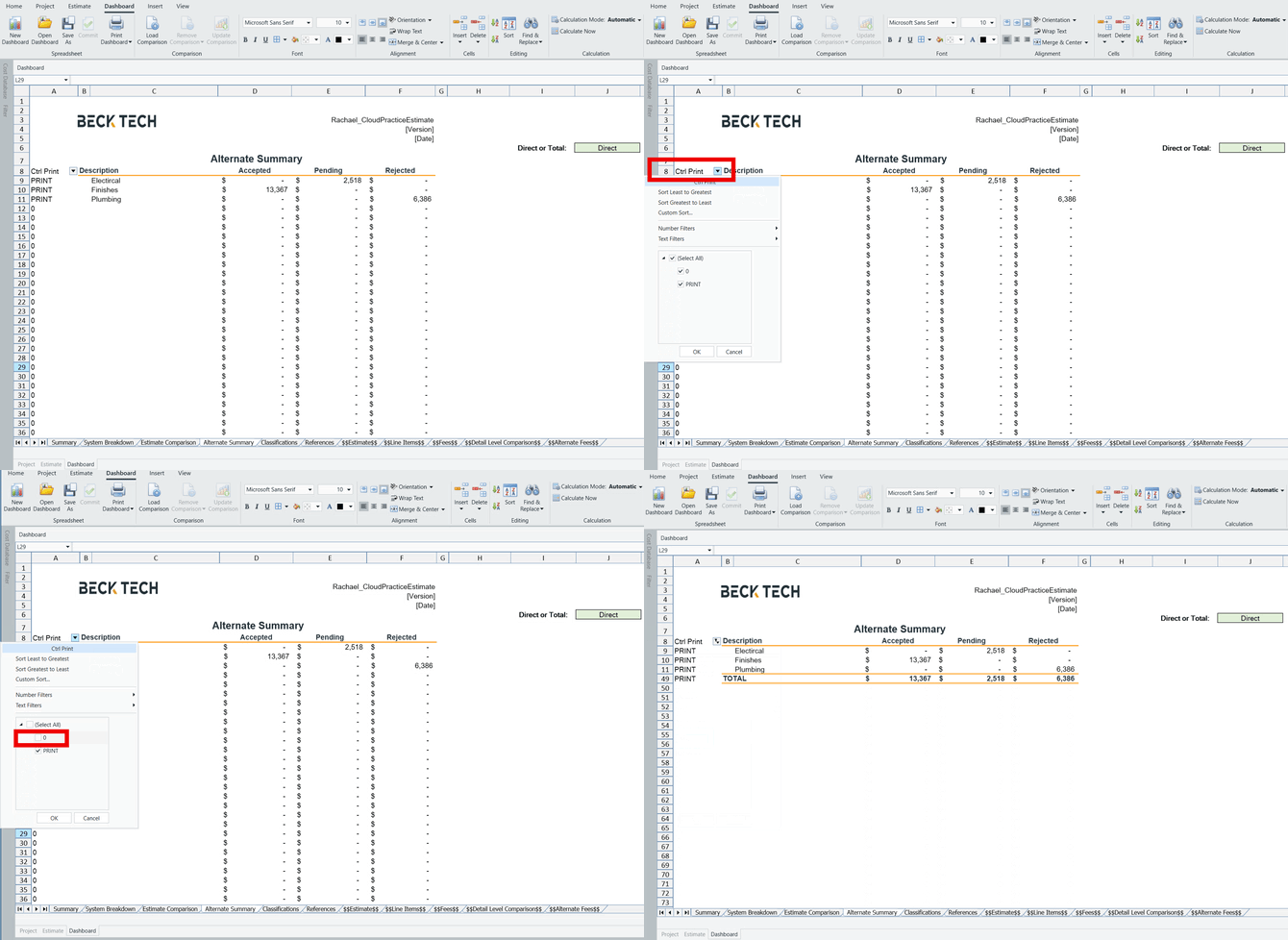
Ctrl Print Filter
The Ctrl Print filter is located in column A and allows you to filter out rows with a $0 value.
To use the filter:
-
-
Select the arrow in cell A6
-
Uncheck 0
-
Select OK
-